Microsoft Entra ID Single Sign-On
Configure NetBox Enterprise to authenticate users via Microsoft Entra ID (formerly Azure Active Directory) using OAuth 2.0. This guide covers basic SSO setup. For group-based permission assignment, see Entra ID Group Mapping.
Prerequisites
Before configuring Entra ID authentication, ensure you have:
Microsoft Entra ID Requirements:
- Azure subscription with Entra ID (formerly Azure AD)
- Permissions to create app registrations in Entra ID
- Test user account for validation (optional but recommended)
NetBox Enterprise Requirements:
- NetBox Enterprise v1.10 or later
- Admin console access (
https://<your-cluster-host-or-ip>:30000/) - HTTPS configured for production deployments
- NetBox Enterprise URL (used for redirect URI configuration)
Understanding the Redirect URI
The redirect URI is where Entra ID sends users after authentication. NetBox Enterprise uses the following pattern:
https://<your-netbox-domain>/oauth/complete/azuread-oauth2/
This URI must:
- Use HTTPS in production (HTTP only allowed for localhost testing)
- Match exactly what you configure in Entra ID (including the trailing slash)
- Be accessible from user browsers
Microsoft Entra ID Configuration
Step 1: Create App Registration
- Sign in to the Microsoft Entra admin center
- Navigate to Identity > Applications > App registrations
- Click New registration
- Configure the application:
- Name: NetBox Enterprise (or your preferred name)
- Supported account types: Accounts in this organizational directory only (Single tenant)
- Redirect URI:
- Platform: Web
- URI:
https://<your-netbox-domain>/oauth/complete/azuread-oauth2/
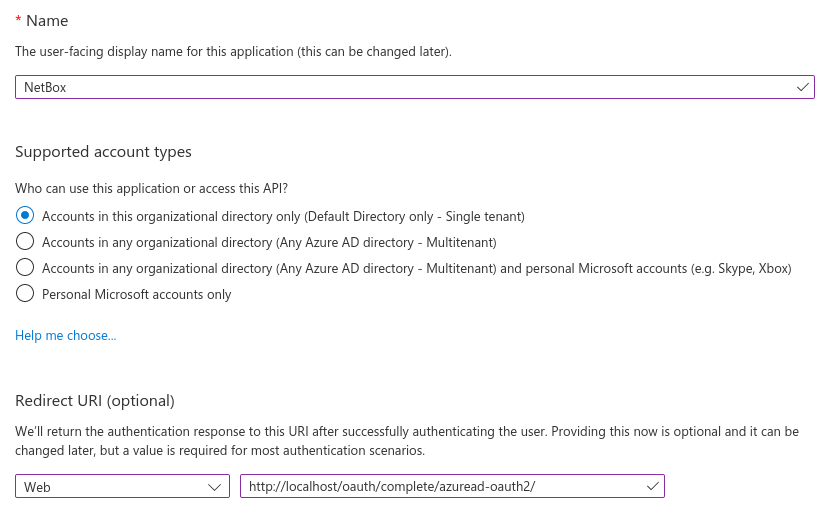
- Click Register
Step 2: Note Application Identifiers
After registration, note the following values from the Overview page:
- Application (client) ID: Used in NetBox configuration as
SOCIAL_AUTH_AZUREAD_OAUTH2_KEY - Directory (tenant) ID: Used in NetBox configuration as
SOCIAL_AUTH_AZUREAD_OAUTH2_TENANT_ID
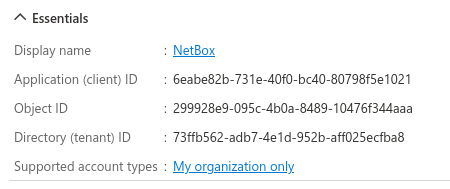
Step 3: Create Client Secret
- In your app registration, navigate to Certificates & secrets
- Select the Client secrets tab
- Click New client secret
- Configure the secret:
- Description: NetBox Enterprise (optional)
- Expires: Select appropriate expiration period for your security requirements
- Click Add
- Copy the Value (not the Secret ID) immediately
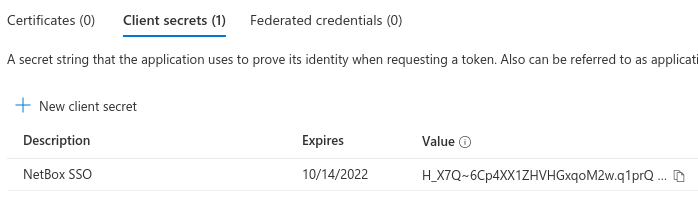
Important: The secret value is only displayed once. Store it securely. If you lose it, you must generate a new secret.
Step 4: Configure Token Claims (Optional)
For group-based access control (covered in Group Mapping), configure optional claims:
- Navigate to Token configuration in your app registration
- Click Add optional claim
- Select ID token type
- Add the
groupsclaim - Check Turn on the Microsoft Graph groups claim
- Select Security groups or All groups based on your requirements
NetBox Enterprise Configuration
Accessing Configuration
- Access the admin console at
https://<your-cluster-host-or-ip>:30000/ - Navigate to the Config tab
- Enable Show Advanced Settings
- Locate the NetBox Python Configuration Overrides section
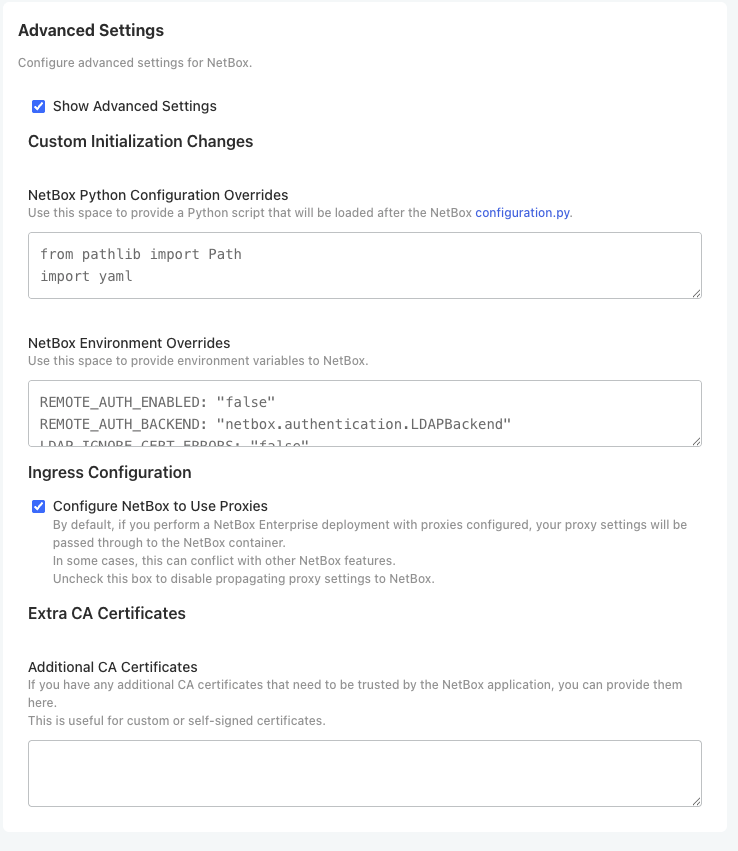
Adding Entra ID Configuration
Add the following configuration, replacing the placeholder values:
REMOTE_AUTH_BACKEND = 'social_core.backends.azuread.AzureADOAuth2'
SOCIAL_AUTH_AZUREAD_OAUTH2_KEY = '<application-id>'
SOCIAL_AUTH_AZUREAD_OAUTH2_SECRET = '<client-secret-value>'
SOCIAL_AUTH_AZUREAD_OAUTH2_TENANT_ID = '<tenant-id>'
Configuration parameters:
REMOTE_AUTH_BACKEND: Specifies the authentication backend (do not modify)SOCIAL_AUTH_AZUREAD_OAUTH2_KEY: Application (client) ID from Step 2SOCIAL_AUTH_AZUREAD_OAUTH2_SECRET: Client secret value from Step 3SOCIAL_AUTH_AZUREAD_OAUTH2_TENANT_ID: Directory (tenant) ID from Step 2
Deploying Configuration
- Scroll to the bottom of the Config page
- Click Save config
- Click Go to updated version when prompted
- Click Deploy to apply changes
- Wait for NetBox Enterprise to reach Ready state
Configuration changes require application restart. Existing user sessions remain active during deployment.
Testing Authentication
Initial Login
- Open NetBox Enterprise in a browser
- Log out if currently authenticated
- Click Log In at the top right
- Verify the login page displays an option to authenticate using Entra ID
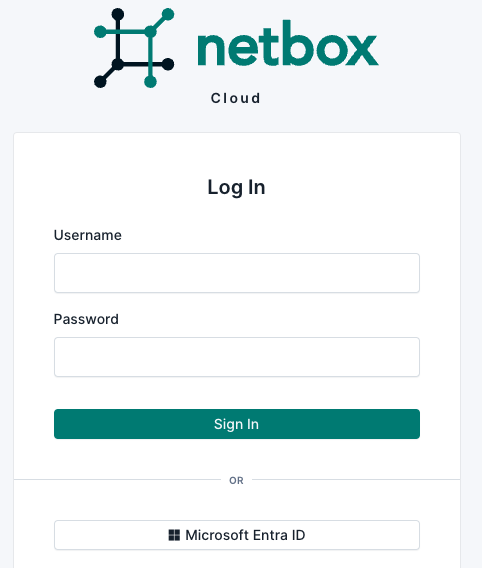
- Click the Entra ID authentication link
- You will be redirected to Microsoft's authentication portal
- Enter your Entra ID credentials
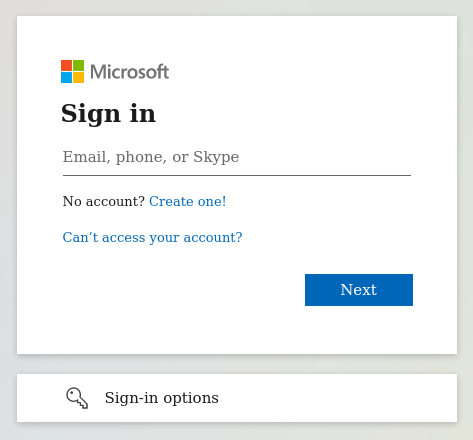
- You may be prompted to grant NetBox Enterprise access to your profile
- After successful authentication, you will be redirected to NetBox
Verifying User Creation
After first login:
- Verify you are logged in by checking the username at the top right
- Navigate to your user profile (click your username, select Profile)
- Verify your user details match your Entra ID account
Users are automatically created in NetBox on first login. The local user account is linked to the Entra ID account for subsequent authentications.
Assigning Permissions
New users have no permissions by default. To assign permissions:
- Navigate to Admin > Authentication > Users (requires admin access)
- Locate the Entra ID user
- Assign appropriate groups or individual permissions
- Set Staff status if the user needs admin panel access
- Set Superuser status if the user needs full system access
For automatic permission assignment based on Entra ID groups, configure Group Mapping.
Multitenant Authentication
NetBox Enterprise supports multitenant authentication for organizations using multiple Entra ID tenants. This requires a different backend configuration.
Multitenant backend:
REMOTE_AUTH_BACKEND = 'social_core.backends.azuread_tenant.AzureADTenantOAuth2'
SOCIAL_AUTH_AZUREAD_TENANT_OAUTH2_KEY = '<application-id>'
SOCIAL_AUTH_AZUREAD_TENANT_OAUTH2_SECRET = '<client-secret-value>'
SOCIAL_AUTH_AZUREAD_TENANT_OAUTH2_TENANT_ID = '<tenant-id>'
When creating the app registration, select Accounts in any organizational directory (Any Azure AD directory - Multitenant) instead of single tenant.
For detailed multitenant configuration, refer to the Python Social Auth documentation.
Troubleshooting
Redirect URI Mismatch
Symptoms:
- Error message: "AADSTS50011: The redirect URI specified in the request does not match the redirect URIs configured for the application"
- Redirected to Entra ID error page
Resolution:
-
Verify the redirect URI in Entra ID app registration exactly matches:
https://<your-netbox-domain>/oauth/complete/azuread-oauth2/ -
Common issues:
- Missing trailing slash
- HTTP instead of HTTPS
- Incorrect domain or path
- Extra whitespace in configuration
-
After correcting the redirect URI in Entra ID, wait a few minutes for changes to propagate
Not Logged In After Authentication
Symptoms:
- Redirected back to NetBox after successful Entra ID authentication
- Not logged into NetBox
- No error message displayed
Resolution:
-
Verify the backend configuration:
- Check that
REMOTE_AUTH_BACKENDis set to'social_core.backends.azuread.AzureADOAuth2' - For single-tenant apps only (not multitenant)
- Check that
-
Verify credentials are correct:
- Application (client) ID matches Entra ID
- Client secret is the secret value (not the secret ID)
- Tenant ID is correct
-
Check NetBox logs for authentication errors:
kubectl logs <netbox-pod> -n kotsadm | grep -i "azure\|auth"
Client Secret Expired
Symptoms:
- Authentication worked previously but now fails
- Error in logs: "invalid_client" or "secret expired"
Resolution:
- Generate a new client secret in Entra ID (Step 3)
- Update NetBox configuration with the new secret value
- Deploy the updated configuration
Prevention: Set calendar reminders before secret expiration to rotate secrets proactively.
HTTPS Required Error
Symptoms:
- Error: "redirect_uri must be HTTPS"
- Occurs when using HTTP redirect URI
Resolution:
Production environments require HTTPS. Configure TLS for NetBox Enterprise. See TLS and Ingress Configuration.
Exception: Localhost testing with HTTP redirect URIs using localhost or 127.0.0.1 addresses is allowed for development.
Security Considerations
Client Secret Management
- Store client secrets securely in NetBox configuration (encrypted at rest)
- Rotate secrets before expiration
- Use appropriate expiration periods (shorter for high-security environments)
- Revoke secrets immediately if compromised
User Provisioning
- Users are automatically created on first login
- Accounts cannot be deleted via Entra ID (must be disabled in NetBox)
- Consider implementing automated deprovisioning processes for terminated employees
Session Management
NetBox session timeout is independent of Entra ID token expiration. Users must re-authenticate when their NetBox session expires, not when Entra ID tokens expire.
Related Documentation
- Entra ID Group Mapping - Configure group-based access control
- OpenID Connect (OIDC) SSO - Alternative OAuth 2.0 configuration
- SAML Single Sign-On - Alternative SSO method using SAML 2.0
- TLS and Ingress Configuration - Configure HTTPS for NetBox Enterprise