Microsoft Entra ID Group Mapping
Configure automatic permission assignment based on Microsoft Entra ID group membership in NetBox Enterprise
Group mapping lets you manage NetBox Enterprise permissions centrally in Entra ID instead of assigning them user by user. When you update group membership in Entra ID, those changes sync to NetBox automatically, so access stays consistent as employees join, change roles, or leave.
If you already use Entra ID for your NetBox Enterprise deployment, you can set up group mapping by creating groups and permissions in NetBox, then creating matching groups in Entra ID.
For more information, see Configure group claims for applications by using Microsoft Entra ID.
Prerequisites
Before you begin, set up Microsoft Entra ID SSO for your NetBox Enterprise deployment.
You must have:
- NetBox Enterprise v1.10 or later
- Admin console access in NetBox Enterprise
- Appropriate permissions for groups and app registrations in Entra ID
Entra ID configuration
Open the Microsoft Entra admin center.
You must be logged in with a user who has access to view group memberships.
Grant API permissions
NetBox Enterprise uses the Microsoft Graph API to retrieve group information.
- Find the NetBox Enterprise app registration you previously created.
- Click API Permissions on the left.
- Verify the User.Read permission is present (added by default).
- Click Add a permission.
- Select Microsoft Graph and then Delegated permissions.
- Locate and select the GroupMember > GroupMember.Read.All permission.
- Click Add permissions.
If prompted, grant admin consent for your organization.
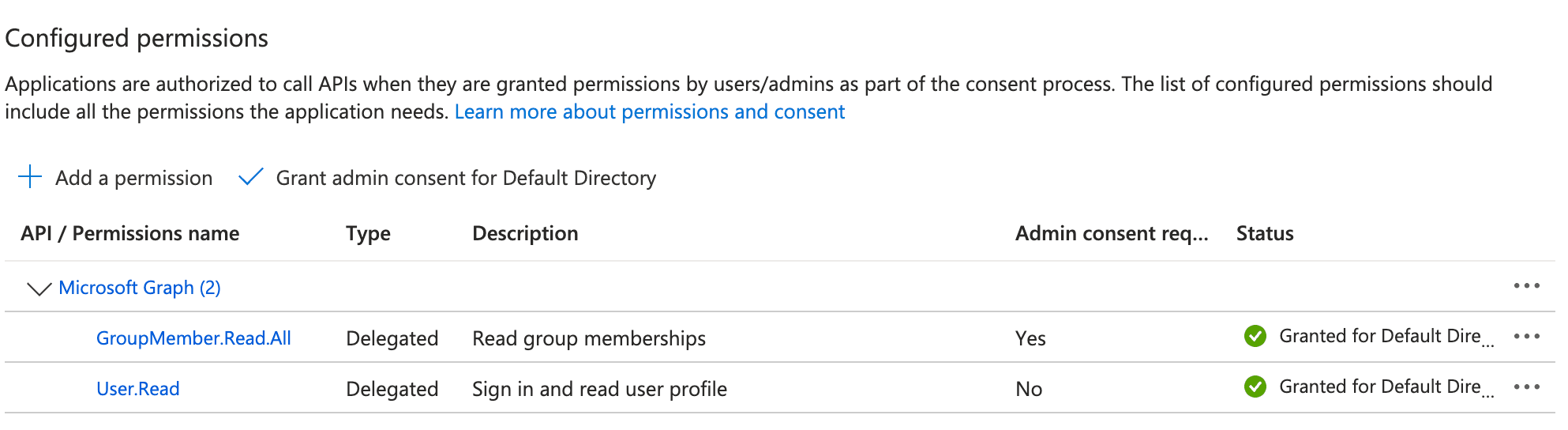
The permission type must be Delegated
Group mapping queries the Graph API with the signed-in user's token, and Graph does not accept application permissions on the endpoints it uses. If GroupMember.Read.All is granted as an Application permission, the Graph request is refused and the login fails outright rather than simply returning no groups. The Entra admin center shows a granted application permission with the same green tick as a delegated one, so check the Type column reads Delegated.
Retrieve group object IDs
Microsoft Entra ID group mapping uses object IDs (GUIDs), not display names. Object IDs are stable identifiers that do not change when group names are updated.
- Select Entra ID > Groups in the left menu.
- Create a group or identify an existing group you want to use.
- Select All groups and then copy the Object ID for the group.
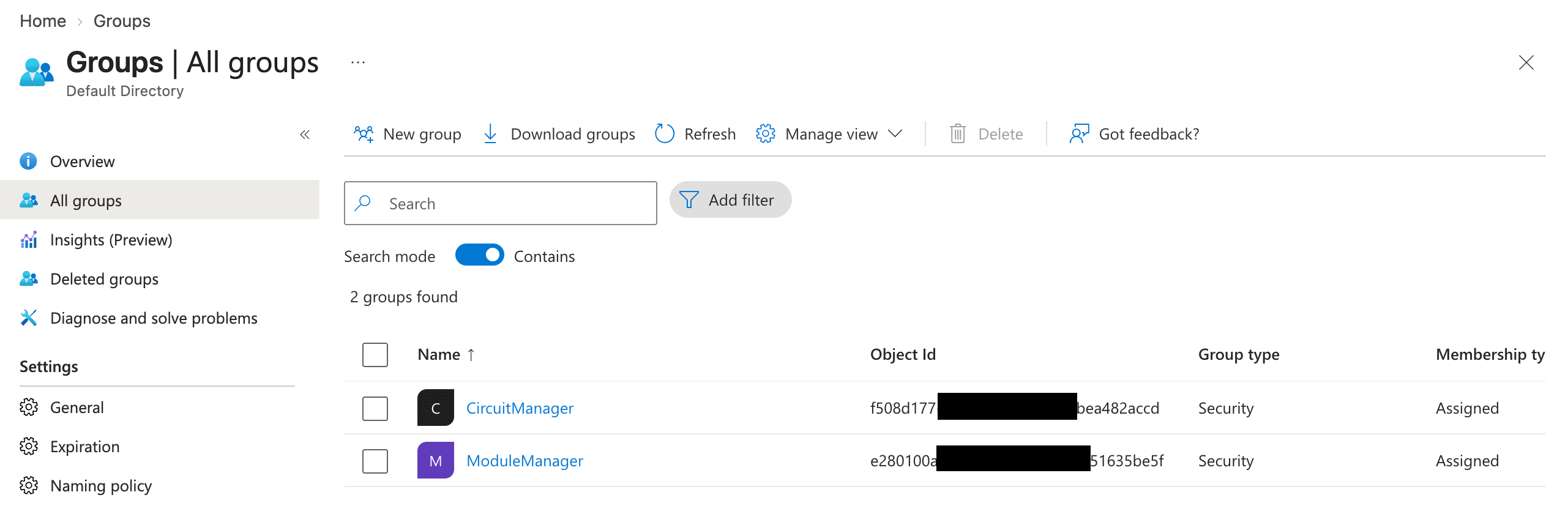
You will use the Object ID to map the Entra ID group to the NetBox Enterprise group.
NetBox Enterprise configuration
Open your admin console at https://<your-cluster-host-or-ip>:30000/ and select the Config tab.

Enable Show Advanced Settings and locate the NetBox Python Configuration Overrides section.
Add the following configuration, including both basic SSO settings and group mapping configuration:
# Basic SSO authentication
REMOTE_AUTH_BACKEND = 'social_core.backends.azuread.AzureADOAuth2'
SOCIAL_AUTH_AZUREAD_OAUTH2_KEY = '<application-id>'
SOCIAL_AUTH_AZUREAD_OAUTH2_SECRET = '<client-secret-value>'

# Microsoft Graph API access (required for group mapping)
SOCIAL_AUTH_AZUREAD_OAUTH2_RESOURCE = 'https://graph.microsoft.com/'

# Authentication pipeline with group mapping
SOCIAL_AUTH_PIPELINE = (
    'social_core.pipeline.social_auth.social_details',
    'social_core.pipeline.social_auth.social_uid',
    'social_core.pipeline.social_auth.social_user',
    'social_core.pipeline.user.get_username',
    'social_core.pipeline.social_auth.associate_by_email',
    'social_core.pipeline.user.create_user',
    'social_core.pipeline.social_auth.associate_user',
    'netbox.authentication.user_default_groups_handler',
    'social_core.pipeline.social_auth.load_extra_data',
    'social_core.pipeline.user.user_details',
    'nbc_auth_extensions.azure_authentication.azuread_map_groups',
)

# Group mapping configuration
SOCIAL_AUTH_PIPELINE_CONFIG = {
    'AZUREAD_USER_FLAGS_BY_GROUP': {
        'is_staff': ['<azure-group-id-for-staff>'],
        'is_superuser': ['<azure-group-id-for-superusers>']
    },
    'AZUREAD_GROUP_MAP': {
        '<azure-group-id-1>': '<netbox-group-name-1>',
        '<azure-group-id-2>': '<netbox-group-name-2>'
    }
}
When you're finished, scroll to the bottom of the Config page and click Save config.
- Click Go to updated version when prompted
- Click Deploy to apply changes
- Wait for NetBox Enterprise to reach Ready state
Configuration changes require restarting the application. Existing user sessions remain active during deployment.
Configuration parameters
| Parameter | Description |
|---|---|
SOCIAL_AUTH_AZUREAD_OAUTH2_RESOURCE | Specifies the OAuth resource for Microsoft Graph API. Must be set to 'https://graph.microsoft.com/'. Required for group mapping to function. |
SOCIAL_AUTH_PIPELINE | Defines the authentication pipeline steps. Must include 'nbc_auth_extensions.azure_authentication.azuread_map_groups' as the final step. Do not modify the order of other pipeline steps. |
SOCIAL_AUTH_PIPELINE_CONFIG | Container for all group mapping configuration. Must include both AZUREAD_USER_FLAGS_BY_GROUP and AZUREAD_GROUP_MAP keys. |
AZUREAD_USER_FLAGS_BY_GROUP | Maps Entra ID group IDs to NetBox user flags. is_staff grants access to the NetBox admin interface; is_superuser grants all permissions and superuser status. Users in multiple mapped groups will have the highest privilege level. |
AZUREAD_GROUP_MAP | Maps Entra ID group IDs to NetBox group names. Keys are Entra ID group object IDs (GUIDs); values are NetBox group names (must match exactly). NetBox groups must already exist before mapping. In a multitenant deployment, list the object ID of every group from every tenant. Object IDs are unique across tenants, so one map serves them all. |
Staff and Superuser groups
Optionally, you can grant members of specific Entra ID groups the NetBox built-in Staff or Superuser designations:
- Staff: Allows access to the NetBox admin interface.
- Superuser: Has all permissions without explicitly assigning them.
Security considerations
Exercise extreme caution when configuring Superuser users or groups.
Superusers have unrestricted access to NetBox and can:
- Modify any data, including configuration
- Elevate other users to superuser status
Configuration example
A practical example for a typical deployment:
SOCIAL_AUTH_PIPELINE_CONFIG = {
    'AZUREAD_USER_FLAGS_BY_GROUP': {
        'is_staff': [
            'a1b2c3d4-e5f6-7890-1234-567890abcdef',  # NetBox Admins
            '11111111-2222-3333-4444-555555555555'   # NetBox Superusers
        ],
        'is_superuser': [
            '11111111-2222-3333-4444-555555555555'   # NetBox Superusers
        ]
    },
    'AZUREAD_GROUP_MAP': {
        'a1b2c3d4-e5f6-7890-1234-567890abcdef': 'Network Admins',
        'b2c3d4e5-f6a7-8901-2345-678901bcdef6': 'Network Engineers',
        'c3d4e5f6-a7b8-9012-3456-789012cdef34': 'Read Only Users'
    }
}
In this example:
- Members of "NetBox Admins" or "NetBox Superusers" Entra ID groups can access the admin interface
- Members of "NetBox Superusers" Entra ID group become NetBox superusers
- Three Entra ID groups are mapped to corresponding NetBox groups
How group mapping works
When a user authenticates via Microsoft Entra ID, NetBox Enterprise queries the Microsoft Graph API to retrieve the user's group memberships. The authentication pipeline then maps Entra ID groups to NetBox groups based on your configuration.
On each login:
- User logs in using Microsoft Entra ID OAuth 2.0.
- NetBox receives an access token from Entra ID.
- NetBox queries Microsoft Graph API endpoint:
users/{user-id}/transitiveMemberOf - Entra ID returns all groups the user belongs to, including nested groups.
- NetBox removes all existing group memberships for the user.
- NetBox maps Entra ID group IDs to NetBox groups based on your configuration.
- User flags for Staff and Superuser groups are updated based on current groups.
- The user receives permissions from their assigned groups.
Note the following:
-
Adding a user to an Entra ID group grants access the next time they log in.
-
Removing a user from an Entra ID group revokes their NetBox access the next time they log in. However, existing sessions aren't immediately affected, so users may retain access until their session expires. Consider forcing re-authentication for terminated employees.
Group mapping is authoritative
Each login replaces the user's entire group membership with the mapped set, so anything the mapping did not produce is removed.
That includes groups assigned manually in the NetBox UI, and any groups granted by REMOTE_AUTH_DEFAULT_GROUPS.
user_default_groups_handler runs earlier in the pipeline, so its additions are cleared moments later by the mapping step. Staff and superuser flags are reset as well unless a mapped group grants them again.
Nested and transitive group membership
NetBox Enterprise resolves group membership using the Microsoft Graph transitiveMemberOf endpoint (paginated to support users in more than 100 groups):
https://graph.microsoft.com/v1.0/users/{user-id}/transitiveMemberOfThis means a user's NetBox group mappings are based on both their direct Entra ID group memberships and any parent groups those groups belong to, not just direct membership.
Review nested group access
Because parent group membership counts too, a user can inherit NetBox permissions through an Entra ID group of which they aren't directly a member. Review your Entra ID group hierarchy alongside your NetBox group mappings to confirm access matches your security requirements.
Multitenant deployments
Group mapping works across tenants. The mapper reads the signed-in user's own groups from Microsoft Graph and matches on the group object ID, which Entra ID makes unique across all tenants. List every group from every tenant in a single AZUREAD_GROUP_MAP.
An administrator in each tenant must consent to the application, including the GroupMember.Read.All permission. Without that consent, sign-in from that tenant fails at the Graph request rather than returning an empty group list.
Remove associate_by_email from the pipeline in a multitenant deployment.
The pipeline above includes social_core.pipeline.social_auth.associate_by_email. That step signs a user in to an existing NetBox account when the email addresses match, inheriting that account's groups and permissions.
In a single-tenant deployment this is safe, because your own directory controls every email address. In a multitenant deployment it is not. Each additional tenant's administrator controls the email addresses of their own users, so they can direct a sign-in at any NetBox account whose email address they can guess.
Delete this line from SOCIAL_AUTH_PIPELINE when more than one tenant can sign in:
'social_core.pipeline.social_auth.associate_by_email',Creating NetBox groups and assigning permissions
Before group mapping can function, you must create NetBox groups and assign appropriate permissions.
- Create object-based permissions in NetBox (Admin > Authentication > Permissions).
- Ensure those permissions are mapped to a group (Admin > Authentication > Groups).
Testing group mapping
After configuring group mapping, verify that it works end-to-end using a test user who belongs to one or more mapped Entra ID groups:
- Log in to NetBox via Microsoft Entra ID as the test user.
- In Admin > Authentication > Users, open the test user and confirm Staff status and Superuser status match their
AZUREAD_USER_FLAGS_BY_GROUPmapping, and that Groups matches theirAZUREAD_GROUP_MAPmapping. - Confirm permissions behave as expected (for example, read-only users can view but not edit, admins can reach the admin interface).
- To confirm updates sync correctly, add the user to a new mapped Entra ID group, log out and back in, and verify the corresponding NetBox group now appears.
Troubleshooting
Groups not syncing
Symptoms:
- User logs in successfully via Entra ID
- NetBox groups do not match Entra ID groups
- User has no group memberships after login
Resolution:
-
Verify group claims are configured:
- Open the Microsoft Entra admin center
- Navigate to your app registration Token configuration
- Verify the groups claim is present for ID tokens
- Ensure Turn on the Microsoft Graph groups claim is enabled
-
Check NetBox logs for errors:
kubectl logs <netbox-pod> -n kotsadm | grep -i "azure.*group"Look for errors related to Microsoft Graph API or group mapping.
-
Verify SOCIAL_AUTH_AZUREAD_OAUTH2_RESOURCE:
- Must be set to
'https://graph.microsoft.com/' - Without this setting, NetBox cannot query the Graph API
- Must be set to
-
Check pipeline configuration:
- Verify
'nbc_auth_extensions.azure_authentication.azuread_map_groups'is included inSOCIAL_AUTH_PIPELINE - Verify it is the last step in the pipeline
- Verify
-
Test Graph API access manually: Verify NetBox can reach Microsoft Graph API:
kubectl exec <netbox-pod> -n kotsadm -- curl https://graph.microsoft.com/v1.0/
NetBox groups not found
Symptoms:
- NetBox logs show: "group not found locally"
- User logs in successfully but is not added to any groups
- Some groups work but others do not
Resolution:
-
Verify NetBox groups exist:
- Navigate to Admin > Authentication > Groups in NetBox
- Verify each group referenced in
AZUREAD_GROUP_MAPexists - Group names must match exactly (case-sensitive)
-
Check for typos:
- Common issues: extra spaces, capitalization differences
- NetBox group name: "Network Admins" (with space)
- Configuration:
'Network_Admins'(with underscore) - this will not match
-
Create missing groups:
- For each group referenced in configuration, create a corresponding NetBox group
- Assign appropriate permissions to each group
Permissions not applied
Symptoms:
- User is added to NetBox groups successfully
- User does not have expected permissions
- "You do not have permission to access this page" errors
Resolution:
-
Verify group permissions:
- Navigate to Admin > Authentication > Groups
- Click each group name
- Verify permissions are assigned to the group
- Empty groups grant no permissions
-
Check user flags:
- Navigate to Admin > Authentication > Users
- Locate the user
- Verify Active is checked (required for all access)
- Verify Staff status is checked if user needs admin access
-
Review permission requirements:
- Different NetBox features require different permissions
- Admin interface requires
is_staffflag - Some actions require multiple permissions (view and change)
Microsoft Graph API errors
Symptoms:
- Login fails after Entra ID authentication
- NetBox logs show errors contacting Microsoft Graph API
- Error messages mention timeouts or authorization failures
Resolution:
-
Verify network connectivity:
kubectl exec <netbox-pod> -n kotsadm -- curl -I https://graph.microsoft.comVerify NetBox can reach Microsoft Graph API.
-
Check API permissions:
- Navigate to your app registration in Entra admin center
- Select API permissions
- Verify GroupMember.Read.All is granted and that its Type is
Delegated, notApplication - If missing, add the permission and grant admin consent
-
Verify access token:
- Check NetBox logs for token-related errors
- Verify
SOCIAL_AUTH_AZUREAD_OAUTH2_RESOURCEis set correctly - Access tokens must include the correct audience for Graph API
-
Check for expired secrets:
- Client secrets expire based on the configured lifetime
- If the secret expired, generate a new one and update NetBox configuration
Group object IDs vs display names
Symptoms:
- Configuration uses group display names instead of object IDs
- Groups do not sync despite correct configuration syntax
Resolution:
Entra ID group mapping requires object IDs, not display names. Object IDs are GUIDs that look like:
a1b2c3d4-e5f6-7890-1234-567890abcdefIncorrect (display names):
'AZUREAD_GROUP_MAP': {
    'Network Admins': 'Network Admins',
    'Network Engineers': 'Network Engineers'
}
Correct (object IDs):
'AZUREAD_GROUP_MAP': {
    'a1b2c3d4-e5f6-7890-1234-567890abcdef': 'Network Admins',
    'b2c3d4e5-f6a7-8901-2345-678901bcdefg': 'Network Engineers'
}
To find object IDs:
- Navigate to Groups in Entra admin center
- Click the group name
- Copy the Object ID from the Overview page
Configuration not taking effect
Symptoms:
- Configuration updated but behavior unchanged
- Old group mappings still in effect
Resolution:
-
Verify configuration was deployed:
- Check that you clicked Save config and Deploy
- Verify NetBox Enterprise reached Ready state after deployment
-
Check for configuration errors:
- Review the Config page for syntax errors
- Python syntax errors may prevent configuration from loading
-
Force a re-login:
- Log out of NetBox completely
- Clear browser cookies for the NetBox domain
- Log in again via Entra ID
- Group mappings are applied at login time
Security considerations
Group membership synchronization
Group memberships are synchronized on each login:
- Removing a user from an Entra ID group revokes their NetBox access the next time they log in
- Adding a user to an Entra ID group grants access the next time they log in
- Users may retain access until their session expires if removed from groups
- Consider forcing re-authentication for terminated employees
Access token security
NetBox Enterprise uses OAuth access tokens to query Microsoft Graph API:
- Access tokens are short-lived (typically 1 hour)
- Tokens are stored in memory during authentication only
- Tokens are not persisted after group mapping completes
- Ensure HTTPS is used for all authentication flows in production
Audit logging
All group mapping operations are logged:
- Log entries include user, groups added, and user flags set
- Logs are written to the NetBox application log
- Monitor logs for unexpected group assignments
- Review logs during security audits
View group mapping logs:
kubectl logs <netbox-pod> -n kotsadm | grep "Azure AD group mapping"Privileged access management
Consider implementing privileged access management:
- Use Microsoft Entra Privileged Identity Management (PIM) for temporary superuser access
- Require approval workflows for adding users to superuser groups
- Implement just-in-time access for administrative operations
- Regularly review group memberships and access patterns