SAML Single Sign-On
Configure SAML 2.0 authentication for NetBox Enterprise with any SAML-compliant identity provider
NetBox Enterprise supports single sign-on (SSO) with any SAML 2.0 identity provider, including Okta, Microsoft Entra ID, OneLogin, and Auth0, so users can log in with their existing corporate credentials instead of separate NetBox account credentials.
NetBox acts as the SAML service provider (SP). Your identity provider (IdP) authenticates the user and returns a signed assertion, which NetBox uses to create or update a local user account.
Applies to both deployment methods
This guide shows configuration via the Embedded Cluster Admin Console. For Helm deployments, add the same Python configuration to netboxEnterprise.spec.netbox.config.customPythonConfig in your values file. See NetBox Configuration for details.
Prerequisites
Before configuring SAML authentication, ensure you have:
Identity provider requirements:
- A SAML 2.0 identity provider, with permission to create and configure applications
- Test user account for validation (optional but recommended)
NetBox Enterprise requirements:
- NetBox Enterprise v1.10 or later
- Admin console access (
https://<your-cluster-host-or-ip>:30000/) - HTTPS configured for production deployments
- NetBox Enterprise URL (used for the SP entity ID and ACS URL)
- OpenSSL, to generate the service provider certificate
Generate a service provider certificate
NetBox signs its SAML requests with a certificate and private key that identify it to your IdP. Generate a self-signed pair:
openssl genpkey -algorithm RSA -out saml_private_key.pem -pkeyopt rsa_keygen_bits:2048

openssl req -new -x509 -key saml_private_key.pem -out saml_cert.pem -days 365
Set the Common Name to your NetBox domain when prompted. Adjust -days to match your certificate rotation policy, and record the expiration date so you can replace the pair before it lapses.
Keep saml_private_key.pem secure and out of version control. You will paste its contents into the NetBox configuration in a later step.
Identity provider configuration
The exact steps vary by provider, but every IdP needs the same information from NetBox.
We recommend creating a test user in your IdP before you begin. You can skip this if you already have a suitable account.
Register NetBox as a service provider
Create a new SAML 2.0 application in your IdP and provide the following:
| Setting | Value |
|---|---|
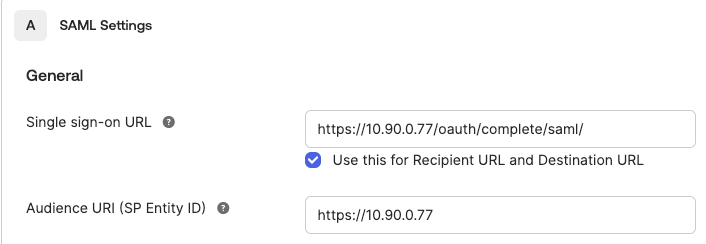
| ACS URL (also called Single sign-on URL, Reply URL, or Recipient URL) | https://<your-netbox-domain>/oauth/complete/saml/ |
| Service Provider (SP) entity ID (also called Audience URI or Identifier) | https://<your-netbox-domain> |
| Service Provider (SP) certificate | Contents of saml_cert.pem |
Note:
- Use HTTPS in production (HTTP only allowed for localhost testing)
- These values must match your NetBox configuration exactly, including the trailing slash on the ACS URL
Okta example:
Map user attributes
NetBox reads user details from named attributes in the SAML assertion.
Configure your IdP to send the following:
| Attribute | Contents |
|---|---|
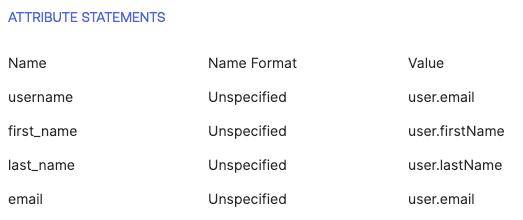
email | User's email address. NetBox uses this as the username. |
first_name | Given name |
last_name | Surname |
Attribute names are case-sensitive and must match exactly. Where you configure them depends on the provider:
| Provider | Location | Values |
|---|---|---|
| Okta | Applications > [App] > SAML Settings > Attribute Statements | email=user.email, first_name=user.firstName, last_name=user.lastName |
| Entra ID | Enterprise apps > [App] > Single sign-on > Attributes & Claims | email=user.mail, first_name=user.givenname, last_name=user.surname |
| OneLogin | Applications > [App] > Parameters | email=Email, first_name=First Name, last_name=Last Name |
Okta example:
To assign NetBox permissions from IdP group membership, you will also need to send a groups attribute. See SAML Group Mapping.
Collect IdP details
After creating the application, collect three values from your IdP. All three are published in its SAML metadata.
- Entity ID: the IdP's unique identifier.
- SSO URL: the endpoint NetBox sends authentication requests to. It must support the HTTP-Redirect binding.
- x509 certificate: the public certificate NetBox uses to verify assertion signatures. Download it from your IdP, or copy the
<X509Certificate>value from the metadata XML.
The certificate must be base64 data on a single line, with the -----BEGIN CERTIFICATE----- and -----END CERTIFICATE----- headers removed.
NetBox Enterprise configuration
Add Python configuration overrides
Open your admin console at https://<your-cluster-host-or-ip>:30000/ and select the Config tab.

Enable Show Advanced Settings and locate the NetBox Python Configuration Overrides section.
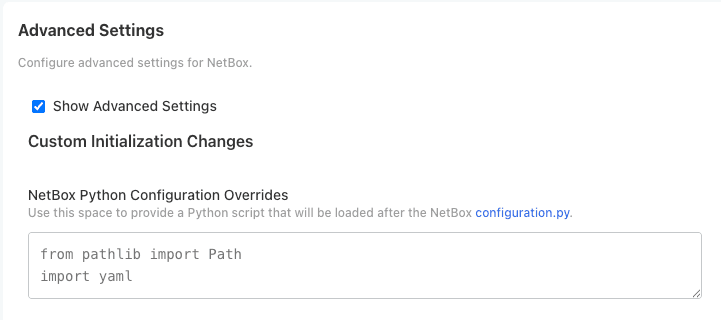
Add the following configuration, replacing the placeholder values:
REMOTE_AUTH_BACKEND = 'social_core.backends.saml.SAMLAuth'

# Force HTTPS for SSO redirects; set False only for localhost testing
SOCIAL_AUTH_REDIRECT_IS_HTTPS = True

# Service provider (NetBox) identity
SOCIAL_AUTH_SAML_SP_ENTITY_ID = 'https://<your-netbox-domain>'
SOCIAL_AUTH_SAML_SP_PUBLIC_CERT = """-----BEGIN CERTIFICATE-----
<contents of saml_cert.pem>
-----END CERTIFICATE-----"""
SOCIAL_AUTH_SAML_SP_PRIVATE_KEY = """-----BEGIN PRIVATE KEY-----
<contents of saml_private_key.pem>
-----END PRIVATE KEY-----"""

# Required by the SAML backend
SOCIAL_AUTH_SAML_ORG_INFO = {
    'en-US': {
        'name': '<organization-name>',
        'displayname': '<organization-display-name>',
        'url': '<organization-website>',
    }
}
SOCIAL_AUTH_SAML_TECHNICAL_CONTACT = {
    'givenName': 'Technical Support',
    'emailAddress': '<technical-contact-email>',
}
SOCIAL_AUTH_SAML_SUPPORT_CONTACT = {
    'givenName': 'Support Team',
    'emailAddress': '<support-contact-email>',
}

# Identity provider
SOCIAL_AUTH_SAML_ENABLED_IDPS = {
    'default': {
        'entity_id': '<idp-entity-id>',
        'url': '<idp-sso-url>',
        'x509cert': '<idp-certificate>',
        'attr_user_permanent_id': 'email',
        'attr_username': 'email',
        'attr_email': 'email',
        'attr_first_name': 'first_name',
        'attr_last_name': 'last_name',
    }
}
Note the following:
SOCIAL_AUTH_SAML_SP_ENTITY_IDmust match the Service Provider (SP) entity ID configured in your IdP exactly, including whether or not it ends in a slash.- The SP certificate and private key are pasted as triple-quoted strings so their line breaks and PEM headers are preserved. The IdP certificate (
x509cert) is the opposite: base64 data only, on a single line, with no headers. - Each
attr_*value is the name of an attribute in the SAML assertion, not the name of a NetBox field. Only configure the attributes your IdP actually sends; if a configured attribute is missing from the assertion, authentication fails. - To authenticate against more than one IdP, add further entries to
SOCIAL_AUTH_SAML_ENABLED_IDPSunder different keys.
For the full list of available settings, see the Python Social Auth SAML backend documentation.
Deploy your configuration
- Scroll to the bottom of the Config page
- Click Save config
- Click Go to updated version when prompted
- Click Deploy to apply changes
- Wait for NetBox Enterprise to reach Ready state
Configuration changes require restarting the application. Existing user sessions remain active during deployment.
Test your configuration
Log out of NetBox and click the Log In button at top right. You should see the normal login form as well as an option to authenticate using SAML.
Click the SAML option. You will be redirected to your IdP, where you can log in with your test user's credentials.
If successful, you will be logged in as the IdP user. Confirm the account was created correctly in Admin > Authentication > Users: the username should be the user's email address, with first name, last name, and email populated from the assertion. This account is now replicated within NetBox Enterprise, and can be assigned groups and permissions.
Assign permissions
New users have no permissions by default. To assign permissions:
- From NetBox Enterprise, navigate to Admin > Authentication > Users (requires admin access).
- Locate the SAML user and assign appropriate groups or individual permissions.
- Set Staff or Superuser status, if needed:
- Staff: Allows access to the NetBox admin interface.
- Superuser: Has all permissions without explicitly assigning them.
Security considerations
Exercise extreme caution when configuring Superuser users or groups.
Superusers have unrestricted access to NetBox and can:
- Modify any data, including configuration
- Elevate other users to superuser status
For automatic permission assignment based on IdP group membership, configure SAML Group Mapping.
Troubleshooting
kubectl access
The commands below require cluster shell access.
SAML response validation failed
Symptoms:
- Error message: "SAML response validation failed", or a signature verification error
- Authentication fails immediately on return from the IdP
Resolution:
- Check the
x509certvalue inSOCIAL_AUTH_SAML_ENABLED_IDPS. It must be base64 data on a single line, with no PEM headers or line breaks. Download a fresh copy from your IdP if in doubt. - Confirm the certificate has not expired and that your IdP has not rotated its signing certificate.
- Verify the ACS URL in the IdP is exactly
https://<your-netbox-domain>/oauth/complete/saml/, including the trailing slash.
Response received at an unexpected URL
Symptoms:
- Error: "The response was received at ... instead of ..."
Resolution:
The URL the IdP posted the assertion to does not match the one NetBox expects.
- Verify the ACS URL configured in the IdP matches
https://<your-netbox-domain>/oauth/complete/saml/, including subdomain and trailing slash. - Check for a scheme mismatch. If NetBox sits behind a reverse proxy or load balancer that terminates TLS, confirm it forwards the original protocol headers and that
SOCIAL_AUTH_REDIRECT_IS_HTTPSisTrue.
Missing or empty user details
Symptoms:
- User logs in but the username is blank, or first and last name are missing
- Error: "Missing needed parameter first_name (configured by attr_first_name)"
Resolution:
- Compare the attribute names configured in your IdP against the
attr_*values inSOCIAL_AUTH_SAML_ENABLED_IDPS. Names are case-sensitive. - Confirm the test user has a value for every attribute you mapped. A configured
attr_*whose attribute is absent from the assertion causes authentication to fail. - Remove any
attr_*entry your IdP does not send. - Use a SAML tracer browser extension to capture the assertion and read the attribute names your IdP is actually sending.
Certificate format errors
Symptoms:
- Error: "Could not deserialize key data", or "PEM routines: no start line"
Resolution:
The SP certificate and private key must keep their PEM headers and line breaks, which means using triple-quoted Python strings:
SOCIAL_AUTH_SAML_SP_PUBLIC_CERT = """-----BEGIN CERTIFICATE-----
MIIDXTCCAkWgAwIBAgIJAKL0UG...
-----END CERTIFICATE-----"""
Verify the files before pasting them:
openssl x509 -in saml_cert.pem -text -noout
openssl rsa -in saml_private_key.pem -check
Not logged in after authentication
Symptoms:
- Redirected back to NetBox after successful IdP authentication
- Not logged into NetBox
- No error message displayed
Resolution:
- Confirm the assertion includes the
emailattribute. NetBox uses it as the username. - Verify
REMOTE_AUTH_BACKENDis set to'social_core.backends.saml.SAMLAuth'. - Check NetBox logs for authentication errors:
kubectl logs <netbox-pod> -n kotsadm | grep -i saml
Redirected to HTTP instead of HTTPS
Symptoms:
- Login loop, or a redirect to an
http://URL
Resolution:
- Set
SOCIAL_AUTH_REDIRECT_IS_HTTPS = True. - Verify your reverse proxy forwards the original protocol headers.
- Always access NetBox over HTTPS. See TLS and Gateway Configuration.
Timeout when starting login
Symptoms:
- Timeout or connection refused after clicking the SAML option
Resolution:
Check the url value in SOCIAL_AUTH_SAML_ENABLED_IDPS for typos, the wrong scheme, or the wrong domain, then confirm the URL is reachable with curl -I <idp-sso-url>.
Security considerations
Certificate management
- The SP certificate and private key are stored in your NetBox configuration. Rotate them before they expire, and record the expiration date.
- Monitor your IdP's signing certificate as well. When the IdP rotates it, update
x509certin NetBox and re-test authentication. - Never disable signature verification. Assertions are only trustworthy because they are signed.
Transport security
SAML assertions carry user identity and group membership, so production deployments should use HTTPS end to end with valid TLS certificates. HTTP is only appropriate for localhost testing.
User provisioning
- Users are automatically created on first login
- Accounts cannot be deleted via the IdP (must be disabled in NetBox)
- Consider implementing automated deprovisioning processes for terminated employees
Session management
NetBox sessions are independent of IdP sessions. Disabling a user in the IdP prevents future logins but does not terminate an active NetBox session. To revoke access immediately, disable the account in NetBox as well.
Audit logging
Monitor authentication events in the NetBox application log:
kubectl logs <netbox-pod> -n kotsadm | grep authenticationTLS and Gateway: Accessing NetBox Enterprise
The NetBox Enterprise installation provides its own gateway controller (Traefik, serving the Kubernetes Gateway API) on ports 80 and 443. No additional confi...
SAML Group Mapping
Configure automatic permission assignment based on SAML identity provider group membership in NetBox Enterprise