Okta SSO Setup
This feature is available with the Professional or Premium tier of NetBox Cloud, or with NetBox Enterprise.
NetBox Cloud supports single sign-on (SSO) with Okta, so users can log in with their existing Okta credentials instead of separate NetBox account credentials.
This centralizes access control and simplifies user management, letting administrators grant or revoke NetBox Cloud access directly from Okta.
For more information, see OpenID Connect app integrations. Okta also offers free developer accounts if you want to evaluate SSO before rolling it out.
Okta configuration
We recommend that you first create a new Okta user for testing.
You can skip this step if you already have a suitable account created.
Create an app integration
-
In the Okta Admin Console, select Applications and Resources > Applications in the left menu.
-
Click Create App Integration.
-
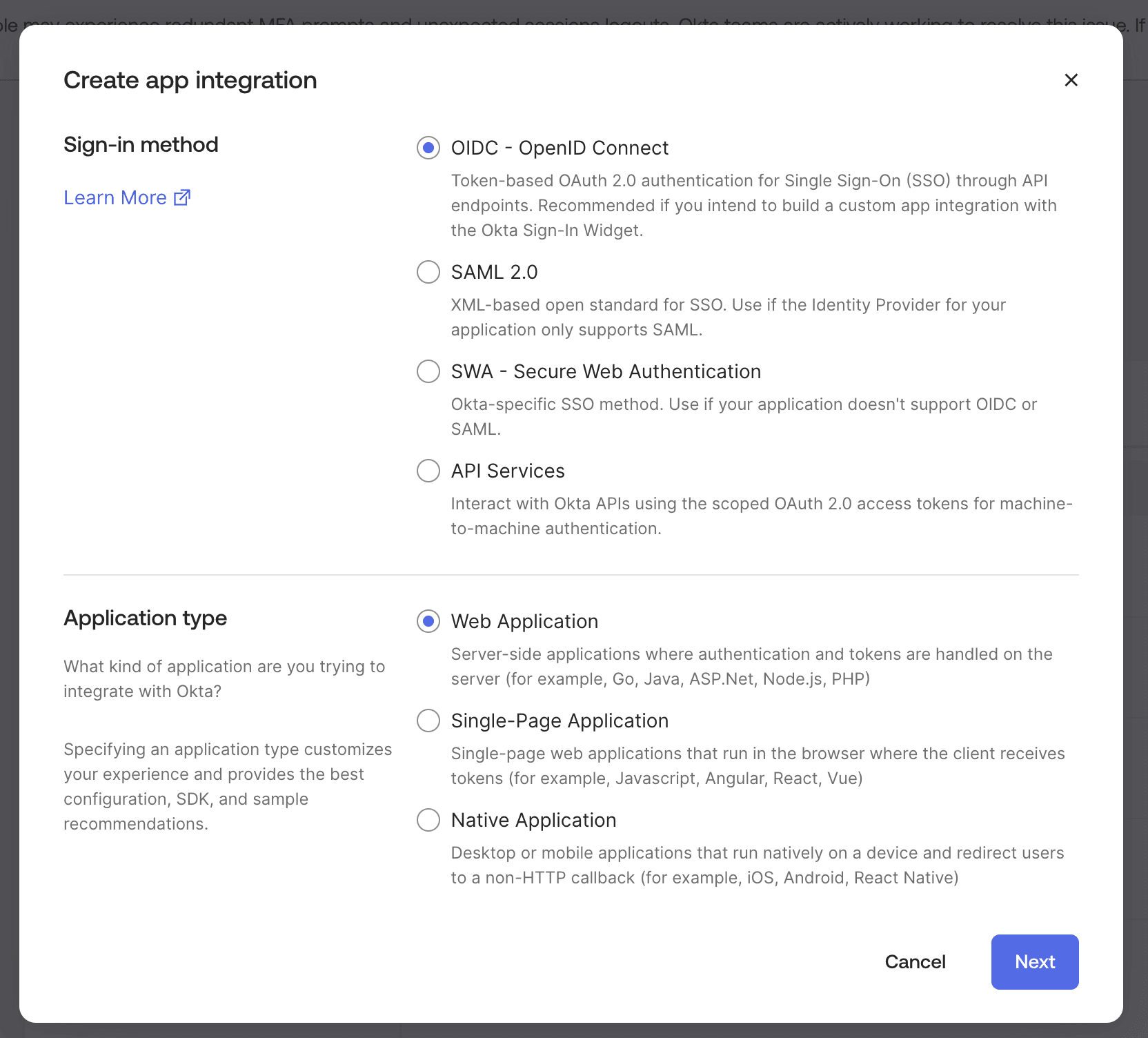
Select OIDC - OpenID Connect as the sign-in method and Web Application as the application type, then click Next.
-
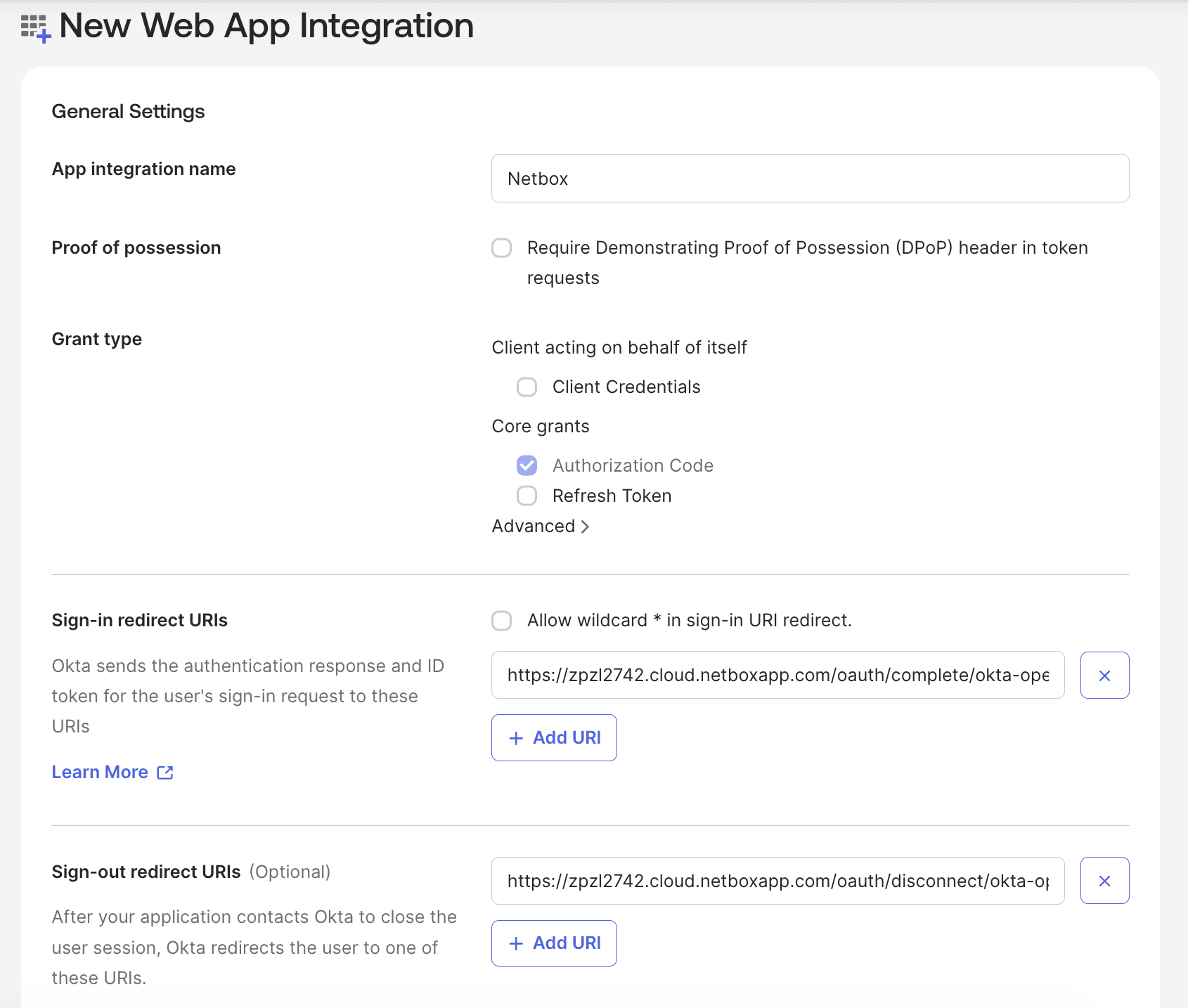
Complete the following fields:
-
App integration name: Enter a name for the integration (e.g. "NetBox Cloud").
-
Grant type: Select Authorization Code.
-
Sign-in redirect URIs: Enter the path to your NetBox Cloud installation, ending with
/oauth/complete/okta-openidconnect/.For example:
https://\{your-domain\}.cloud.netboxapp.com/oauth/complete/okta-openidconnect/ -
Sign-out redirect URIs:
https://\{your-domain\}.cloud.netboxapp.com/oauth/disconnect/okta-openidconnect/ -
Assignments: Under Controlled access, choose how users get access to NetBox Cloud:
- Limit access to selected groups: Enter the names of the groups that should have access. Although not required for group mapping, you can choose this option if you plan to use group mapping, or if you want to control NetBox Cloud access by group at any point.
- Allow everyone in your organization to access: Any user in your Okta org can log in.
- Skip group assignment for now: Nobody can log in until you assign users or groups on the integration's Assignments tab.
-
-
Click Save.
Note on group mapping
Selecting Allow everyone in your organization to access offers Enable immediate access with Federation Broker Mode. That mode provides SSO without pre-assigning the app to users. In this mode, the integration's sign-on policy alone governs access, so Okta keeps no assignment records and there is nothing for your groups to be assigned to. Okta doesn't support group assignments in this mode, and NetBox Cloud won't appear on your users' Okta End-User Dashboard.
You can disable Federation Broker Mode later from the Federation Broker Mode section of the integration's General tab. Okta restores assignments once the background process finishes.
Note the integration parameters
-
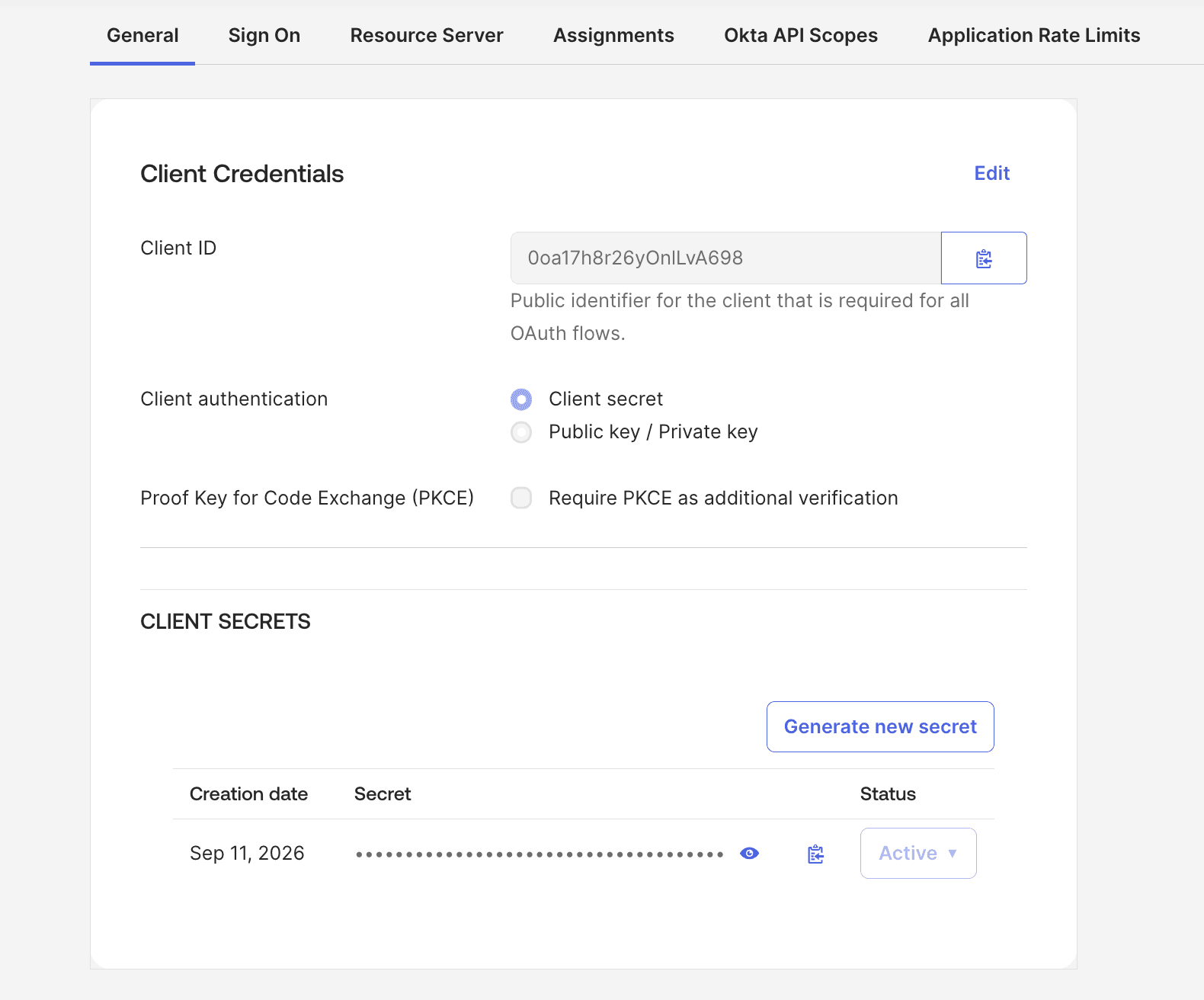
From the page for your new NetBox Cloud app integration, select the General tab.
-
Under Client Credentials, note the Client ID and the Client secret. You will need these when sending your configuration details to NetBox support.
-
Note your Okta domain, shown under Settings > Account in the Admin Console and in the account menu at top right (for example,
dev-123456.okta.com).
Treat the client secret as a credential. Share it only over a secure channel, and rotate it if it may have been exposed.
NetBox Cloud configuration
Share the following configuration parameters with NetBox Labs Support, substituting your own values.
CLIENT_IDis the Client ID you copied from the General tab for your NetBox Cloud app integration.CLIENT_SECRETis the Client secret you copied from the General tab for your NetBox Cloud app integration.OKTA_DOMAINis your Okta domain, such asdev-123456.okta.com.
REMOTE_AUTH_BACKEND = 'social_core.backends.okta_openidconnect.OktaOpenIdConnect'
SOCIAL_AUTH_OKTA_OPENIDCONNECT_KEY = '\{CLIENT_ID\}'
SOCIAL_AUTH_OKTA_OPENIDCONNECT_SECRET = '\{CLIENT_SECRET\}'
SOCIAL_AUTH_OKTA_OPENIDCONNECT_API_URL = 'https://\{OKTA_DOMAIN\}/oauth2/'
The API URL ends with /oauth2/ for the default Okta authorization server. If you use a custom authorization server, use /oauth2/\{auth-server-id\}/ instead.
The support team will add these parameters to your NetBox Cloud instance.
Testing
After the support team has confirmed that your Cloud instance has been configured, you can test it.
Log out of NetBox Cloud and click the "Log In" button at top right. You should see the normal login form as well as an option to authenticate using Okta.
Click the option to log in with Okta.
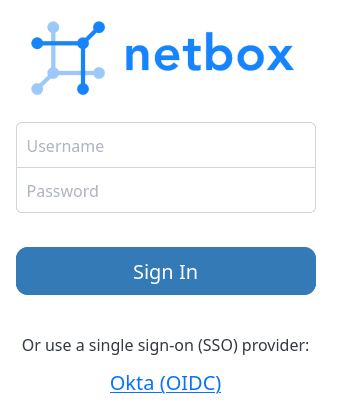
You will be redirected to Okta's authentication portal where you can log in with your test user's Okta credentials. You may also be prompted to grant this application access to your account.
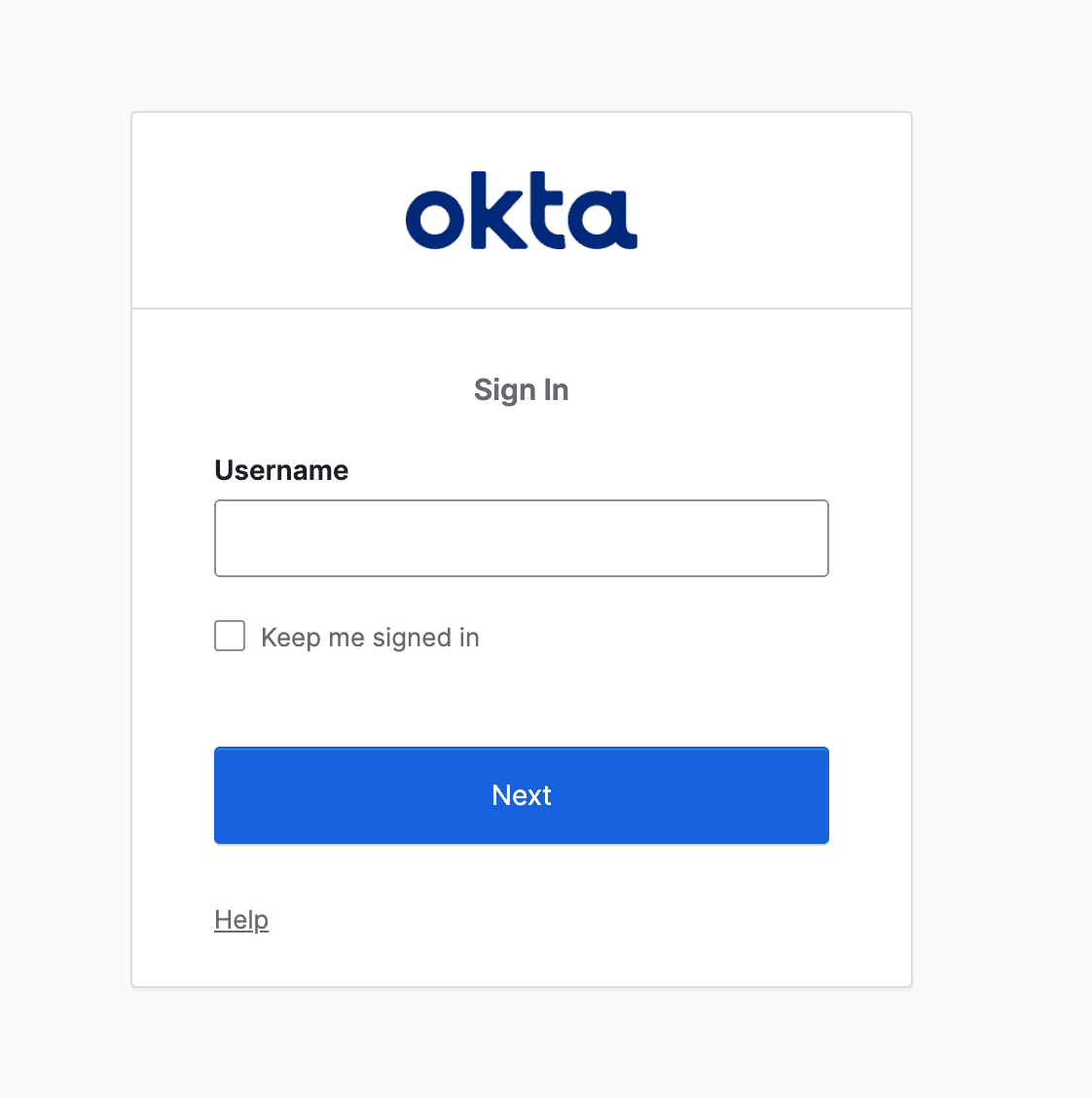
If successful, you will be redirected back to the NetBox Cloud UI, and will be logged in as the Okta user. You can verify this by clicking your login ID in the upper right and selecting Profile.
This user account is now replicated within NetBox Cloud, and can be assigned groups and permissions within the NetBox Cloud admin UI.
By default, new users have no permissions. To assign permissions automatically from Okta group membership, see Group Mapping For Okta Single Sign-On (SSO).
Troubleshooting
Redirect URI does not match
Okta requires that the authenticating client request a redirect URI that matches a sign-in redirect URI you configured in the app integration.
This URI must begin with https:// and must match exactly what you configured in Okta (including the trailing slash).
The redirect URI is where Okta sends users after authentication. NetBox uses the following pattern:
https://<your-netbox-domain>/oauth/complete/okta-openidconnect/User is not assigned to the application
If authentication fails with an error such as "User is not assigned to the client application", the account you are testing with has no assignment to the NetBox Cloud app integration.
In the Okta Admin Console, open the integration and add the user, or a group the user belongs to, under Assignments.
Not logged in after authenticating
If you are redirected to the NetBox Cloud UI after authenticating successfully, but are not logged in, double-check the REMOTE_AUTH_BACKEND value configured on your NetBox Cloud instance against your Okta app integration.
The instructions provided above are only applicable to the okta_openidconnect.OktaOpenIdConnect backend. Confirm too that the client secret shared with support is the secret value rather than its ID, and that SOCIAL_AUTH_OKTA_OPENIDCONNECT_API_URL points at the authorization server the integration uses.
Expired client secret
If authentication fails and you see an error such as "invalid_client" or "secret expired", this means your client secret has expired.
Generate a new client secret in Okta and email NetBox Labs Support.
To prevent this, we recommend setting a calendar reminder to rotate and update your secret.
Group Mapping For Microsoft Entra ID SSO
Upgrade your Single Sign-On experience with Group Mapping for Microsoft Entra ID SSO – a smarter, more secure way to manage user access.
Group Mapping For Okta Single Sign-On (SSO)
Group mapping lets you manage NetBox Cloud permissions centrally in Okta instead of assigning them user by user.