Microsoft Entra ID Setup
This feature is available with the Professional or Premium tier of NetBox Cloud, or with NetBox Enterprise.
NetBox Cloud supports single sign-on (SSO) with Microsoft Entra ID (formerly Azure Active Directory), so users can log in with their existing Microsoft credentials instead of separate NetBox account credentials.
This centralizes access control and simplifies user management, letting administrators grant or revoke NetBox Cloud access directly from Entra ID.
For more information, see What is single sign-on in Microsoft Entra ID?.
Entra ID configuration
We recommend that you first create a new Entra ID user for testing.
You can skip this step if you already have a suitable account created.
Register an app
Begin by registering an app for NetBox. For more information, see Register an application in Microsoft Entra ID.
-
Open the Microsoft Entra admin center and select Entra ID > App registrations in the left menu.
-
Click New registration.
-
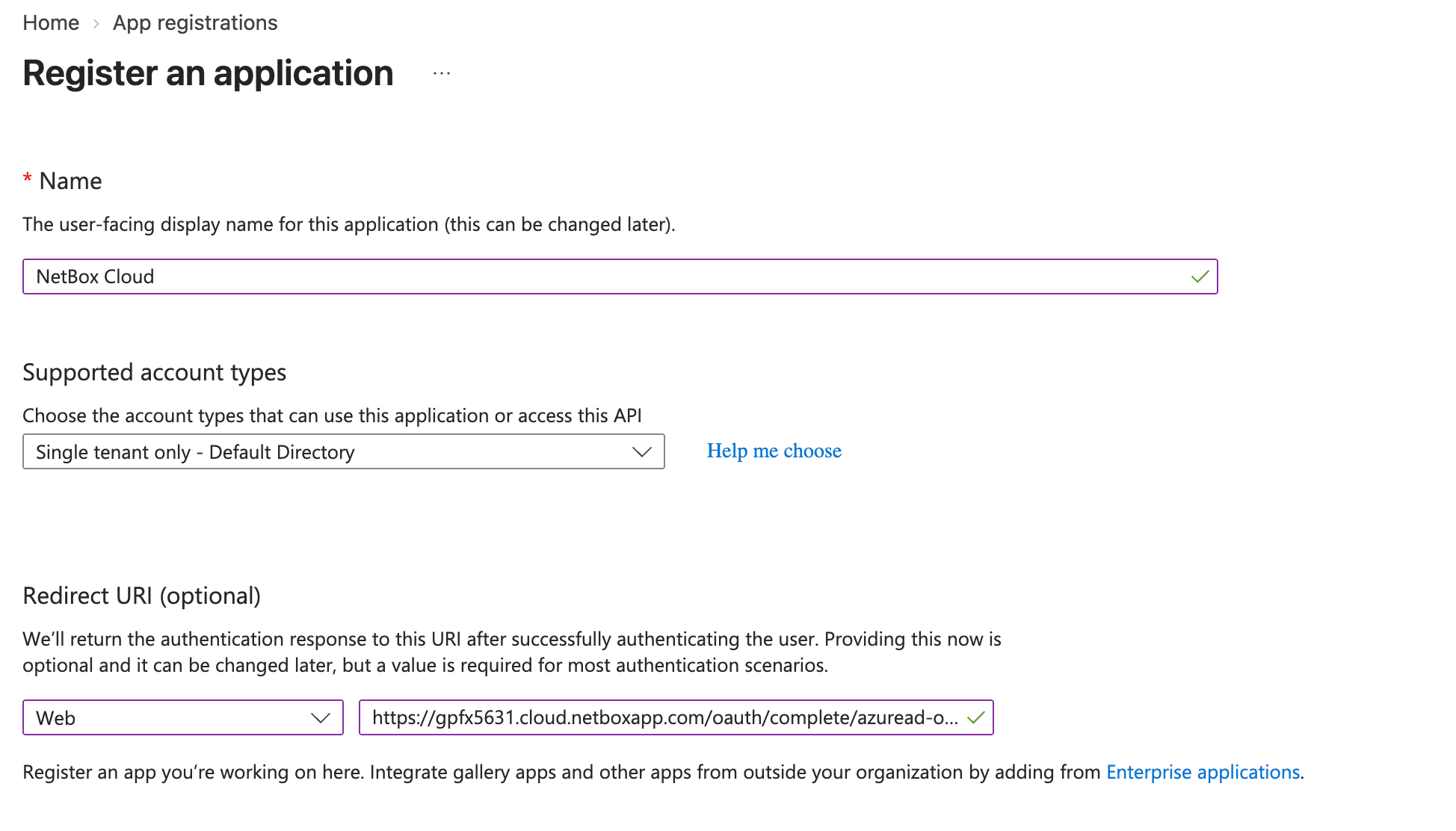
Complete the following fields:
-
Name: Enter a name for the registration (e.g. "NetBox Cloud").
-
Account type: Select the single-tenant option.
Multitenant authentication
NetBox also supports multitenant authentication via Entra ID. However, this requires a different backend and an additional configuration parameter. See the Python Social Auth documentation for details concerning multitenant authentication.
-
Redirect URI: Select Web and enter the path to your NetBox Cloud installation, ending with /oauth/complete/azuread-oauth2/.
For example:
https://\{your-domain\}.cloud.netboxapp.com/oauth/complete/azuread-oauth2/
-
-
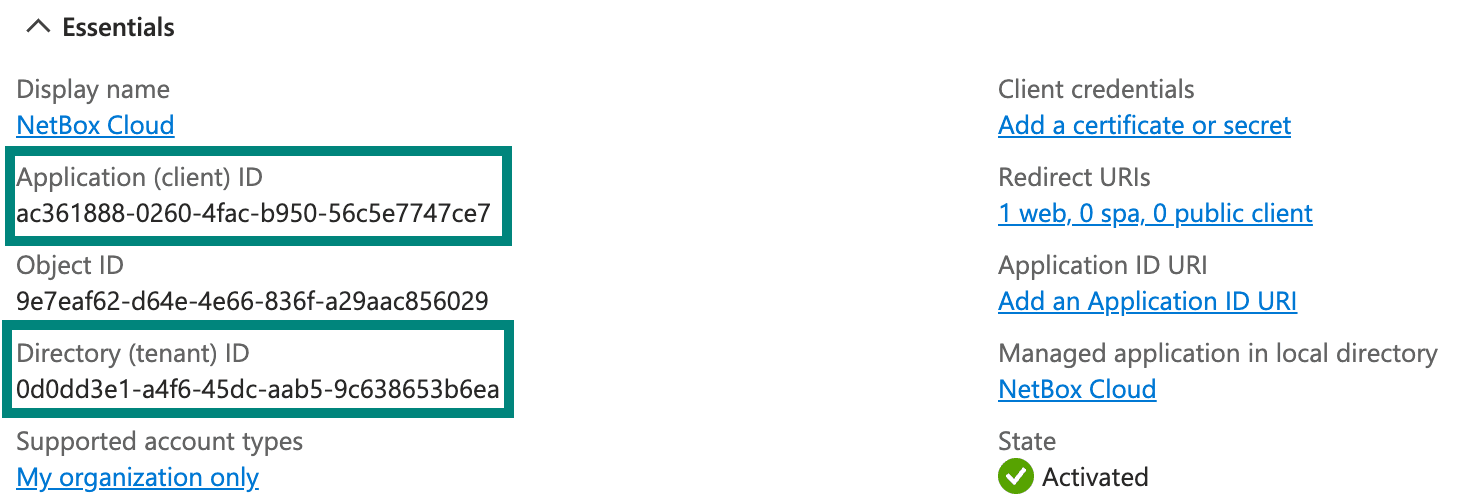
Note the application (client) ID and the directory (tenant) ID. You will need these when sending your configuration details to NetBox support.
Create a secret
-
From the page for your new NetBox Cloud app registration, select Certificates & secrets in the menu on the left.
-
Under Client secrets, click New client secret.
-
Provide a description and optionally select an expiration period.
-
After creating the secret, note its value. You will need this when configuring NetBox Cloud.
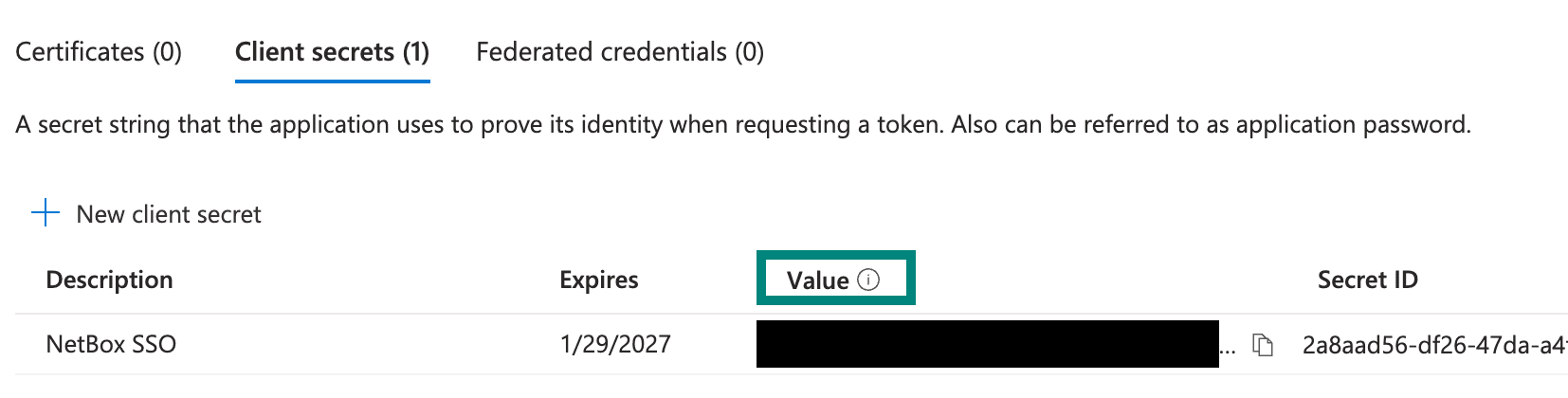
This value is only displayed once; copy it immediately.
NetBox Cloud configuration
Share the following configuration parameters with NetBox Labs Support, substituting your own values.
APPLICATION_IDis the Application (client ID) you copied from the Overview page for your NetBox Cloud app registration.TENANT_IDis the Directory (tenant ID) you copied from the Overview page for your NetBox Cloud app registration.SECRET_VALUEis the Value you copied from the Certificates & secrets page for your NetBox Cloud app registration.
REMOTE_AUTH_BACKEND = 'social_core.backends.azuread.AzureADOAuth2'
SOCIAL_AUTH_AZUREAD_OAUTH2_KEY = '\{APPLICATION_ID\}'
SOCIAL_AUTH_AZUREAD_OAUTH2_SECRET = '\{SECRET_VALUE\}'
SOCIAL_AUTH_AZUREAD_OAUTH2_TENANT_ID = '\{TENANT_ID\}'
The support team will add these parameters to your NetBox Cloud instance.
Testing
After the support team has confirmed that your Cloud instance has been configured, you can test it.
Log out of NetBox Cloud and click the "Log In" button at top right. You should see the normal login form as well as an option to authenticate using Entra ID.
Click the option to log in with Microsoft Entra ID.
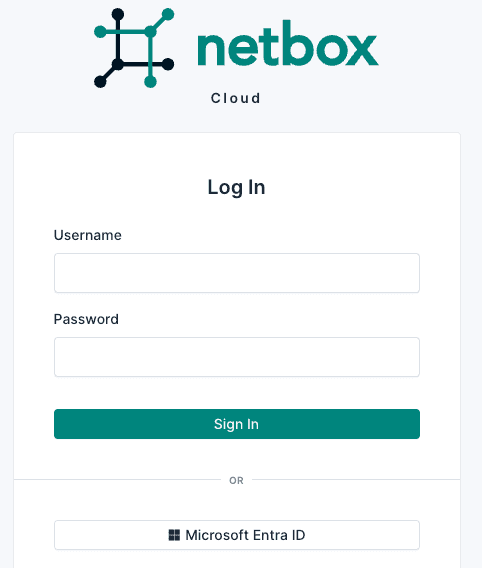
You will be redirected to Microsoft's authentication portal where you can log in with your test user's Microsoft credentials.
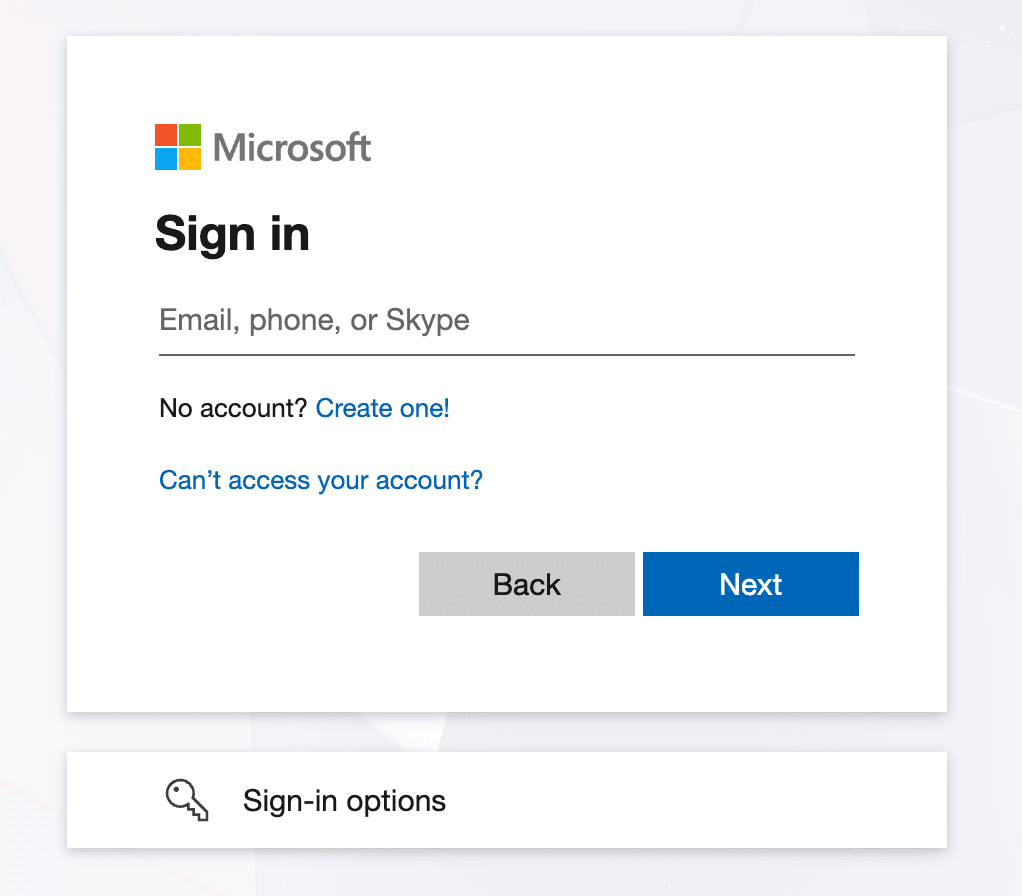
If successful, you will be redirected back to the NetBox Cloud UI, and will be logged in as the Entra ID user. You can verify this by clicking your login ID in the upper right and selecting Profile.
This user account is now replicated within NetBox Cloud, and can be assigned groups and permissions within the NetBox Cloud admin UI.
::: note By default, new users have no permissions. :::
Troubleshooting
Redirect URI does not match
Entra ID requires that the authenticating client request a redirect URI that matches what you configured when registering the app.
This URI must begin with https:// and must match exactly what you configured in Entra ID (including the trailing slash).
The redirect URI is where Entra ID sends users after authentication. NetBox uses the following pattern:
https://<your-netbox-domain>/oauth/complete/azuread-oauth2/Not logged in after authenticating
If you are redirected to the NetBox Cloud UI after authenticating successfully, but are not logged in, double-check the REMOTE_AUTH_BACKEND value configured on your NetBox Cloud instance against your Entra ID app registration.
The instructions provided above are only applicable to the azuread.AzureADOAuth2 backend paired with a single-tenant app registration.
If your app registration is multitenant, you need the azuread_tenant.AzureADTenantOAuth2 backend instead. See the multitenant note under Register an app.
Expired client secret
If authentication fails and you see an error such as "invalid_client" or "secret expired", this means your client secret has expired.
Generate a new client secret in Entra ID and email NetBox Labs Support.
To prevent this, we recommend setting a calendar reminder to rotate and update your secret.
Group Mapping For SAML Single Sign-On (SSO)
Group mapping lets you manage NetBox Cloud permissions centrally in your SAML identity provider instead of assigning them user by user.
Group Mapping For Microsoft Entra ID SSO
Upgrade your Single Sign-On experience with Group Mapping for Microsoft Entra ID SSO – a smarter, more secure way to manage user access.