Working with NetBox Cloud Database Backups
Data integrity and security is a primary focus at NetBox Labs, and with our robust NetBox database backup features, you can rest assured that your data remains secure and easily recoverable. Scheduled backups take place automatically and all backups are encrypted at rest and in transit to offsite storage. From within the NetBox Labs Console, you can easily access and manage the backups of your NetBox Cloud database, and are able to perform the following actions:
- View a list of all available database backups
- Take an 'On Demand' backup at any time
- Download a local copy of a specific backup file
- Restore your NetBox Cloud instance from a database backup
View a List of Available Database Backups
-
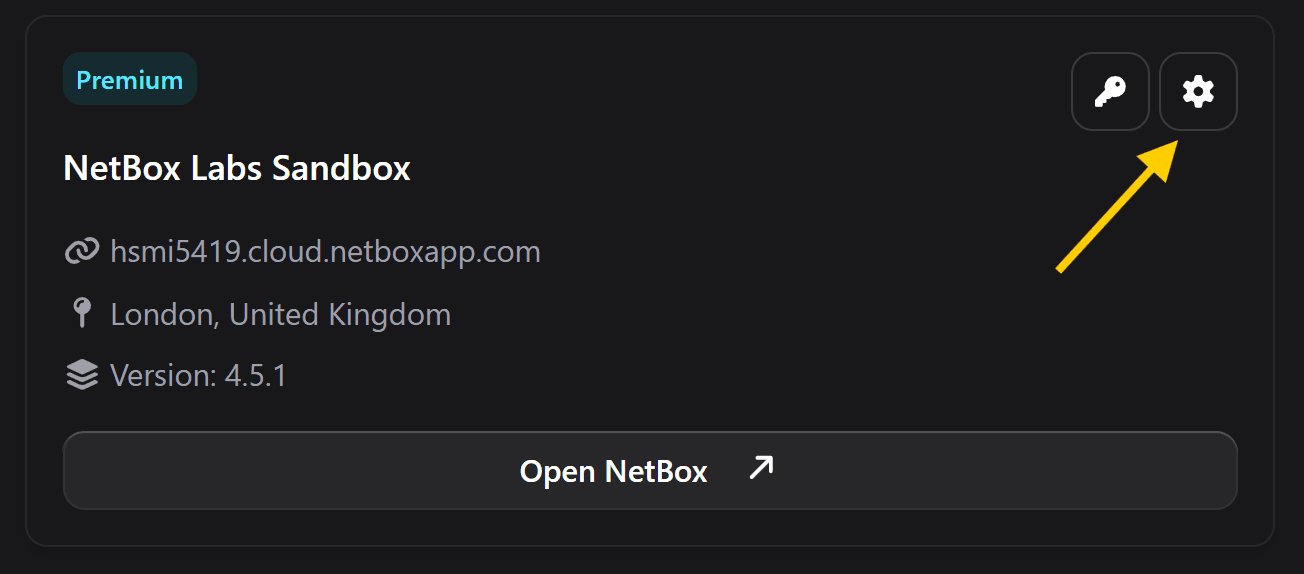
Login to the NetBox Labs Console and navigate to the NetBox instance you wish to manage and click the Settings button in the top-right corner:
-
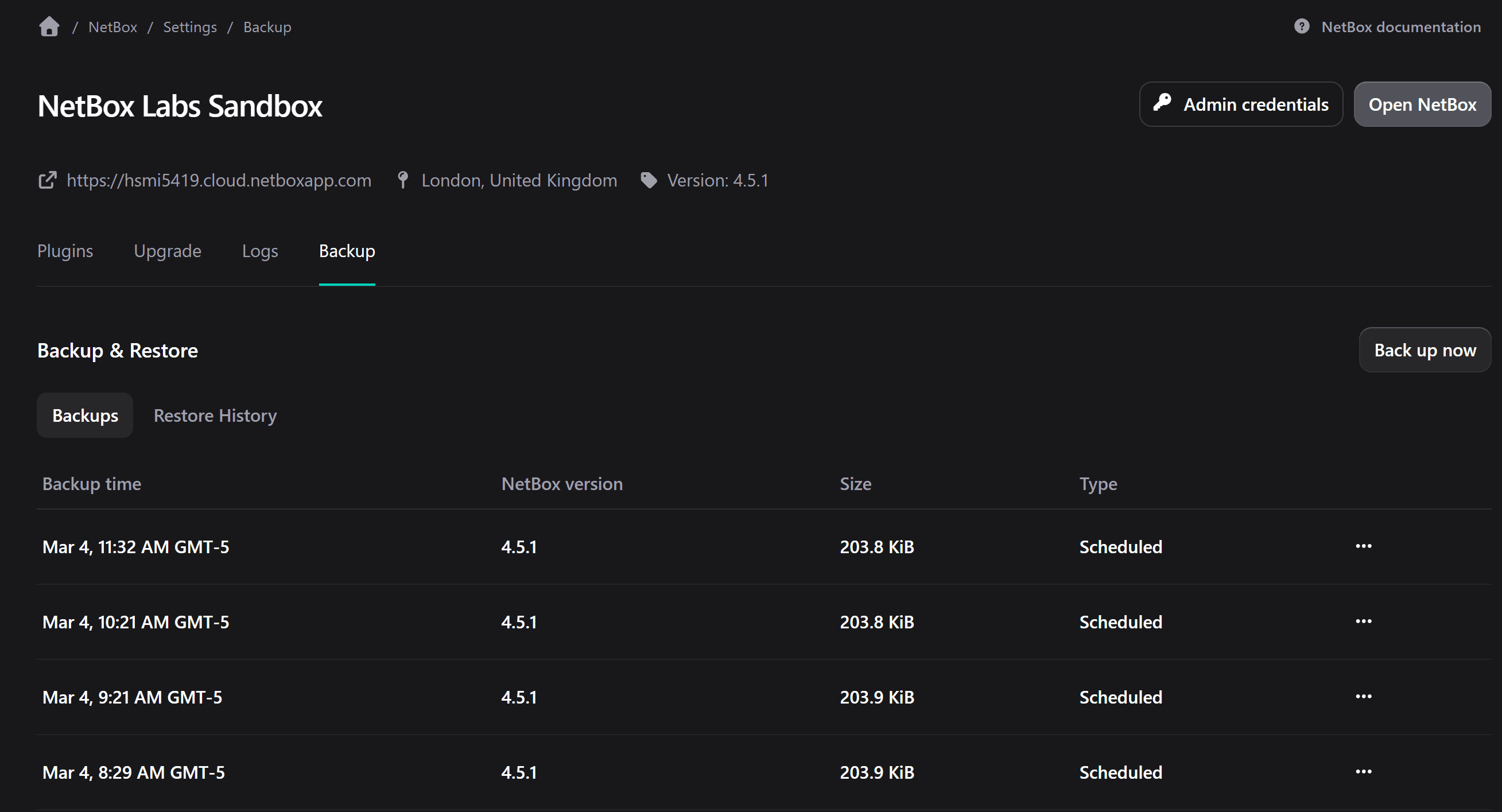
From here navigate to the Backup tab. Here you can view a list of backups for that instance.
Make an 'On Demand' Database Backup
-
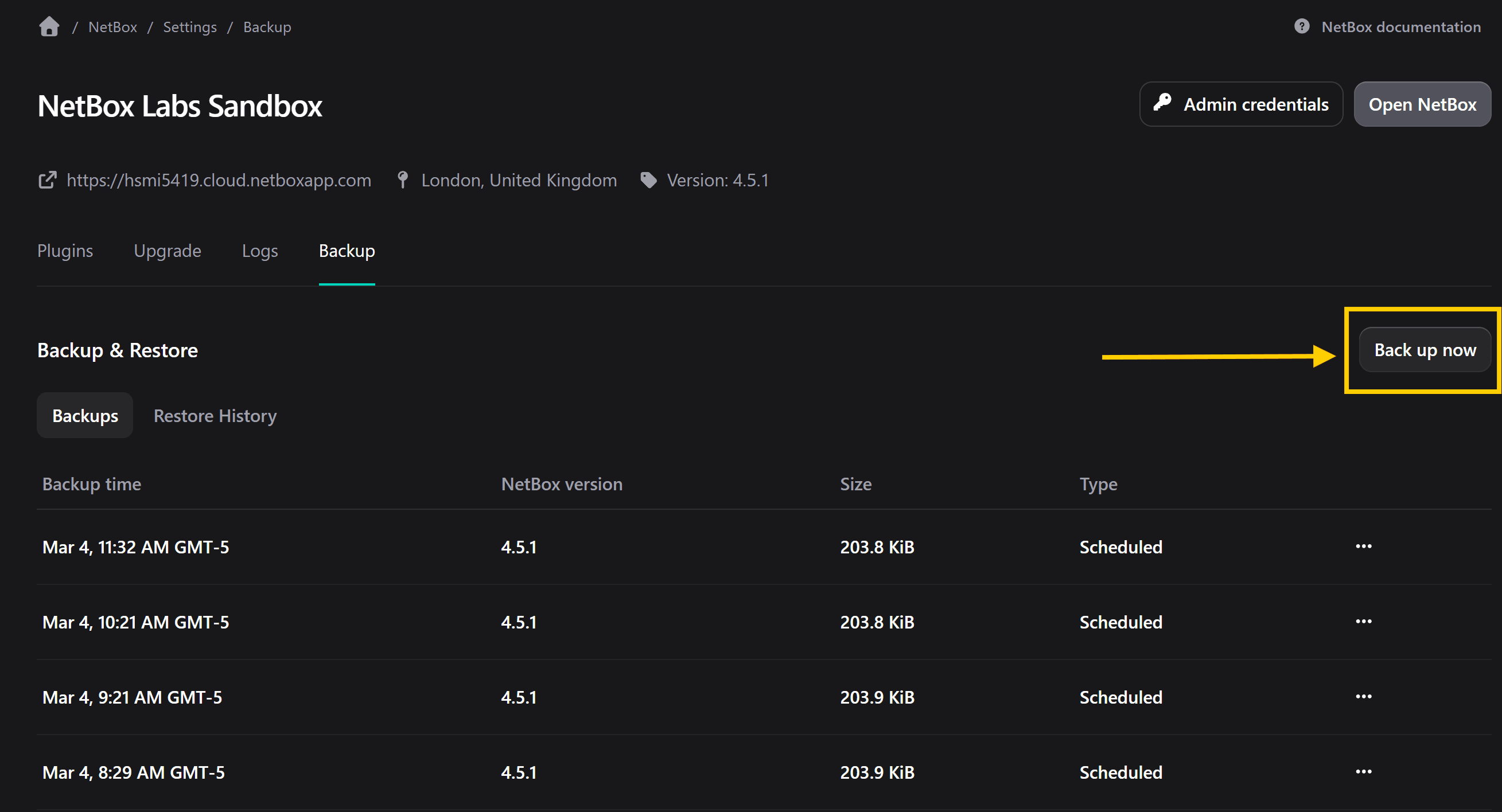
From within the Backup tab, click on Back up now, on the right-hand side:
-
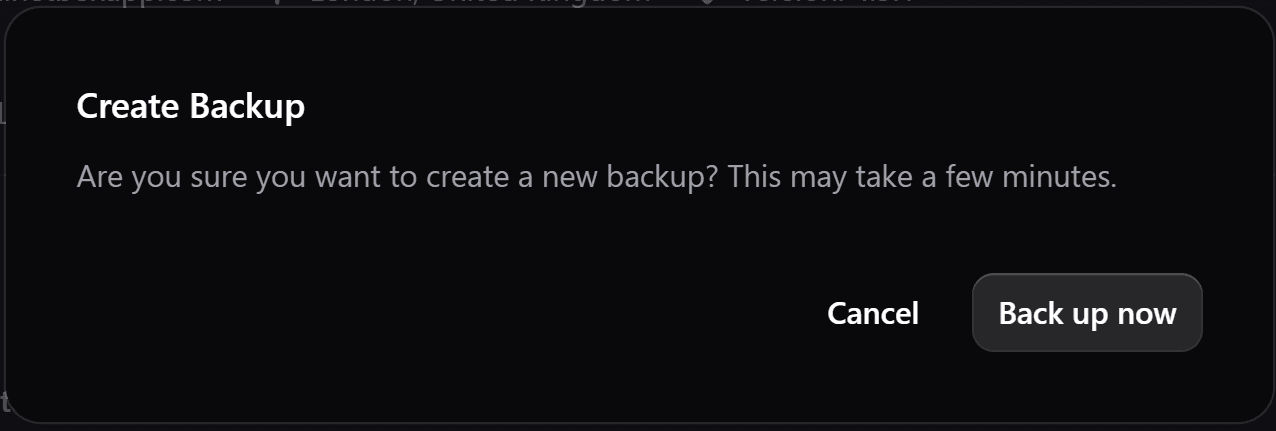
Select Back up now to confirm that you want to backup of the current version of NetBox Cloud
-
You will be notified that the back up has started, when complete the new back up will appear in the list:

Download a Local Copy of a Backup File
-
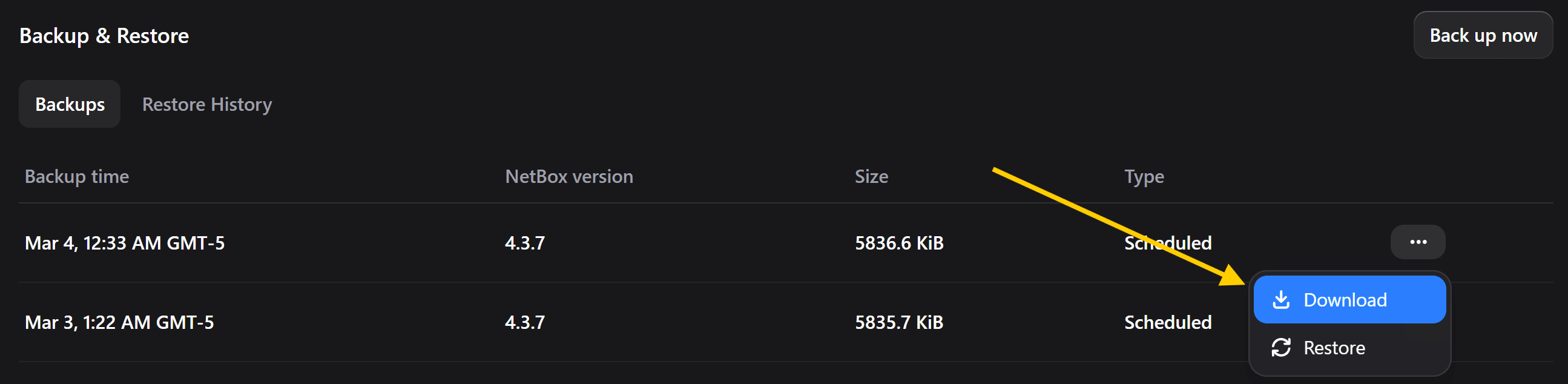
From the Backup tab, click the the three dots next to the back up the backup file you wish to retrieve, and select the Download option:
-
Once the backup file has been prepared it will automatically be downloaded into the Downloads directory of your local computer's file system. Backup files are compressed using zstandard (zst) and will end in
.sql.custom.zst.
Restore From a Database Backup File
-
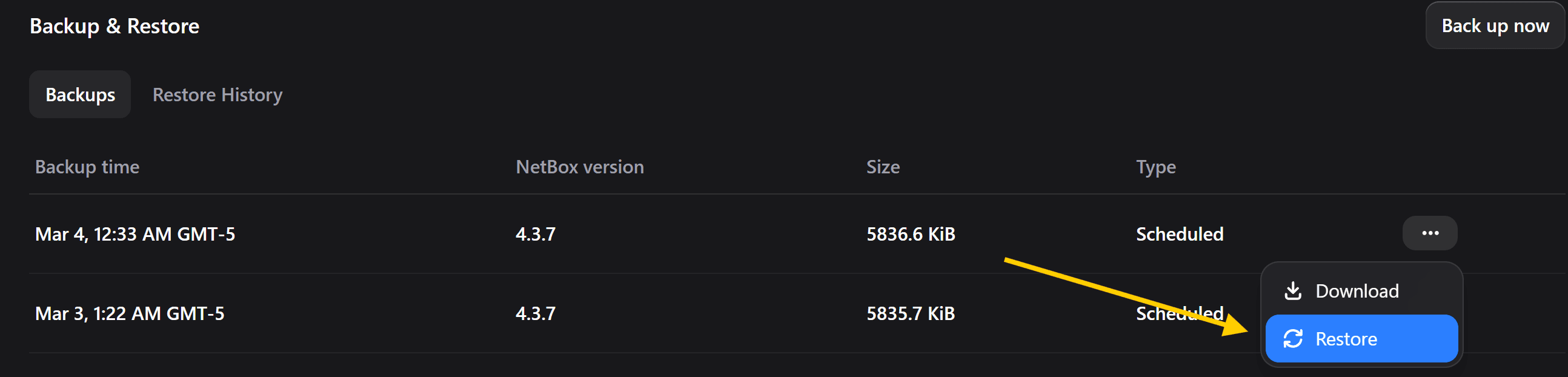
Identify the database backup you wish to restore from, click the three dots next to it and select the Restore option:
-
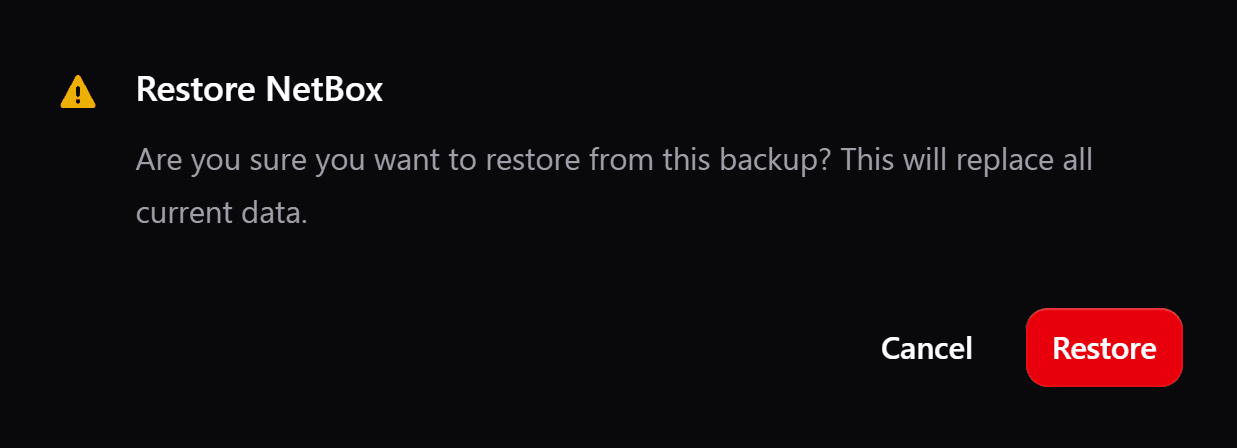
Select Restore to confirm the selection and begin the restore from the selected backup:
-
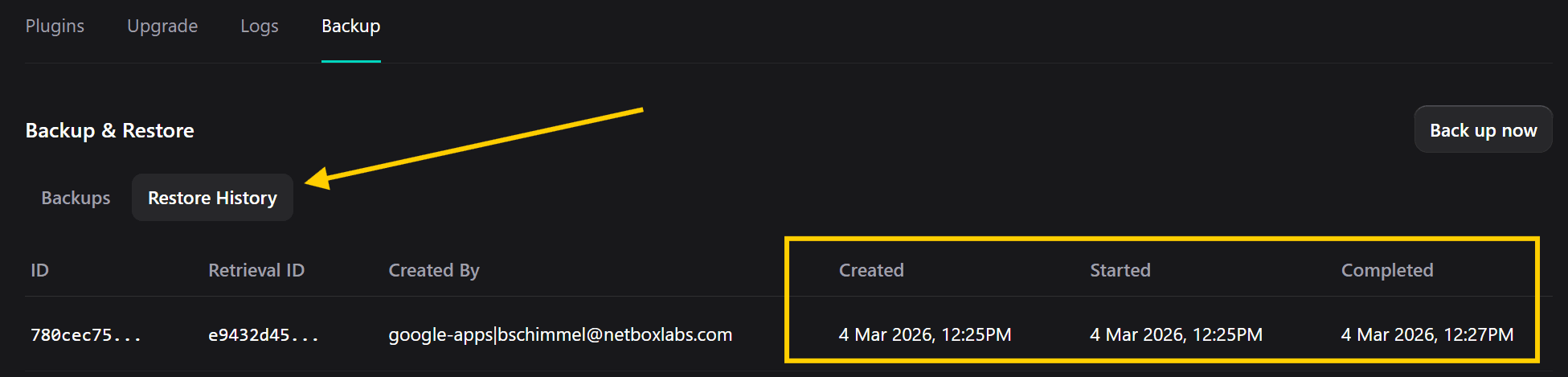
The restore process will take place in the background, and depending on the size of the database should take no longer than a few minutes to complete. Once the restore has completed, you can navigate to the on Restore History tab to view the list of database restores, and you will see your completed restore listed:
-
Your database restore is now complete.
Once the database restore is complete your NetBox Cloud instance will restart, and you may briefly see a 503 - Service Unavailable message when you browse to the Web interface. This is normal and will clear after a short while, after which you can log in again.
Also, please be aware that the NetBox changelog will be empty when you first log in after a database restore.
Working with Downloaded Backup Files
Downloaded backups are PostgreSQL custom-format dump files compressed with zstandard (zstd). This format produces smaller, faster backups and is natively supported by pg_restore.
Prerequisites
Ensure zstd is installed on your system before working with downloaded backups:
You will also need pg_restore, which is included with the PostgreSQL client tools.
Restoring a Backup Locally
Once you have downloaded a backup file (e.g. backup.sql.custom.zst), you can restore it to a local PostgreSQL instance using pg_restore:
pg_restore --dbname=<database_name> backup.sql.custom.zst
Unlike plain SQL archives, custom-format dumps cannot be restored with psql. Use pg_restore instead.
Legacy Backup Format
Backups created in the legacy approach using gzip-compressed plain SQL files ending in .sql.gz can be restored using psql:
Example
gunzip -c backup.sql.gz | psql <database_name>
If you encounter any issues while working with database backups raise a support ticket by emailing the NetBox Labs Support Team
Public IP Addressing
The Public IP addresses that outbound traffic from your NetBox Cloud instance (eg. webhooks) will be seen to be originating from are listed below. This will ...
Upgrading NetBox Cloud
To safely and easily upgrade your NetBox Cloud instance without worrying about any plugin compatibility issues, follow the steps outlined below: