Platform User Administration
Managing the people in your organization on the NetBox Labs platform.
Which pages apply to you?
- Log in to the NetBox Labs platform. If you can't, ask your organization's Admin, or open a support ticket with the NetBox Labs Support Team if you have none.
- Open Settings. If it shows a lock icon and "You do not have access to this page", these pages apply to you and you have the Viewer platform role.
- If Users is the first tab in Settings and you can see its contents, these pages apply to your organization and you have the Admin platform role. If you see an Administrators tab instead, use NetBox Cloud Console Access and Console Administration.
This guide covers user administration for the NetBox Labs platform. Only platform Administrators, or Admins, can invite and manage platform users in your organization.
Previously called the NetBox Labs Console
The NetBox Labs platform user interface, at app.netboxlabs.com, was previously called the NetBox Labs Console. You will still see "Console" in some older documentation and in the NetBox plugin menu, where Open Console and Request Console Access open the same place, until the terminology changes are completed.
Platform User Roles
Every platform user in your organization holds one role that controls what they can see and do while logged in.
| Role | Platform administration access | NetBox Labs products access |
|---|---|---|
| Admin | Full access to the platform's Settings section, which provides the ability to: - Invite other platform users and assign their role - Link platform users to their NetBox accounts for product access to NetBox data - Deactivate/Delete platform users - Manage the hostnames, prefixes and API keys for your organization Full access to your NetBox Cloud environment(s) including: - Access to the admin credentials of NetBox environment(s) - Access to the Settings of NetBox environment(s) including backups, version upgrades, logs and plugins | All NetBox Labs products your organization is entitled to. |
| Viewer | None. Viewers can see the platform's and environments' administrator Settings sections, but opening any of them shows a lock icon and the message "You do not have access to this page." | All NetBox Labs products your organization is entitled to, subject to their permissions in each NetBox environment to which they are linked. |
The platform user account and role is separate from the user account and permissions a user may have in an individual NetBox environment. NetBox user access and object permissions are still managed in each NetBox instance in your organization.
Managing Platform Users
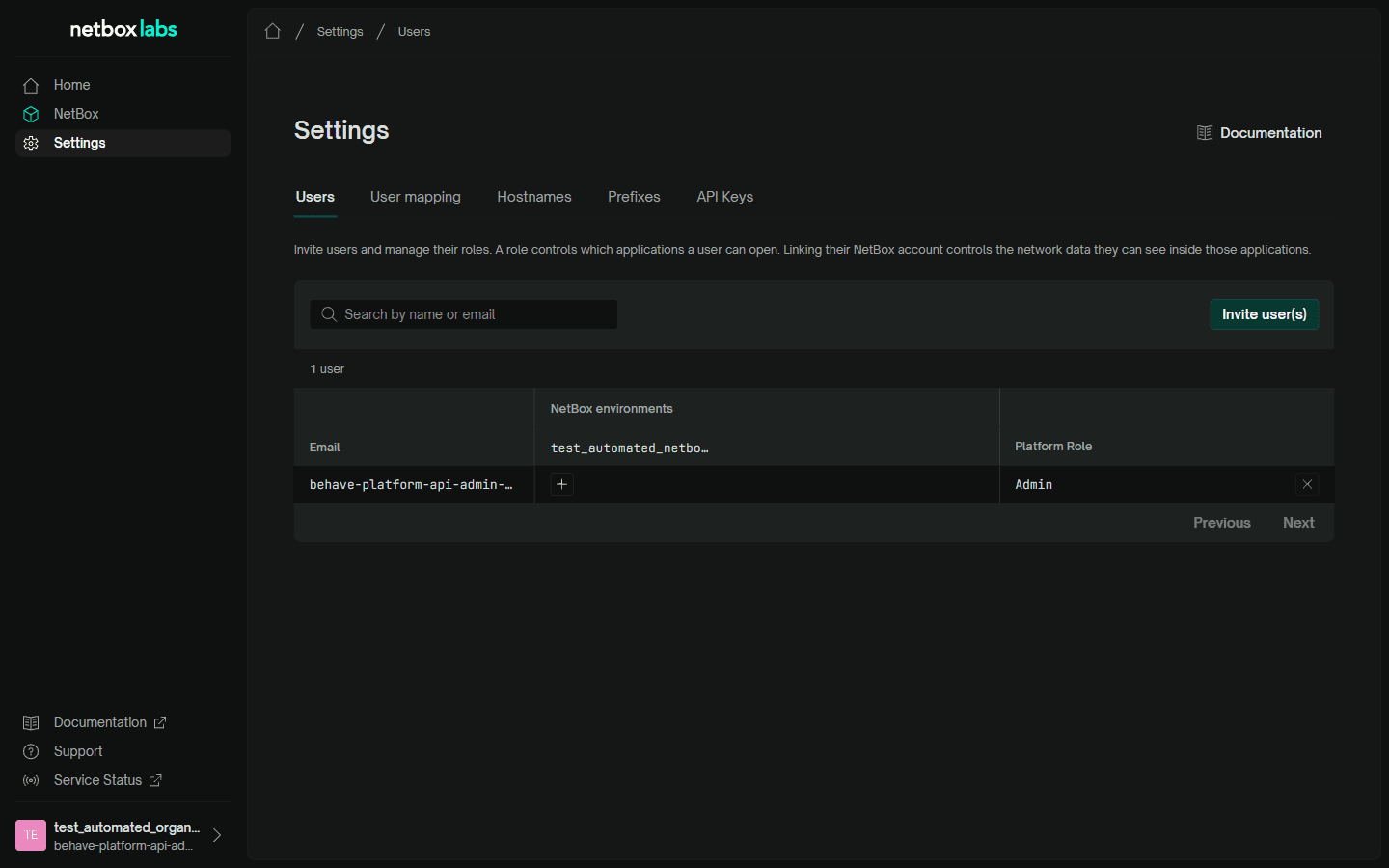
Platform users are managed in the platform's Settings section, which only Admins can use.
| Settings Tab | Use it when you start from |
|---|---|
| Users | A person. Invite them, set their role and link their NetBox accounts. |
| User mapping | NetBox environment user account(s). Link existing NetBox environment users to platform accounts in bulk, or invite the ones who have no platform account yet. |
Your First Admin
NetBox Labs sets up the first platform Admin for your organization when your account is provisioned. That person does not receive an invitation email: their Admin status is applied the first time they log in.
Every subsequent platform user, Viewer and Admin roles alike, is invited by an existing Admin. You do not need to contact support to add platform users.
Inviting Platform Users
All platform users are invited the same way, from the same place, regardless of role.
- Log in to the NetBox Labs platform.
- Click Settings in the left hand menu, then open the Users tab.
- Click Invite user(s).
- Enter one or more email addresses. The field takes comma separated addresses, so you can invite a batch at once.
- Set Role to Admin or Viewer. Viewer is the default, and every address in the batch receives the role you choose.
- Click Invite.
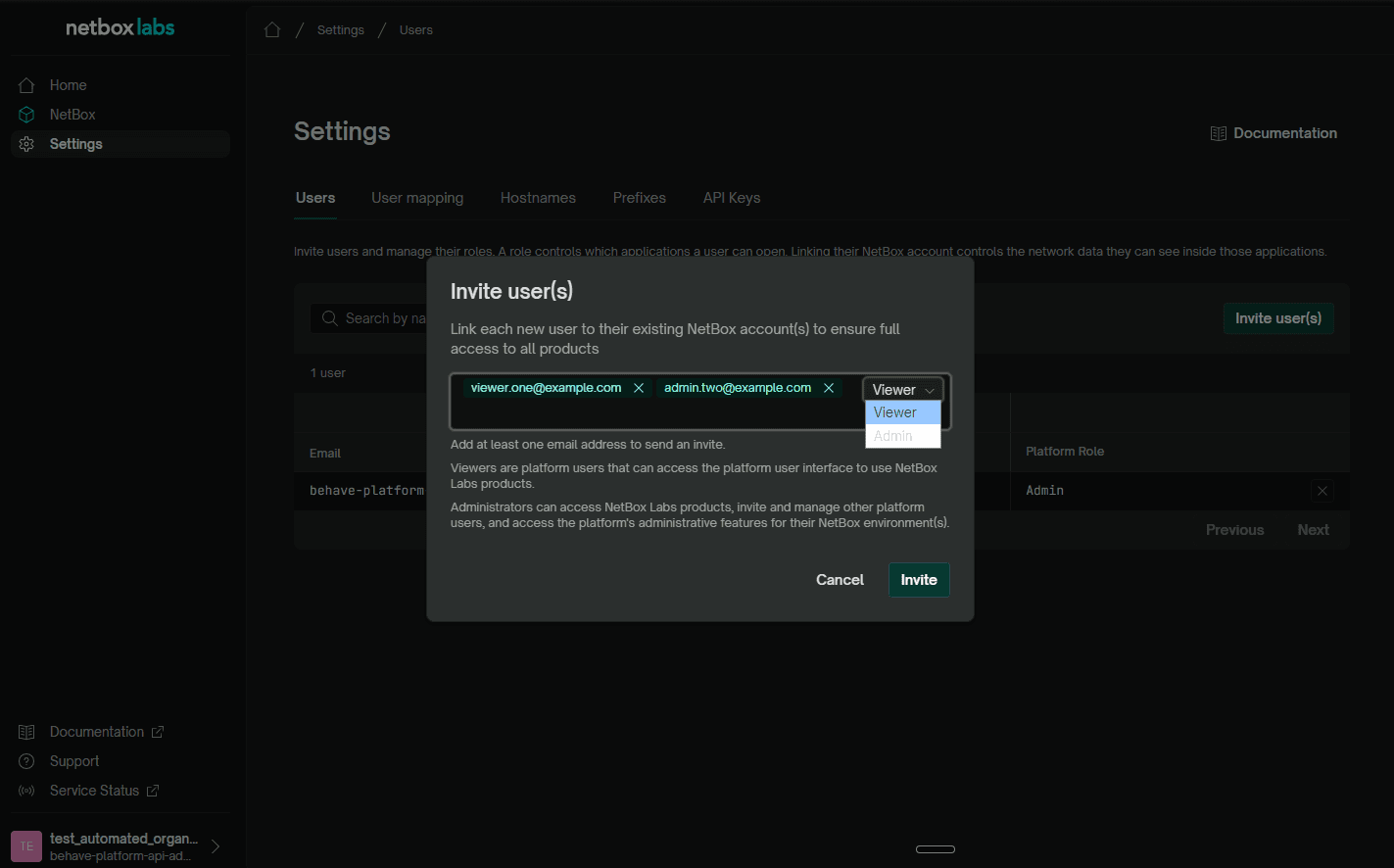
Each person receives an email invitation. Until they accept it, they appear in the Pending invites list above the Users table, and the Users table shows them with a Pending badge. To withdraw an invitation that has not been accepted, use the rescind action on its row in Pending invites.
A user who has accepted the invite can log in to the NetBox Labs platform to access the products your organization is entitled to, but sees no NetBox data in those products until you link their platform user account to their NetBox environment account(s).
Linking Platform Users to Their NetBox Accounts
NetBox environments are your NetBox Cloud instances and are listed on the platform's Home page. To use a NetBox Labs product from within the platform UI, a user must have:
- A platform user account to log into the platform UI and access the product(s)
- A user account on the NetBox environment(s) in which they want to use the product(s)
- A configured link between their platform user account and their NetBox user account(s)
Linking a platform user's account to their NetBox user account(s) allows the platform products to access a NetBox environment's data with the user's own NetBox account, permissions and activity attribution. A user is linked on a per environment basis, so they can be linked in one NetBox environment and not in another. A user who is not linked in an environment will not be able to use platform products in that environment.
Pending platform users cannot be linked, so the linking steps below are performed only after they have accepted their invitation.
- Go to Settings > Users and find the person's row.
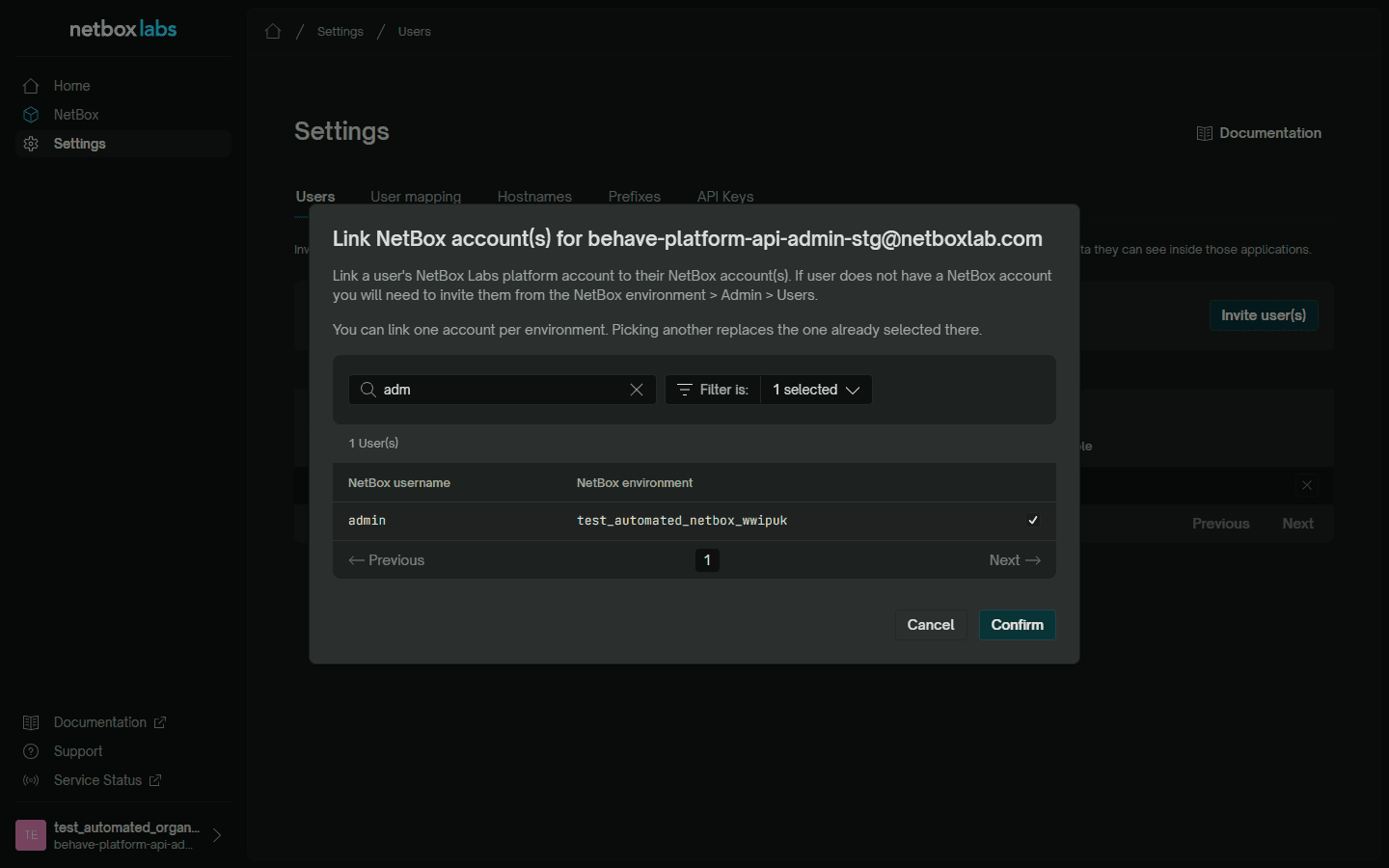
- Under NetBox environments, each of your NetBox environments has its own cell. Click the cell for the environment you want to link.
- In the Link NetBox account(s) dialog, search for their NetBox user, select it, and click Confirm.
- Repeat for each environment they need.
Linking Existing NetBox Users in Bulk
If you already have NetBox environment users and want to work through them in one pass, use Settings > User mapping. It lists your NetBox users rather than your platform users.
- Go to Settings > User mapping.
- Narrow the list with the search box, the All, Linked and Unlinked filter, and the environment filter.
- On each row, use the Link Platform user column controls to choose the platform account that person signs in with.
- Click Save changes.
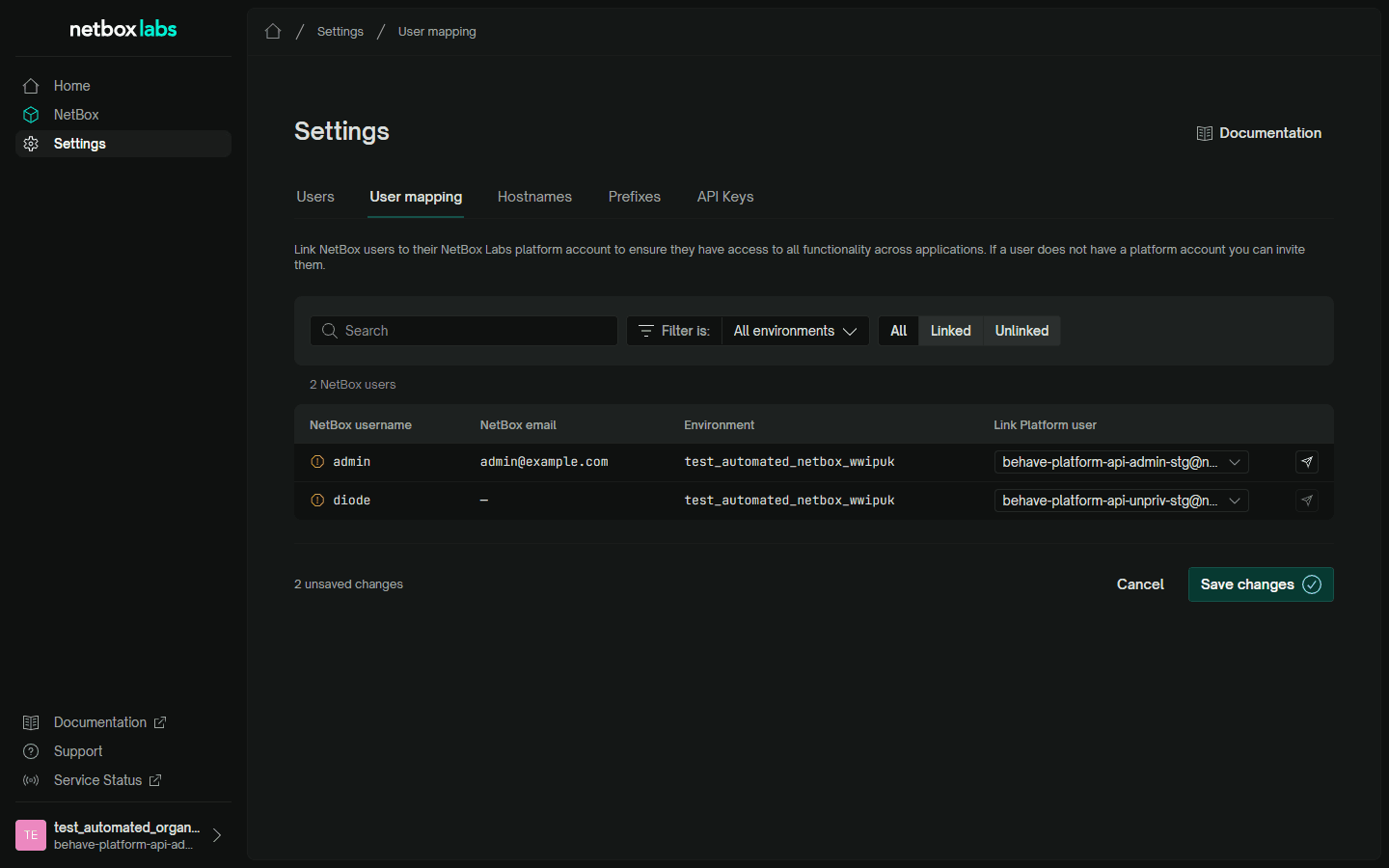
NetBox users not linked to a platform account are indicated on the left with a yellow exclamation symbol and you can use the page's Filter options to only view these entries, if desired.
There are three methods to get these users linked to a platform user account, depending on the situation, and the far right action button in each user's row will change accordingly:
- NetBox account email address matches an active platform user: Use the Link Platform user control to choose that platform user account, then click Save changes. No platform invitation is needed.
- NetBox account email address does not match any active platform user: This NetBox user needs to be invited to be a platform user. Click the action button on the right side of their row to queue the invitation, which is sent when you click Save changes.
- NetBox account has no email address: This NetBox user needs an invite to be a platform user, but no address is available so the invite cannot be initiated from this screen. Invite them from the Users tab instead, then link them once they accept.
The admin account on each NetBox environment is also the account the NetBox Labs platform uses to read your NetBox users. Do not delete, rename, deactivate, or demote it. See the NetBox admin Superuser Account page for more details.
Deactivating, Reactivating and Deleting Platform Users
You can Deactivate a platform user by using the Deactivate button on the right side of their row on the Settings > Users page. Deactivation prevents users from logging in to the NetBox Labs platform, but saves their user, role and NetBox linking information so they can be easily Reactivated in the future. You cannot deactivate your own account.
Deactivating a platform user does not change their NetBox instance account(s). If they should no longer have access to NetBox instance(s), deactivate them in NetBox as well.
Once a user has been Deactivated, two new actions become available in their row on the Settings > Users page:
- Reactivate User: this will restore their previous platform role and NetBox account links and allow them to log in again.
- Delete User: this will delete the user and their information from the platform. If this user needs platform access in the future, they will need to be re-invited and configured as a new platform user.
Troubleshooting User Access
| Symptom | Check |
|---|---|
| Settings shows a lock icon and "You do not have access to this page" | You are a Viewer, not an Admin. Ask an Admin in your organization to check your role. |
| A user logs in, opens a product, and sees no data | They are not linked to a NetBox account in that environment. Link them on Settings > Users. |
| A person you invited is not in the Link NetBox account(s) picker | They have not accepted their invitation yet. They are in Pending invites until they do. |
| The invite action on a User mapping row is unavailable | That NetBox user has no email address in NetBox. Invite them from the Users tab. |
| A warning banner says the platform cannot read an environment, or names a superuser that was deleted or is missing permissions | The superuser account on that NetBox environment has been changed. See the NetBox admin Superuser Account page. |
| A warning banner says an environment is unreachable | The instance is stopped or restarting. Check it on the NetBox Environments page, then raise a support ticket if it stays unreachable. |
| The Admin for our company is no longer available, so we cannot manage our platform users. | Email the NetBox Labs Support Team with: - your organization name - the email address of the person who should become the new Admin Support will restore an Admin for you. You can minimize the chances of this occurring by having at least two Admins. |
Best Practices
Administrator Management
- Maintain at least two platform Admins: Have at least one backup Admin in case your primary Admin becomes unavailable
- Limit Administrator Access: Invite people as Viewers unless they need to administer the organization
- Regular Review: Periodically review the Users tab and deactivate accounts that are no longer needed
- Use Corporate Email: Ensure all users are invited at corporate email addresses
- Do not use the NetBox
adminsuperuser account: Create individual NetBox user accounts for both user access and linking to platform users for product use. The NetBoxadminaccount should be treated as a service account. See the NetBoxadminSuperuser Account page for more details.
Security
- Enable 2FA: Require two-factor authentication for all users
- Monitor Activity: Regularly review platform access logs
- Incident Response: Have a plan for responding to security incidents
If you encounter any issues with platform user administration, raise a support ticket by emailing the NetBox Labs Support Team