NetBox Cloud Console Access
A new Console experience is coming
It adds the ability to invite and manage non-administrator Console users, so people can use NetBox Labs products without being given administrator access.
Migrating is not required unless you purchase, or join the preview of, a NetBox Labs product that requires it. To be migrated sooner, open a support ticket with the NetBox Labs Support Team.
Which pages apply to you?
- Log in to the NetBox Labs Console. If you can't, ask your organization's administrator, or open a support ticket with the NetBox Labs Support Team if you have none.
- Open Settings. If it shows a lock icon and "You do not have access to this page", your organization is on the new platform and you have the Viewer role: use the Platform Access page.
- If you see an Administrators tab after opening Settings, these pages apply to your organization. If Users is the first tab instead, your organization is on the new platform and you have the Admin role: use Platform Access and Platform User Administration.
You should already have access to the NetBox Labs Console when you sign up for NetBox Cloud.
How to Access the Console
There are two ways to access the NetBox Labs Console:
Option 1: Direct URL Access
Simply go directly to the NetBox Labs Console in your browser.
Option 2: Access from NetBox Cloud UI
From within the NetBox Cloud Web Interface, you can easily switch to the NetBox Labs Console:
-
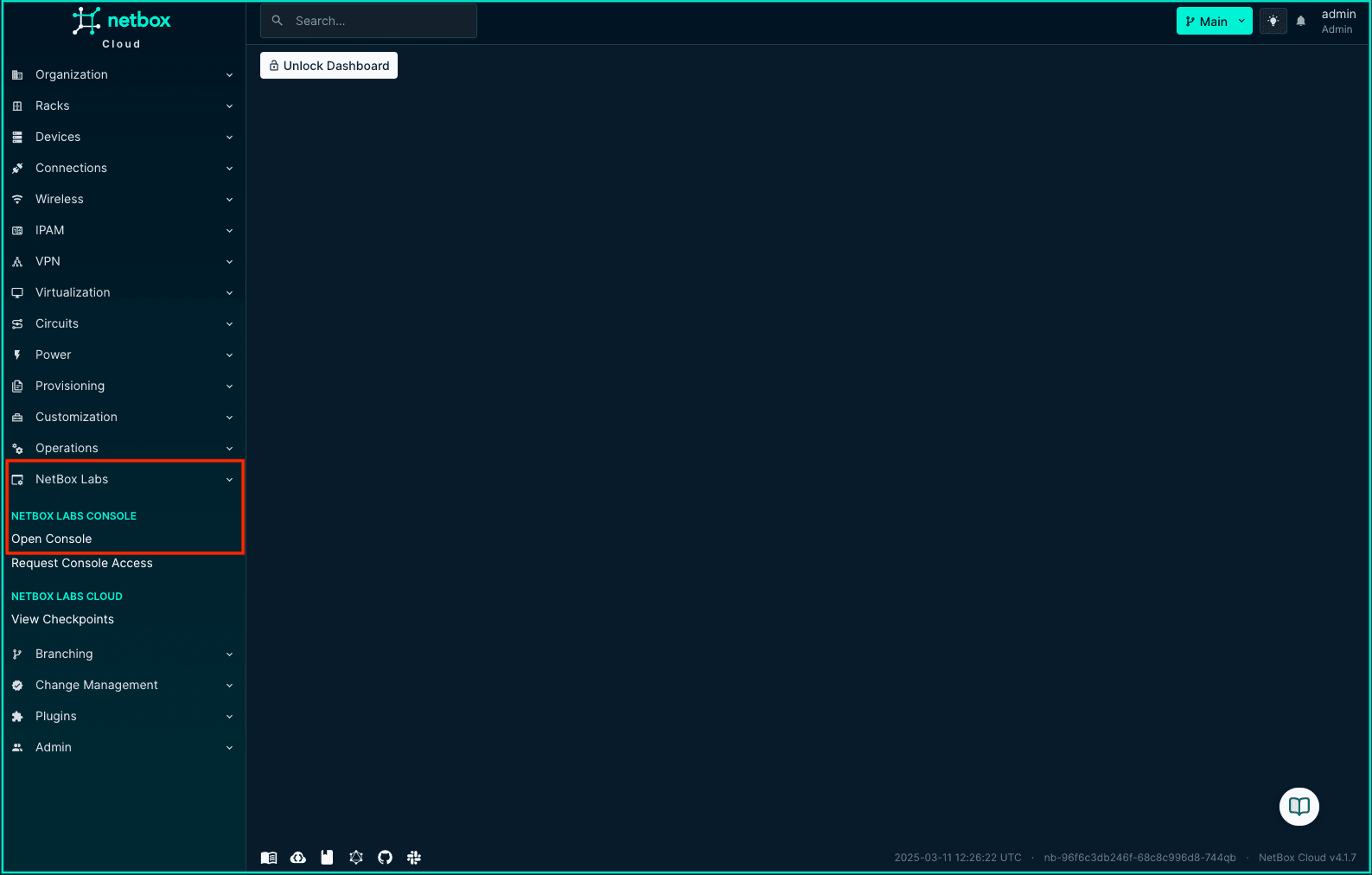
In the left hand main menu, click to expand the NetBox Labs plugin menu, and then click on Open Console:
-
This will take you directly to the NetBox Labs Console login page.
Requesting Console Access
If you don't already have access to the console, you can request it by:
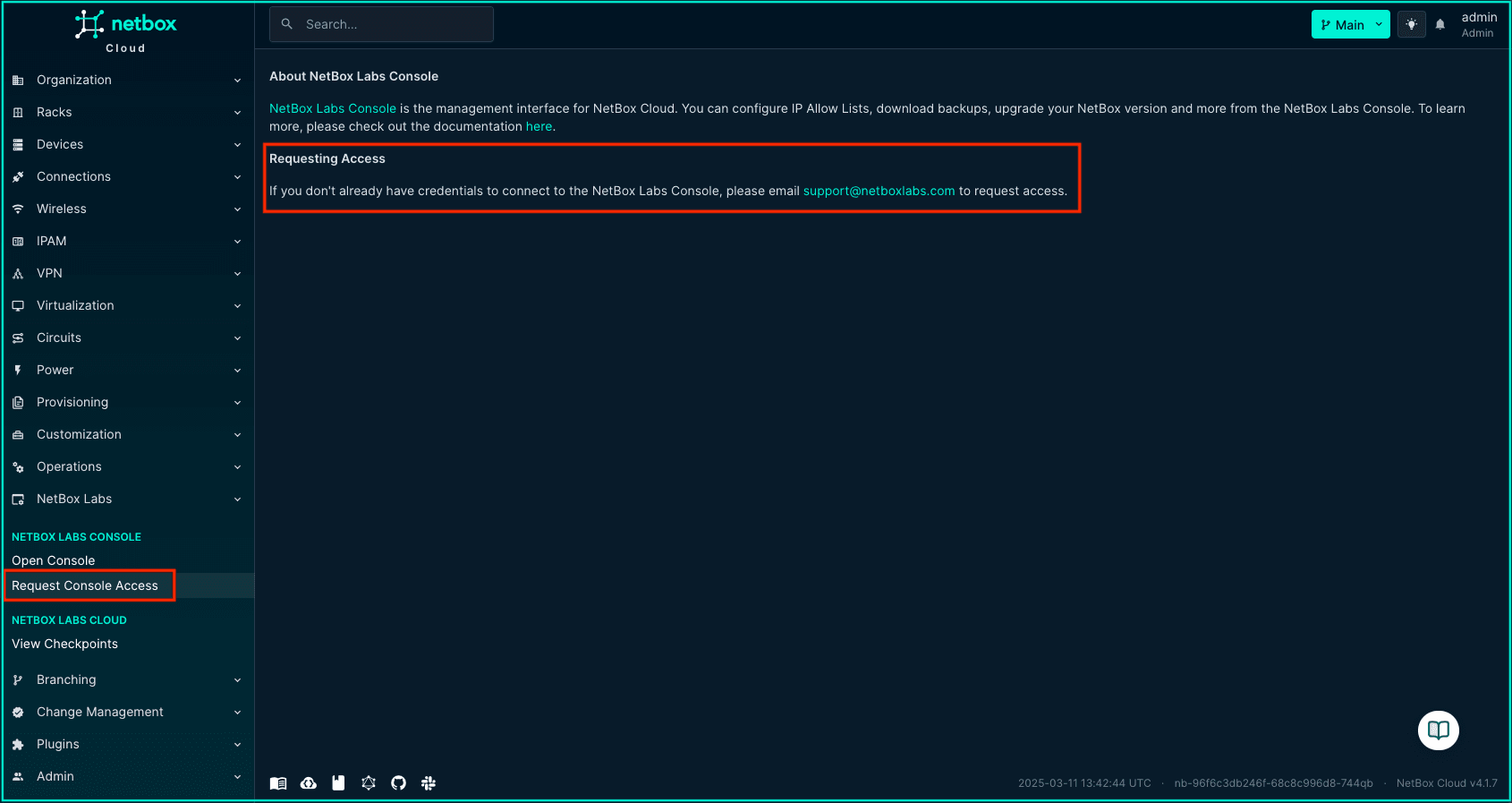
- Clicking Request Console Access in the NetBox Labs plugin menu from the NetBox Cloud web interface
- Then clicking the link to email the NetBox Labs Support Team to request access
If you encounter any issues when accessing the NetBox Labs Console, raise a support ticket by emailing the NetBox Labs Support Team
Login and Account Setup
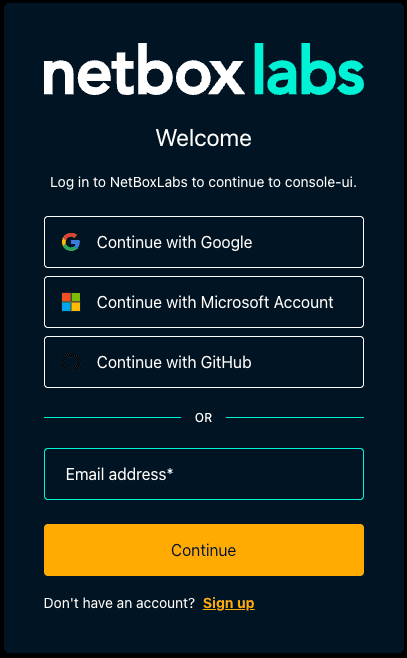
The NetBox Cloud team will set up your account with your email address as the username. You can login to the NetBox Labs Console using:
- Email/Password: Your email address and the password you set up when your account was created
- Single Sign-On (SSO): Providers such as Google, GitHub, and Microsoft
- Enterprise SSO: Your organization's Identity Provider (IdP) if configured
Using the Console
Once logged in, you will see all the NetBox Cloud instances running in your Organization.
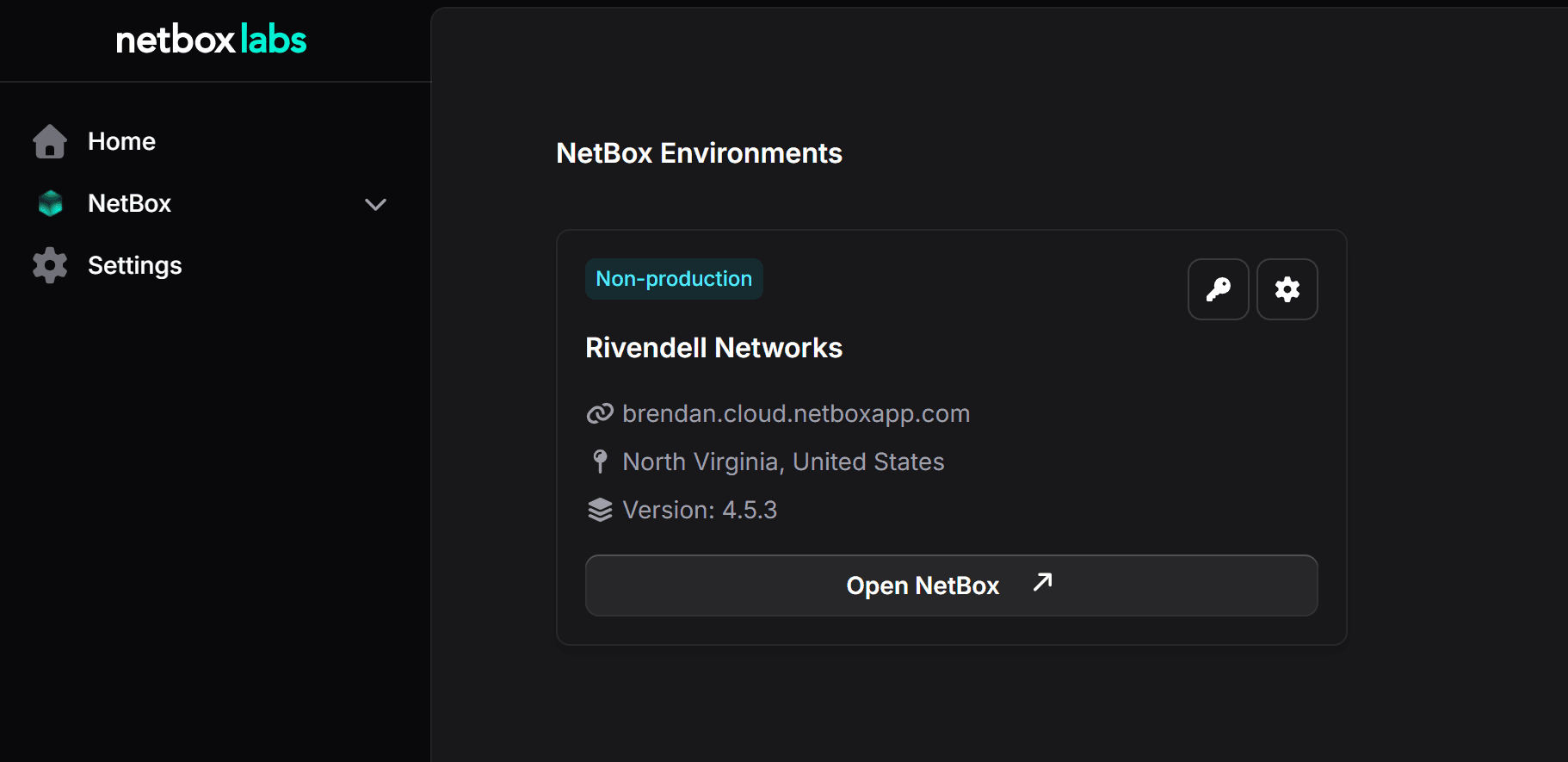
Accessing Your NetBox Cloud Instances
To access a specific NetBox Cloud instance:
-
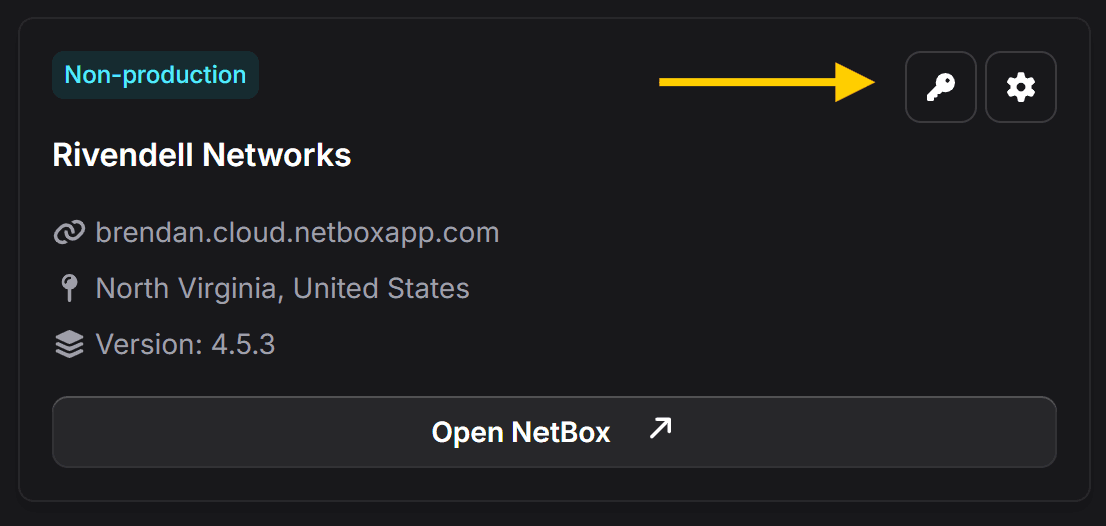
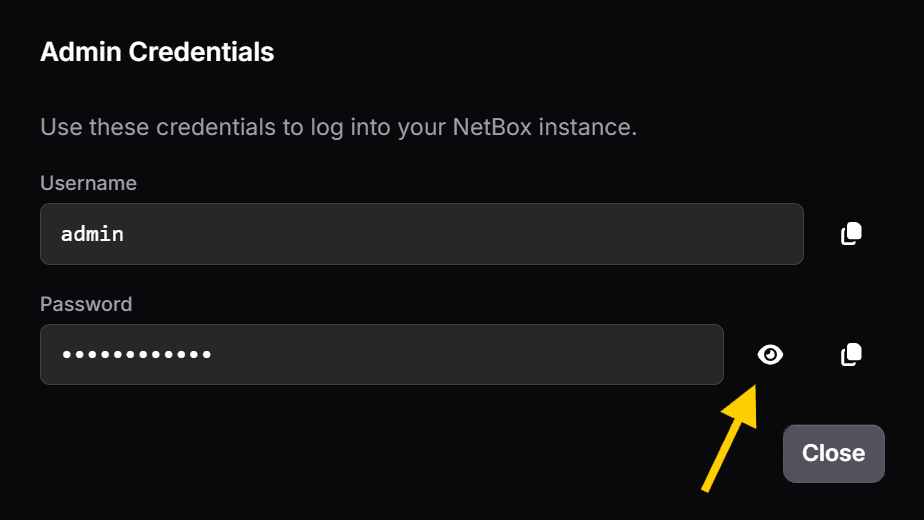
Get the credentials: Click the key icon on your NetBox instance as shown below to view Admin Credentials.
-
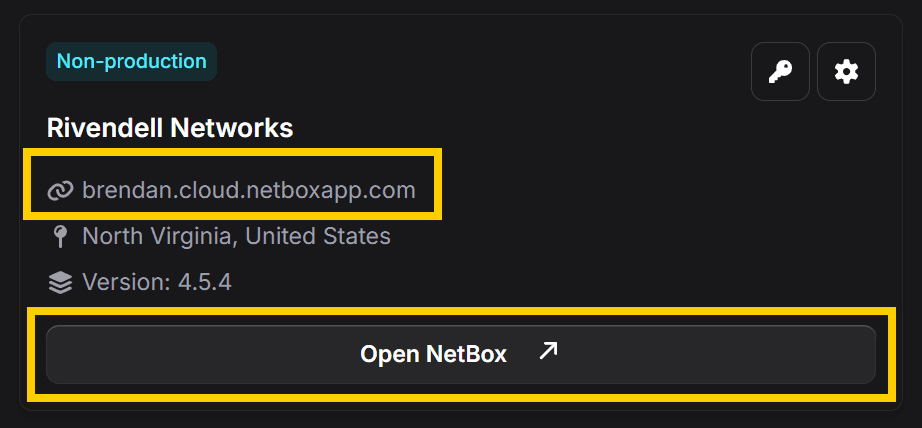
Open the instance: Click on either of the links to open the NetBox Cloud interface in a new browser window:
-
Login to NetBox Cloud: Use the username and password you copied from step 1: