Platform Access
How to reach the NetBox Labs platform.
Which pages apply to you?
- Log in to the NetBox Labs platform. If you can't, ask your organization's Admin, or open a support ticket with the NetBox Labs Support Team if you have none.
- Open Settings. If it shows a lock icon and "You do not have access to this page", these pages apply to you and you have the Viewer platform role.
- If Users is the first tab in Settings and you can see its contents, these pages apply to your organization and you have the Admin platform role. If you see an Administrators tab instead, use NetBox Cloud Console Access and Console Administration.
The NetBox Labs platform is where you access your NetBox Labs products, manage the people who can use those products, and manage the settings of your organization and NetBox Cloud instances. The platform lists your instances as NetBox environments.
How to Access the Platform
There are two ways to reach the NetBox Labs platform:
Option 1: Direct URL Access
Go to the NetBox Labs platform in your browser.
Option 2: Access from NetBox Cloud UI
From within the NetBox Cloud web interface, you can switch to the NetBox Labs platform:
-
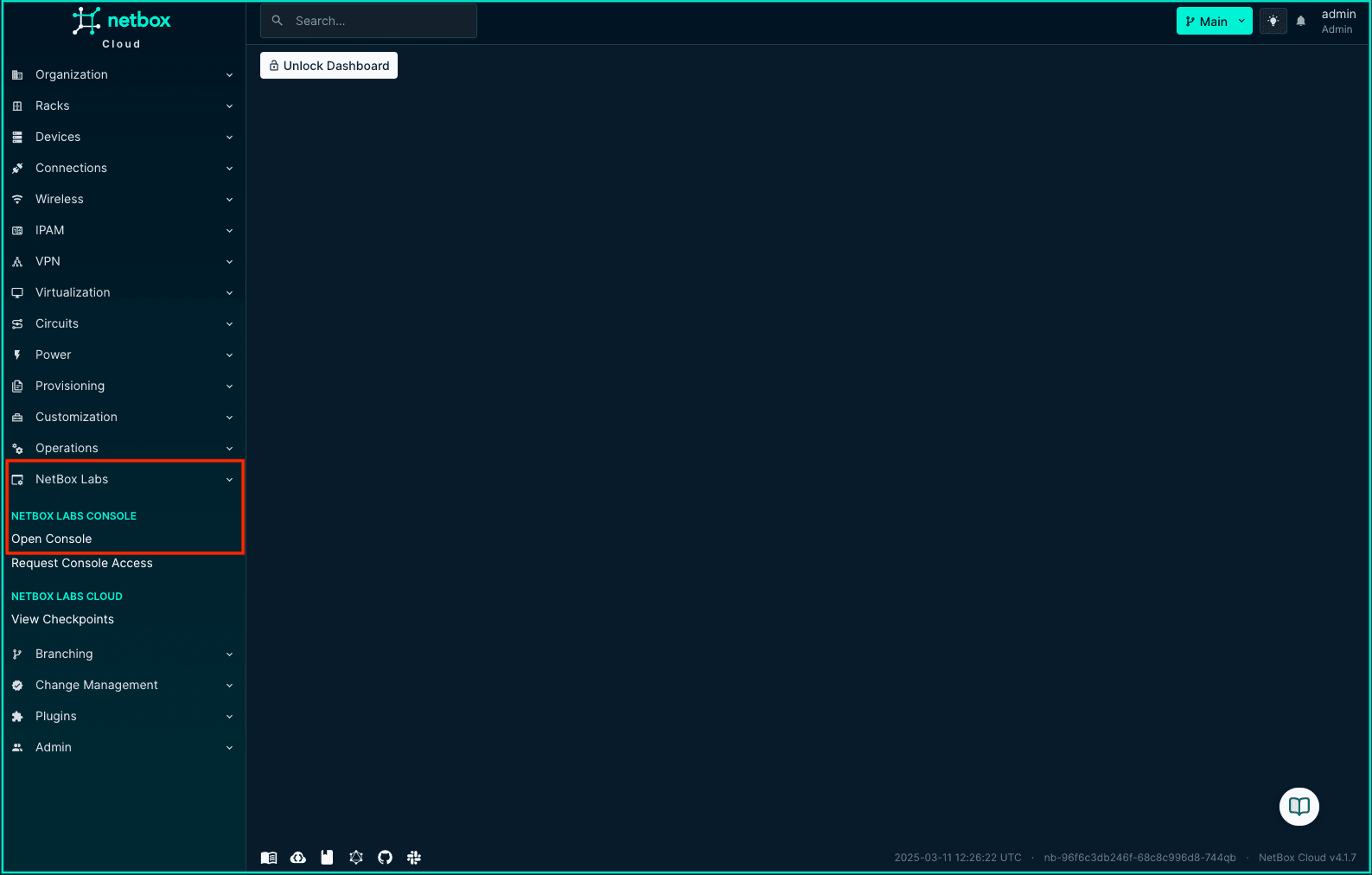
In the left hand main menu, click to expand the NetBox Labs plugin menu, and then click on Open Console:
-
This takes you to the NetBox Labs platform login page.
Previously called the NetBox Labs Console
The NetBox Labs platform user interface, at app.netboxlabs.com, was previously called the NetBox Labs Console. You will still see "Console" in some older documentation and in the NetBox plugin menu, where Open Console and Request Console Access open the same place, until the terminology changes are completed.
Getting an Account
Your organization's platform users are managed by the Admins in your organization.
- If your organization already has an Admin, ask them to invite you.
- If your organization has no Admin user available, email the NetBox Labs Support Team. Include your organization name and the email address of the person who should become the new Admin.
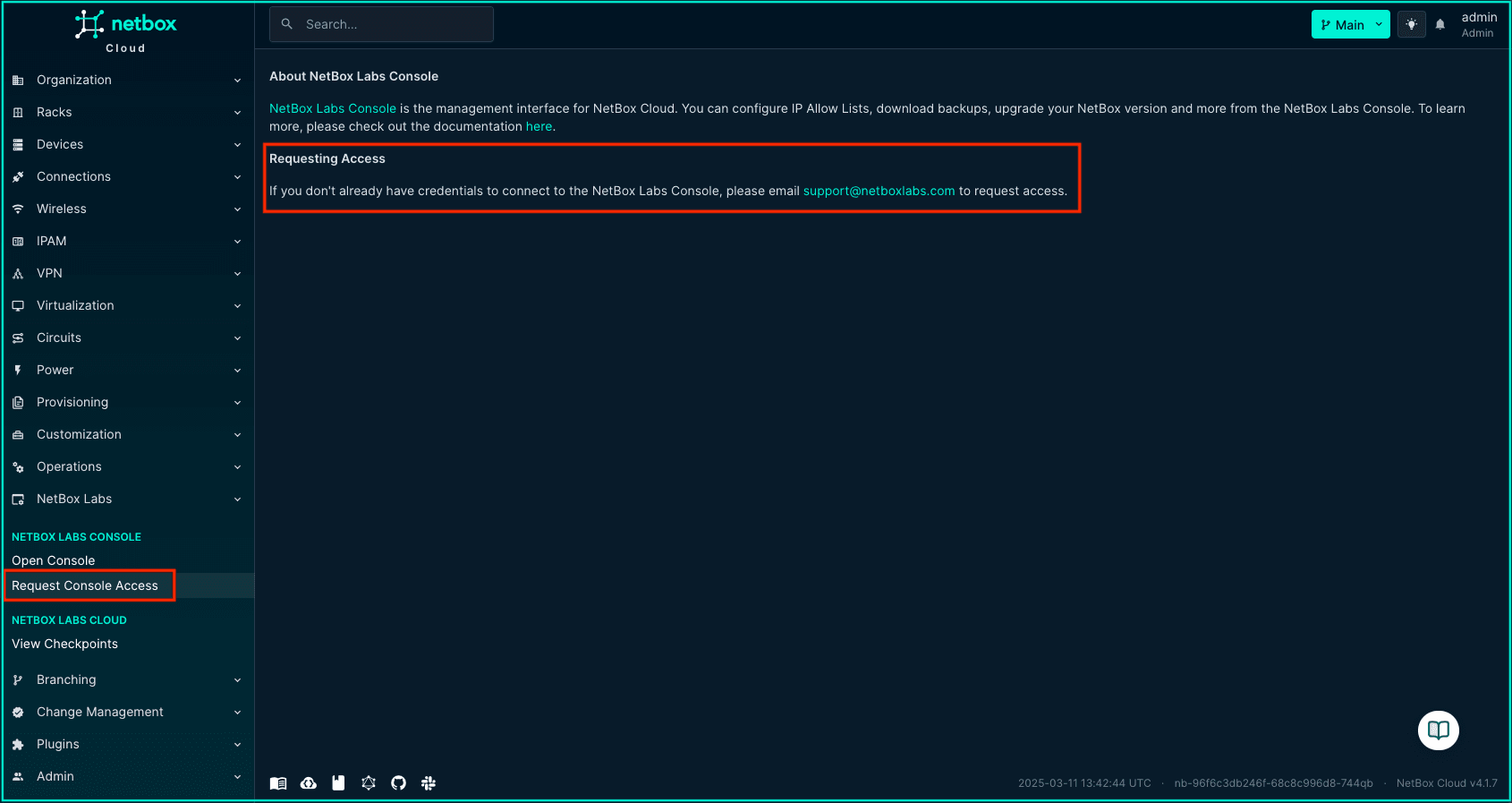
You can also click Request Console Access in the NetBox Labs plugin menu from the NetBox Cloud web interface, which opens an email to support.
Once you are invited, you receive an email invitation. Accept it to set up your account.
Login and Account Setup
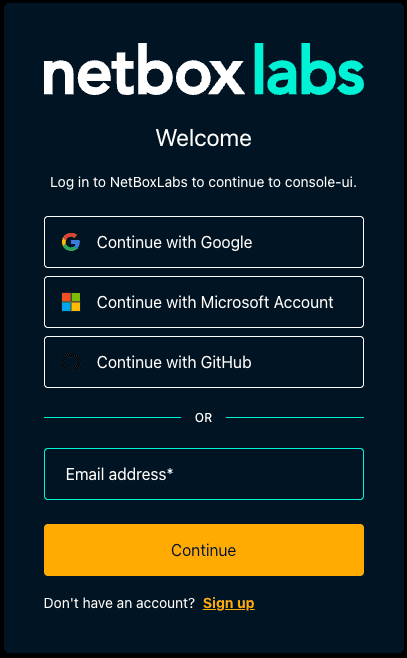
Your username is the email address your invitation was sent to. You can log in to the NetBox Labs platform using:
- Email/Password: Your email address and the password you set when you accepted your invitation
- Single Sign-On (SSO): Providers such as Google, GitHub, and Microsoft
- Enterprise SSO: Your organization's Identity Provider (IdP) if configured
Using the Platform
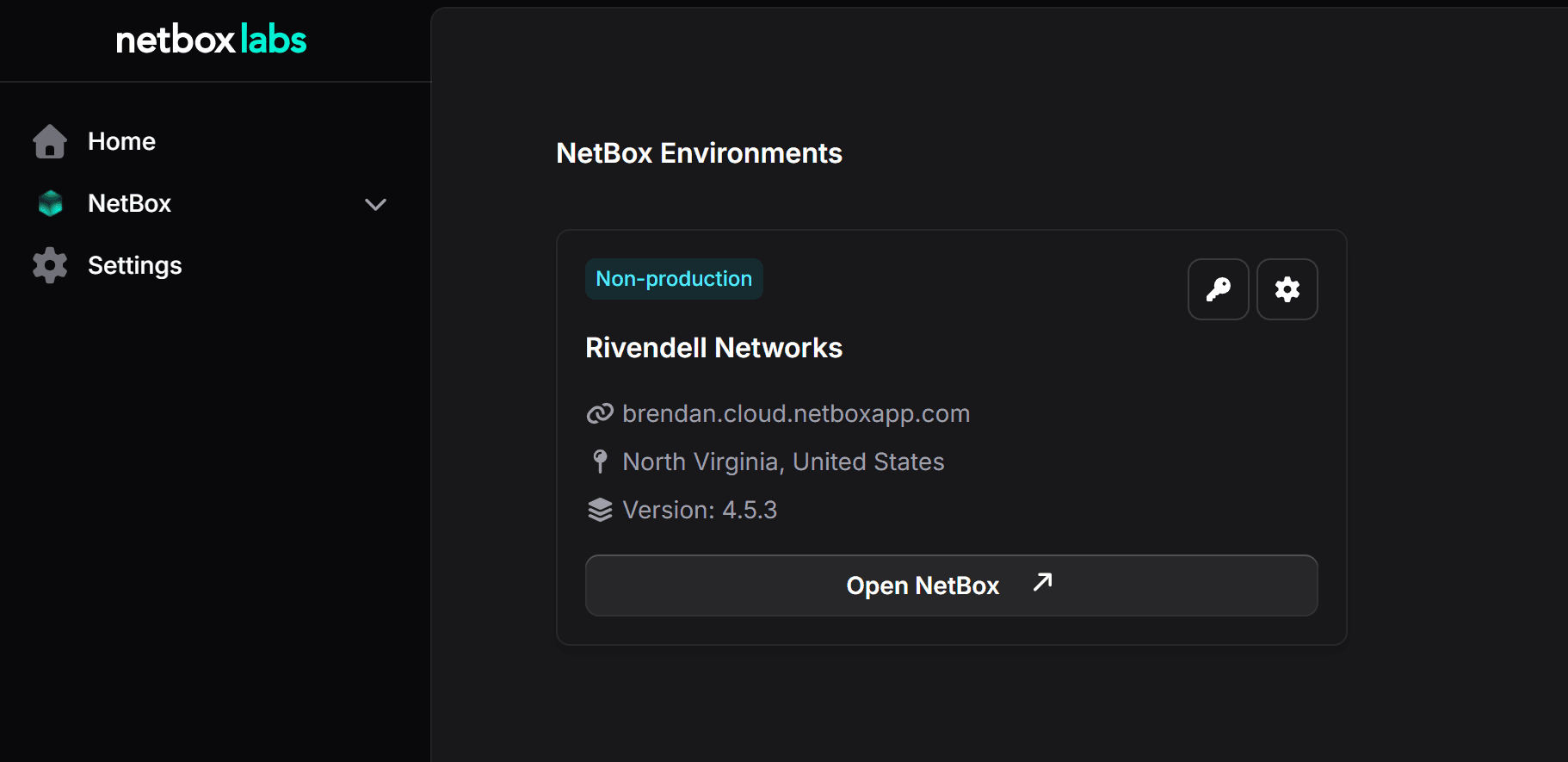
Once logged in, you will see your organization's NetBox environments on the Home page.
What you can do depends on your platform role:
- Viewer: the ability to access and use the NetBox Labs products and NetBox environments you have been given access to.
- Admin: in addition to product access, Admins can access the Settings section for the organization and each environment to manage platform users and other aspects of your organization and NetBox environments.
See Platform User Administration for more details on what each role can do.
Accessing Your NetBox Environments
How you log in to a NetBox environment depends on your role.
If you are a Viewer, use your own NetBox account to log in to a NetBox environment directly. When using a platform product, it will also access NetBox data using your NetBox user account. If you don't see any NetBox data while using a platform product, ask your Admin to check that your platform account is properly linked to your NetBox account(s).
If you are an Admin, you can access each NetBox environment using its admin credentials:
-
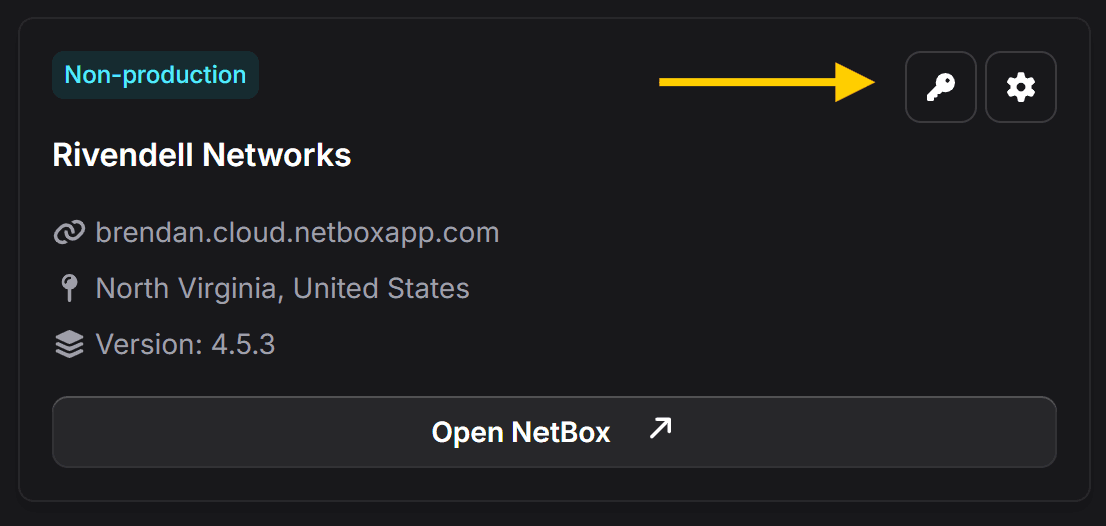
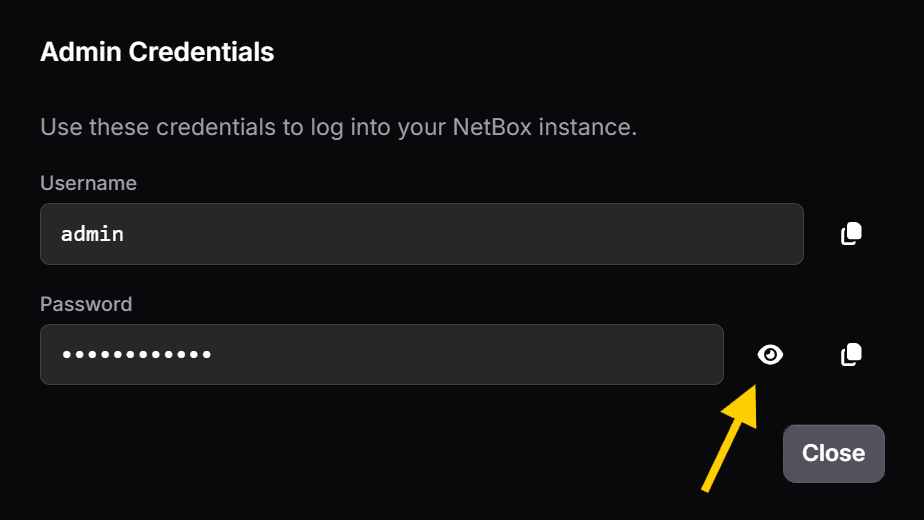
Get the credentials: Click the key icon on your NetBox environment to view Admin Credentials.
-
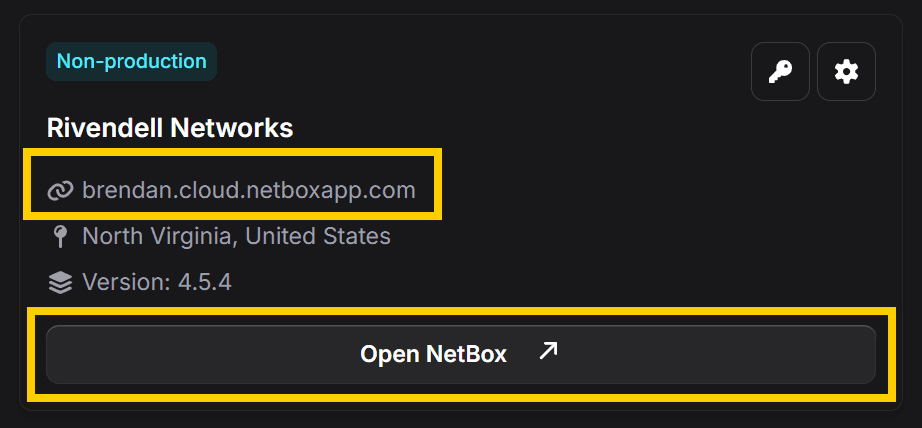
Open the environment: Click either link to open the NetBox Cloud interface in a new browser window.
-
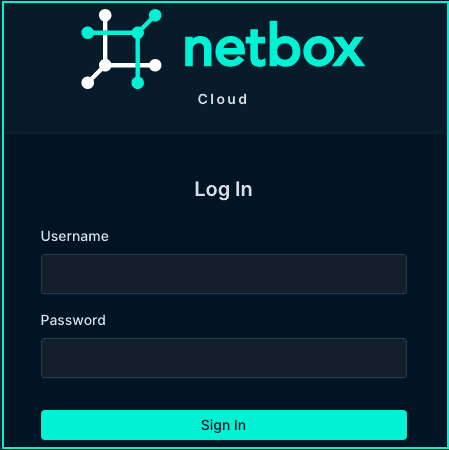
Log in to NetBox: Use the username and password you copied in step 1.
When using platform products, Admins must have their platform user account linked to their NetBox user account(s), just like any other platform user.
If you have any problems reaching the NetBox Labs platform, raise a support ticket by emailing the NetBox Labs Support Team