Group Mapping For Okta Single Sign-On (SSO)
This feature is available with the Professional or Premium tier of NetBox Cloud, or with NetBox Enterprise.
Group mapping lets you manage NetBox Cloud permissions centrally in Okta instead of assigning them user by user. When you update group membership in Okta, that change takes effect in NetBox Cloud the next time the user logs in, so access stays consistent as employees join, change roles, or leave.
If you already use Okta for NetBox Cloud SSO, you can set up group mapping by creating your groups and permissions in NetBox Cloud, creating matching groups in Okta, and then sharing the mapping details with NetBox Labs support.
Before you begin, set up Okta SSO for your NetBox Cloud instance.
For more information, see Groups in the Okta documentation.
Okta configuration
Group mappings are based on the name of the group in Okta. NetBox Cloud maps each name Okta sends to a NetBox Cloud group, and that group carries the permissions. Names are case-sensitive and must match your mapping exactly.
Two separate settings in Okta are involved, and they do different jobs:
- The groups claim controls which group names Okta sends to NetBox Cloud. Group mapping requires this.
- Assignments controls who can log in to NetBox Cloud. This is recommended, but mapping works without it.
Assigning the app integration to a group is an access decision that stays inside Okta. It answers whether a user may log in, and Okta doesn't pass that reasoning on.
The token NetBox receives carries the user's identity and nothing about group membership unless you configure the groups claim. Assignment also can't express which of several groups a user belongs to, which is exactly what a name-based mapping needs.
Identify your group names
- In the Okta Admin Console, select Directory > Groups in the left menu.
- Create a group or identify an existing group you want to use.
- Note the group's exact name. You will use this name to map the Okta group to the NetBox Cloud group.
Assign the app integration to your groups (recommended)
Group mapping doesn't require this, but group-based assignment is the only way to control which Okta users can log in to NetBox Cloud. Without it, any user in your Okta org who reaches your NetBox Cloud URL can authenticate, and NetBox creates a local account for them on first login. Those accounts have no permissions, but they accumulate.
The simplest path is to choose group assignment when you create the app integration. In the Assignments section of the creation wizard, under Controlled access, select Limit access to selected groups and enter the names of the groups you plan to map. See Okta SSO Setup.
Federation Broker Mode leaves nothing to assign groups to
If your integration uses Federation Broker Mode, which Okta offers alongside Allow everyone in your organization to access, users get SSO without being pre-assigned to the app. The integration's sign-on policy alone governs access, so Okta keeps no assignment records and group assignments aren't supported.
To use group-based access control on an integration in this mode, disable Federation Broker Mode in the Federation Broker Mode section of the integration's General tab. Okta restores assignments once the background process finishes.
To add more groups to an integration that already uses group assignment:
- In the Okta Admin Console, select Applications and Resources > Applications and open your NetBox Cloud app integration.
- Select the Assignments tab.
- Click Assign and choose Assign to Groups.
- Click Assign next to each group that should have access, then click Done.
For more information, see Assign an app integration to a group.
Set the groups claim filter
Assigning the app integration to a group does not, by itself, tell NetBox Cloud which groups a user belongs to. Okta only sends group names when the app integration has a groups claim configured.
NetBox Cloud expects that claim to be named groups, which means you configure it under Okta's legacy claims configuration. Okta's newer claims feature reserves the name groups and rejects it.
-
In the Okta Admin Console, select Applications and Resources > Applications and open your NetBox Cloud app integration.
-
Go to the Sign On tab and find the Token claims section.
-
Expand Show legacy configuration.
-
Set Groups claim type to Filter.
-
In Groups claim filter, leave the claim name as
groups, then set the filter to match the groups you want NetBox Cloud to see:- To send every group the user belongs to, select Matches regex and enter
.* - To send a subset, select Starts with and enter a literal prefix such as
NetBox
- To send every group the user belongs to, select Matches regex and enter
-
Click Save.
Okta moved these fields
These settings used to appear in the OpenID Connect ID Token section of the Sign On tab. That section now holds only Issuer and Audience. Depending on which features your Okta org has enabled, the Sign On tab may be named Authentication instead.
Don't use Add expression for the groups claim
The Add expression button in Token claims creates claims using Okta's federated claims feature, which reserves groups as a claim name and returns an error such as "'groups' is reserved and cannot be used". Use the legacy configuration above instead.
If your Okta org no longer offers the legacy configuration, contact NetBox Labs support before changing anything: sending the claim under a different name, or from a custom authorization server, requires a matching change to your NetBox Cloud instance.
Use the right operator for your filter value
Regular expressions only work with the Matches regex operator. Pairing a regex value with another operator, such as Starts with .*, is the most common reason no groups reach NetBox Cloud: Okta accepts the configuration and silently sends nothing.
A bare * is also not a valid regex here. Use .* instead.
For more information, see Configure custom claims for app integrations.
Only the groups your filter matches reach NetBox Cloud. If a mapped group is missing from the filter, users in that group are never added to the corresponding NetBox Cloud group.
NetBox Cloud configuration
- Create object-based permissions in NetBox Cloud (Admin > Authentication > Permissions).
- Ensure those permissions are mapped to a NetBox Cloud group (Admin > Authentication > Groups).
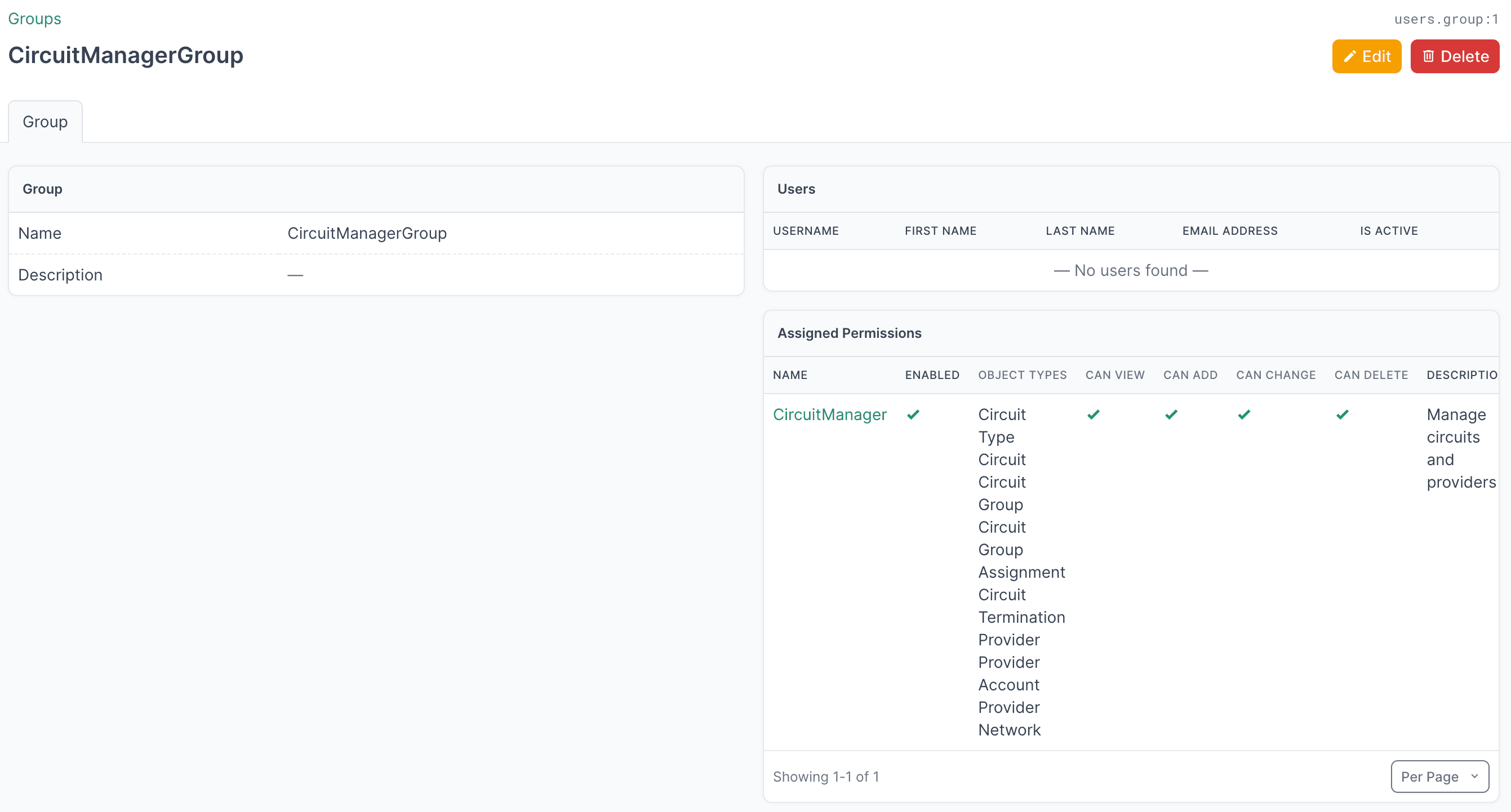
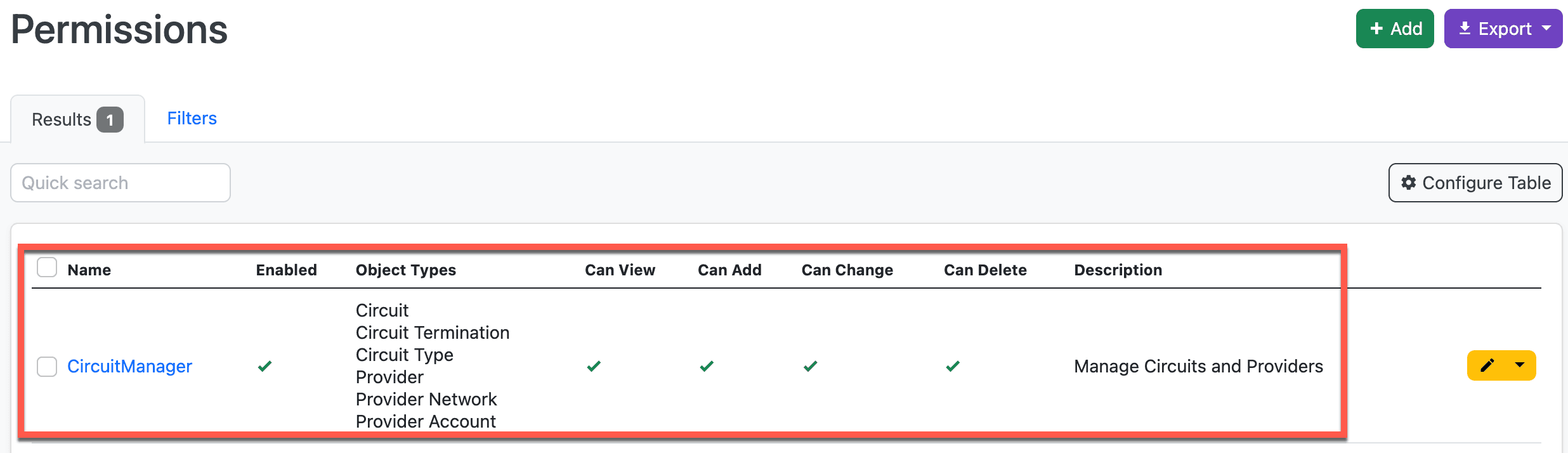
For example, this group called CircuitManager in NetBox Cloud has permissions assigned to it that allow members of the group to manage all of the Circuit and Provider object types:
Provide the group mapping information to NetBox
Send the following information to NetBox Labs support:
- Okta group name
- NetBox group name
- Optionally, whether the group should also map to the Staff or Superuser groups
The support team will enable group mapping on your NetBox Cloud instance, configure the mappings, and confirm when this is ready for testing.
How mapping works
On each login:
- NetBox reads the group names Okta returns for the user.
- NetBox removes all existing group memberships for the user.
- NetBox adds new group memberships based on the current Okta groups.
- User flags for Staff and Superuser groups are updated based on current groups.
Note the following:
-
Adding a user to an Okta group grants access on next login.
-
Removing a user from an Okta group revokes their NetBox access on next login. So users may retain access until their session expires if removed from groups. Consider forcing re-authentication for terminated employees.
-
Okta groups that aren't part of your mapping are ignored. Users are not added to NetBox Cloud groups for them.
-
A user in several mapped groups is added to all of the corresponding NetBox Cloud groups, and their permissions are the union of those groups.
Important
Group memberships are cleared and rebuilt on each login. Any manually assigned groups will be removed.
Each login is authoritative: NetBox Cloud replaces the user's group membership and staff/superuser flags with whatever the mapping produces. Groups or flags assigned manually in NetBox Cloud are removed unless a mapped Okta group grants them again.
Which groups Okta sends
NetBox Cloud only sees the group names your groups claim filter matches, so that filter determines whether built-in groups such as Everyone, and groups a user joined through a group rule, are included.
Review group rule access
Okta group rules can add users to a group automatically based on profile attributes, which means a user can inherit NetBox Cloud permissions without anyone assigning them to the group directly. Review your Okta group rules alongside your NetBox Cloud group mappings to confirm access matches your security requirements.
Staff and Superuser groups
Optionally, members of the Okta groups can also be members of the NetBox built-in groups:
- Staff: Allows access to the NetBox admin interface.
- Superuser: Has all permissions without explicitly assigning them.
The NetBox Labs support team will map your Okta groups to your NetBox Cloud groups, for example:
| Okta Group Name | NetBox Cloud Group | Staff | Superuser |
|---|---|---|---|
| NetBox-Circuit-Mgrs | Circuit Manager | Yes | No |
Security considerations
Exercise extreme caution when configuring Superuser groups.
Superusers have unrestricted access to NetBox and can:
- Modify any data, including configuration
- Elevate other users to superuser status