Group Mapping For Microsoft Entra ID SSO
This feature is available with the Professional or Premium tier of NetBox Cloud, or with NetBox Enterprise.
Group mapping lets you manage NetBox Cloud permissions centrally in Entra ID instead of assigning them user by user. When you update group membership in Entra ID, those changes sync to NetBox Cloud automatically, so access stays consistent as employees join, change roles, or leave.
If you already use Entra ID for NetBox Cloud SSO, you can set up group mapping by creating your groups and permissions in NetBox Cloud, creating matching groups in Entra ID, and then sharing the mapping details with NetBox Labs support.
For more information, see Learn about groups, group membership, and access.
Watch the video below for a step-by-step example of how the Group Mapping feature works, or read on for an explanation.
Entra ID configuration
Retrieve object IDs
From the Microsoft Entra admin center, select Entra ID > Groups in the left menu.
- Create a group or identify an existing group you want to use.
- Select All groups and then copy the Object ID for the group.

You will use the Object ID to map the Entra ID group to the NetBox Cloud group.
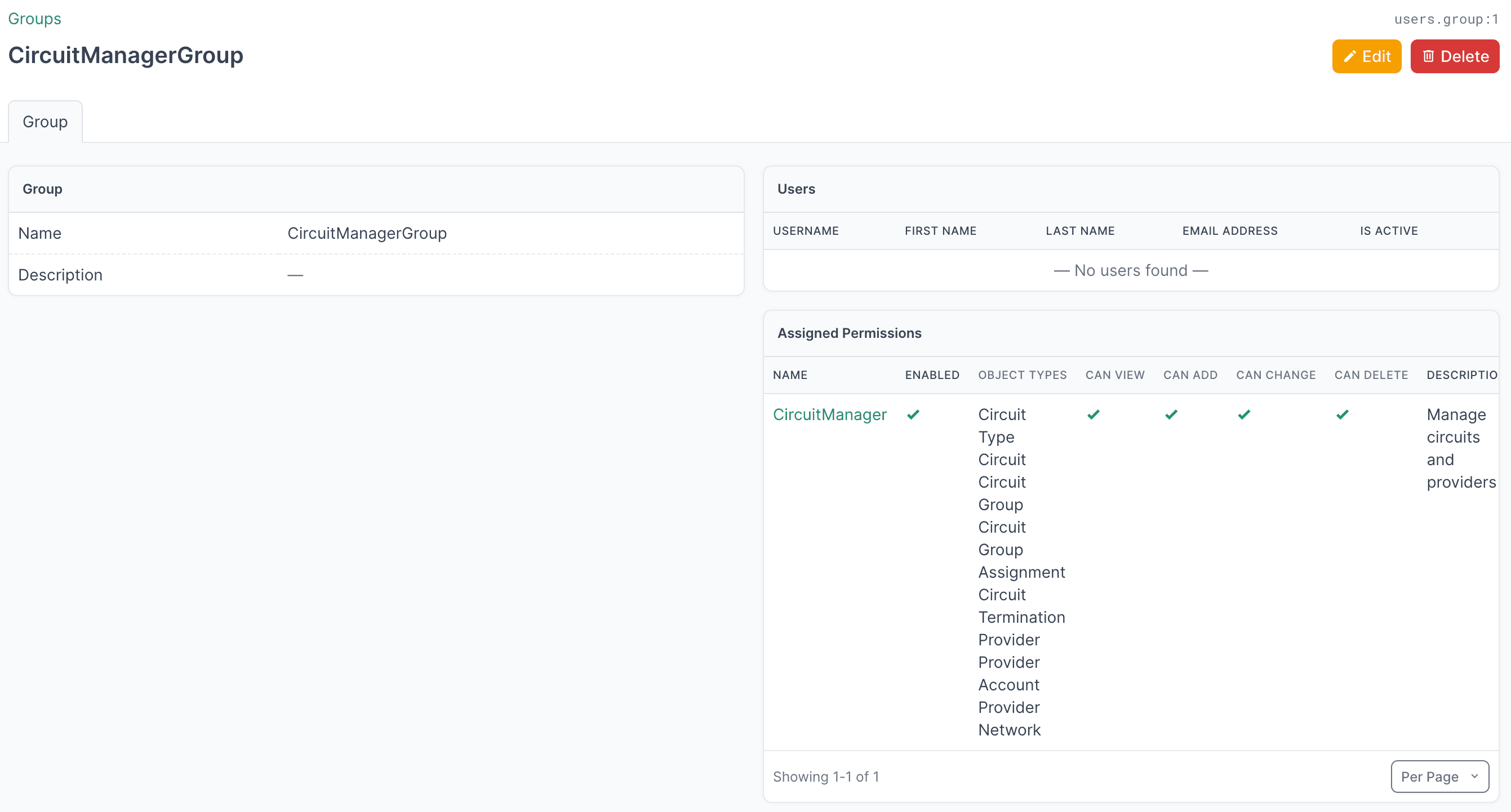
For example, this group called CircuitManager in NetBox Cloud has permissions assigned to it that allow members of the group to manage all of the Circuit and Provider object types:
NetBox Cloud configuration
- Create object-based permissions in NetBox Cloud (Admin > Authentication > Permissions).
- Ensure those permissions are mapped to a NetBox Cloud group (Admin > Authentication > Groups).
Provide the group mapping information to NetBox
Send the following information to NetBox Labs support:
- Entra object ID
- NetBox group name
- Optionally, whether the group should also map to the Staff or Superuser groups
How mapping works
On each login:
- NetBox queries Microsoft Graph API for current group memberships.
- NetBox removes all existing group memberships for the user.
- NetBox adds new group memberships based on current Entra ID groups.
- User flags for Staff and Superuser groups are updated based on current groups.
Note the following:
-
Adding a user to an Entra ID group grants access on next login.
-
Removing a user from an Entra ID group revokes their NetBox access on next login. So users may retain access until their session expires if removed from groups. Consider forcing re-authentication for terminated employees.
Important
Group memberships are cleared and rebuilt on each login. Any manually assigned groups will be removed.
Each login is authoritative: NetBox Cloud replaces the user's group membership and staff/superuser flags with whatever the mapping produces. Groups or flags assigned manually in NetBox Cloud are removed unless a mapped Entra ID group grants them again.
Nested and transitive group membership
NetBox Cloud resolves group membership using the Microsoft Graph transitiveMemberOf endpoint (paginated to support users in more than 100 groups). This means a user's NetBox Cloud group mappings are based on both their direct Entra ID group memberships and any parent groups those groups belong to, not just direct membership.
Review nested group access
Because parent group membership counts too, a user can inherit NetBox Cloud permissions through an Entra ID group they aren't directly a member of. Review your Entra ID group hierarchy alongside your NetBox Cloud group mappings to confirm access matches your security requirements.
Staff and Superuser groups
Optionally, members of the Entra ID groups can also be members of the NetBox built-in groups:
- Staff: Allows access to the NetBox admin interface.
- Superuser: Has all permissions without explicitly assigning them.
The NetBox Labs support team will map your Entra ID groups to your NetBox Cloud groups, for example:
| Entra ID Group Object ID | NetBox Cloud Group | Staff | Superuser |
|---|---|---|---|
| 1a36bed9-3bdc-4970-ab66-faf9704e0af4 | Circuit Manager | Yes | No |
Security considerations
Exercise extreme caution when configuring Superuser groups.
Superusers have unrestricted access to NetBox and can:
- Modify any data, including configuration
- Elevate other users to superuser status
Microsoft Entra ID Setup
This guide explains how to configure single sign-on (SSO) support for NetBox Cloud using Microsoft Entra ID (formerly Azure Active Directory) as an authentic...
Okta SSO Setup
This guide explains how to configure single sign-on (SSO) support for NetBox Cloud using Okta as an authentication backend.