Getting Started
Public Preview
The Tenable Nessus integration is currently in public preview and is not yet generally available. Contact support@netboxlabs.com to join the preview.
This guide walks you through setting up the Tenable Nessus Integration for NetBox.
- Prerequisites
- Host Requirements
- Tenable Setup
- NetBox Setup
- Agent Setup and Configuration
- Expected Output
- View and Apply Discovered Data in NetBox Assurance
- View the Tenable Data in NetBox
- Additional Resources
Prerequisites
Before you begin, ensure you have the following:
- NetBox Cloud or NetBox Enterprise with NetBox Assurance
- Orb Agent Pro credentials (required to download the integration agent image)
- A Tenable Nessus scanner. Other Tenable products, such as Tenable Vulnerability Management and Tenable Security Center, are not supported in this release
- A Nessus user account that can access the scans you want to sync
- Host system with Docker support
- Network connectivity between your host and both your NetBox instance and the Nessus scanner
Every scan is synced
The integration reads every scan that the Nessus user who owns the API keys can access. There is no setting to select which scans are synced. If some scans should not be recorded in NetBox, generate the API keys for a user that cannot access them.
Host Requirements
System
- Operating System: Linux, macOS, or Windows with Docker support
- Memory: Minimum 2 GB RAM (4 GB recommended)
- Storage: 1 GB free disk space
- Docker: Version 20.10 or later
Network
- Outbound gRPC/gRPCS access to Diode on your NetBox instance (typically port 443 for gRPCS)
- Outbound HTTPS access to the Nessus scanner, on the port in its URL (Nessus uses
8834by default) - DNS resolution for both NetBox and the Nessus hostname, if you use one
- Firewall rules configured to allow the above connections from your agent host
The integration does not verify the Nessus scanner's TLS certificate, so a scanner using its default self-signed certificate works without extra configuration.
Tenable Setup
Generate Nessus API keys
The integration authenticates to Nessus with an access key and a secret key belonging to a Nessus user.
- Log in to the Nessus web interface as the user whose scans you want to sync.
- Open My Account and select API Keys.
- Click Generate.
- Copy the Access Key and the Secret Key. You will use them as
TENABLE_ACCESS_KEYandTENABLE_SECRET_KEY.
Store the keys securely. The integration reads every scan this user can access.
NetBox Setup
Generate Diode Client Credentials
- Log in to your NetBox instance.
- Navigate to Diode → Client Credentials.
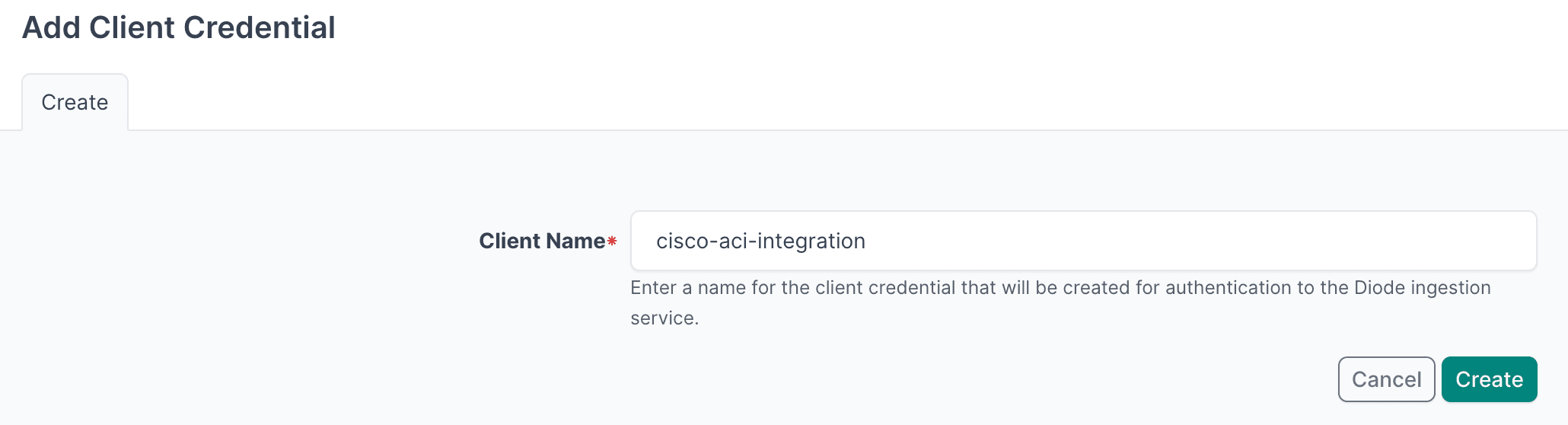
- Click + Add a Credential.
- Enter a descriptive name (for example, "Tenable Integration").
- Click Create.
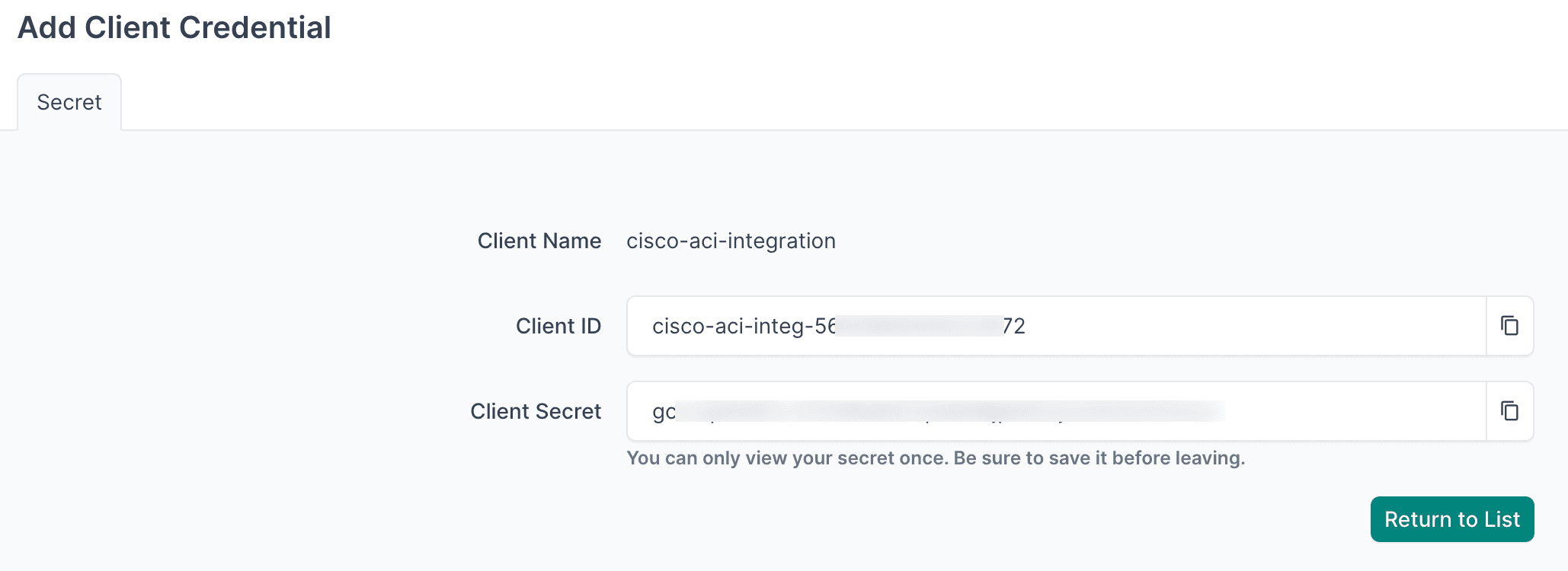
- Important: Copy and securely store the Client ID and Client Secret - you will need them in the agent configuration.
- Navigate to Diode → Settings.
- Copy the Diode target value - you will use this in the agent configuration file.

Agent Setup and Configuration
You can sync several Nessus scanners, each with its own policy and its own API keys.
Step 1: Authenticate to the NetBox Labs Image Registry
From your host machine, authenticate to the NetBox Labs registry using the CUSTOMER-IDENTIFIER and token provided by the NetBox Labs team:
docker login quay.io -u netboxlabs+<CUSTOMER-ID> -p <TOKEN>Example session:
% docker login quay.io -u netboxlabs+org-abc123def456 -p <token>
Login Succeeded
Then pull the agent image:
docker pull quay.io/netboxlabs/orb-agent-pro:developStep 2: Configure the Agent
- Create the configuration file (you can name the file anything you like):
touch agent.yaml- Edit the configuration file and add the following. Replace
grpcs://your-instance.netboxcloud.com/diodewith the value from Diode → Settings → Diode target in the NetBox UI:
orb:
  config_manager:
    active: local
  backends:
    worker:
    common:
      diode:
        target: grpcs://your-instance.netboxcloud.com/diode # Get this value from Diode > Settings > Diode target
        client_id: ${DIODE_CLIENT_ID}
        client_secret: ${DIODE_CLIENT_SECRET}
        agent_name: tenable_01  # Use a meaningful name to identify this agent
  policies:
    worker:
      tenable_worker:
        config:
          package: nbl_tenable_tenable
          schedule: "0 2 * * *" # Daily at 2:00 AM. Set your desired schedule (see examples below)
          TENABLE_URL: ${TENABLE_URL}
          TENABLE_ACCESS_KEY: ${TENABLE_ACCESS_KEY}
          TENABLE_SECRET_KEY: ${TENABLE_SECRET_KEY}
          BOOTSTRAP: True  # Set to True for initial setup, False for regular operation
          # USE_DNS_FALLBACK: false  # Optional: look up a DNS name for hosts that Nessus has none for (default: false)
Environment variables
Every ${VARIABLE} in the configuration must be set in the agent container's environment. An unset variable is passed to the integration as the literal text, such as ${TENABLE_URL}, and the run fails.
TENABLE_URL must include the scheme and hostname, and the port if it is not 443, for example https://nessus.example.com:8834.
Schedule Examples
The schedule field uses cron syntax. Common examples:
"*/30 * * * *"- Every 30 minutes"0 * * * *"- Every hour"0 */6 * * *"- Every 6 hours"0 2 * * *"- Daily at 02:00
The integration has no scope settings. It always reads every scan the API keys can access.
Bootstrap Mode (First-Time Setup)
Bootstrap mode creates the static content in NetBox that the integration requires before the first full sync. Run it once on initial setup, then disable it for all subsequent runs. In bootstrap mode the integration makes no Nessus API calls, so the URL and API keys are not required.
What bootstrap mode creates:
- Custom fields on IP addresses:
tenable_max_severity,tenable_critical_count,tenable_high_count,tenable_medium_count,tenable_low_count
Configuration:
config:
  BOOTSTRAP: true  # Set to true for initial setup, false for regular operation
First-time run process:
- Set
BOOTSTRAP: truein your configuration. - Run the agent and monitor the output for
executed successfully. - Stop the agent by pressing
Ctrl+Conce you seeexecuted successfully. - Apply the deviations in NetBox Assurance (see Apply Deviations below).
- Set
BOOTSTRAP: falsefor all future runs.
Optional - Dry Run Mode
The agent can run in dry run mode, which writes discovered data to a JSON file instead of sending it to NetBox. This is useful for checking what the integration will create before the first real sync, or for sharing data with the NetBox Labs support team.
Add the following to the diode section of your configuration:
      diode:
        dry_run: true
        dry_run_output_dir: /opt/orb/  # Output file is written to this directory
Step 3: Run the Agent
Run the agent to synchronize Nessus scan results into NetBox. The current directory, containing agent.yaml, is mounted into the container at /opt/orb/.
Method 1: Set Environment Variables Manually
- Export Diode credentials:
export DIODE_CLIENT_ID="your-client-id"
export DIODE_CLIENT_SECRET="your-client-secret"- Export Nessus connection details:
export TENABLE_URL="https://nessus.example.com:8834"
export TENABLE_ACCESS_KEY="your-access-key"
export TENABLE_SECRET_KEY="your-secret-key"- Run the agent:
docker run \
  -v $PWD:/opt/orb/ \
  -e DIODE_CLIENT_SECRET \
  -e DIODE_CLIENT_ID \
  -e TENABLE_URL \
  -e TENABLE_ACCESS_KEY \
  -e TENABLE_SECRET_KEY \
  quay.io/netboxlabs/orb-agent-pro:develop \
  run -c /opt/orb/agent.yaml
Method 2: Use a .env File (Recommended)
- Create a
.envfile:
touch .env- Edit the
.envfile and add the following:
## NetBox Diode credentials (from NetBox Setup)
DIODE_CLIENT_ID=your-client-id
DIODE_CLIENT_SECRET=your-client-secret

## Nessus connection
TENABLE_URL=https://nessus.example.com:8834
TENABLE_ACCESS_KEY=your-access-key
TENABLE_SECRET_KEY=your-secret-key
Important
Replace the placeholder values with your actual credentials:
your-client-idandyour-client-secretfrom the NetBox Diode setuphttps://nessus.example.com:8834with the URL of your Nessus scanneryour-access-keyandyour-secret-keywith the keys from Generate Nessus API keys
- Run the agent:
docker run \
  -v $PWD:/opt/orb/ \
  --env-file .env \
  quay.io/netboxlabs/orb-agent-pro:develop \
  run -c /opt/orb/agent.yaml
Security Best Practice
Add .env to your .gitignore file to avoid committing credentials to version control:
echo ".env" >> .gitignoreExpected Output
After starting the agent, you will see log output as the integration reads the scans and sends data to NetBox:
{"time":"2026-10-08T15:15:01.123456789Z","level":"INFO","msg":"worker stderr","log":"INFO:nbl_tenable_tenable.tenable_diode:Connecting to Tenable Nessus at https://nessus.example.com:8834"}
{"time":"2026-10-08T15:15:01.234567890Z","level":"INFO","msg":"worker stderr","log":"INFO:nbl_tenable_tenable.tenable_diode:Connected to Tenable Nessus version unknown"}
{"time":"2026-10-08T15:15:01.345678901Z","level":"INFO","msg":"worker stderr","log":"INFO:nbl_tenable_tenable.builders.ip_addresses:Processing 2 scan(s) from Tenable"}
{"time":"2026-10-08T15:15:04.456789012Z","level":"INFO","msg":"worker stderr","log":"INFO:nbl_tenable_tenable.builders.ip_addresses:Built 3 IP address entity/entities"}
{"time":"2026-10-08T15:15:05.567890123Z","level":"INFO","msg":"worker stderr","log":"INFO:worker.policy.runner:Policy tenable_worker: Successful ingestion"}
{"time":"2026-10-08T15:15:05.678901234Z","level":"INFO","msg":"worker stderr","log":"INFO:apscheduler.executors.default:Job \"PolicyRunner.run\" executed successfully"}
Monitoring and Testing
Success indicator: Look for Successful ingestion in the output to confirm data was sent to NetBox via Diode.
Warnings to check: The integration logs a warning, and continues, when it cannot read a scan's details or a host's details, and when it skips a host that has no IP address. See FAQ & Troubleshooting.
Testing: Run the agent once and press Ctrl+C to stop it after seeing executed successfully. This lets you verify configuration before setting up continuous scheduled operation.
Continuous operation: The agent runs according to your cron schedule until the container is stopped.
View and Apply Discovered Data in NetBox Assurance
After the agent runs, work with the discovered Tenable data in NetBox Assurance.
NetBox Assurance identifies deviations between data already in NetBox and the actual operational state discovered by the integration.
Understanding Deviations
Deviations are the delta between what is currently in NetBox and what the integration discovered from Nessus. On the initial run, all discovered objects may appear as deviations if they did not previously exist in NetBox. After the initial sync and deviation application, subsequent runs produce deviations only for changed or new objects.
Accessing NetBox Assurance
- Navigate to your NetBox instance UI.
- Click on Assurance in the main navigation menu.
Explore Deviation Types
- Click on Deviation Types to view the categories of deviations discovered.
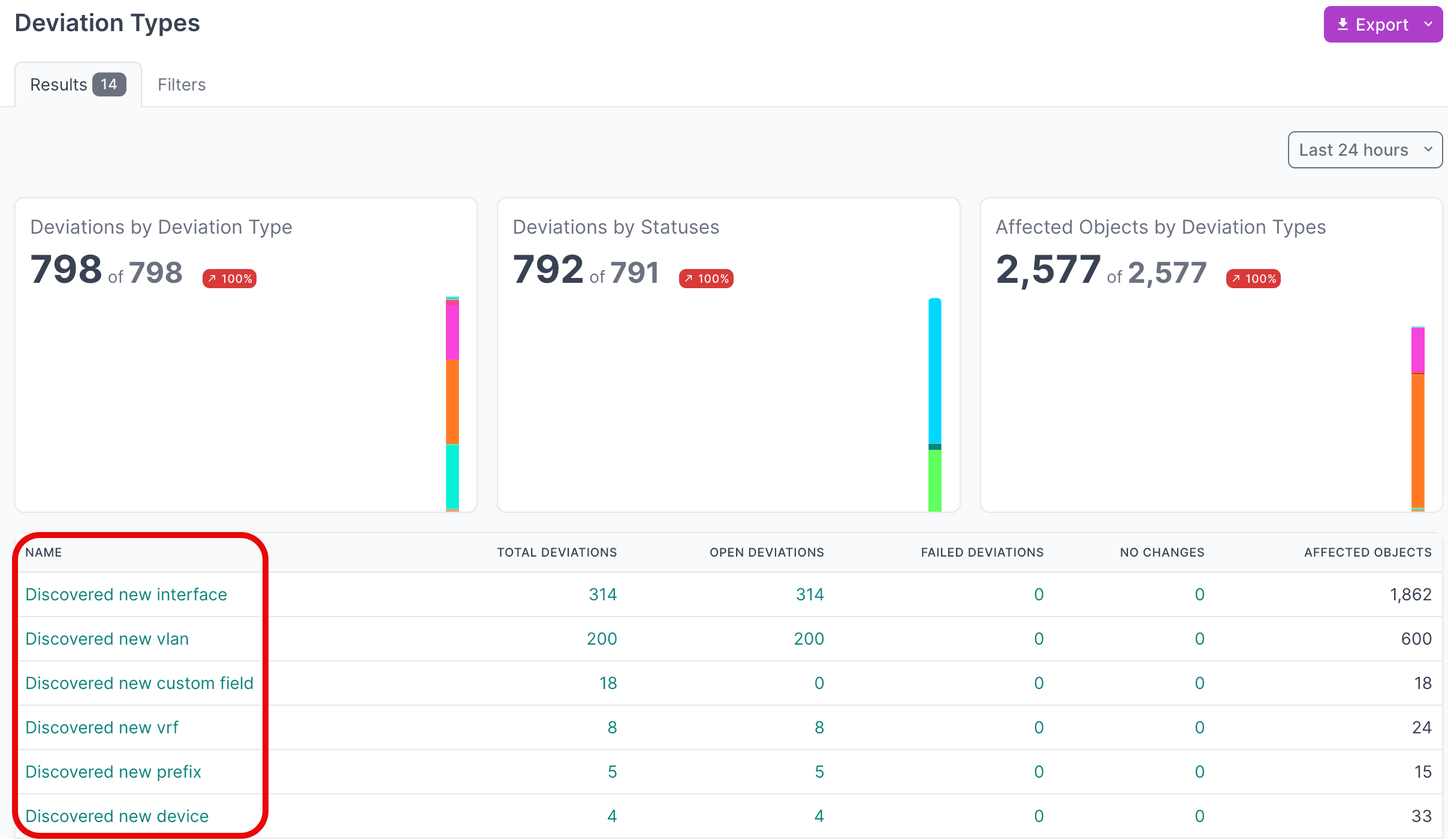
- Click the Name of a deviation type to view deviations of that type.
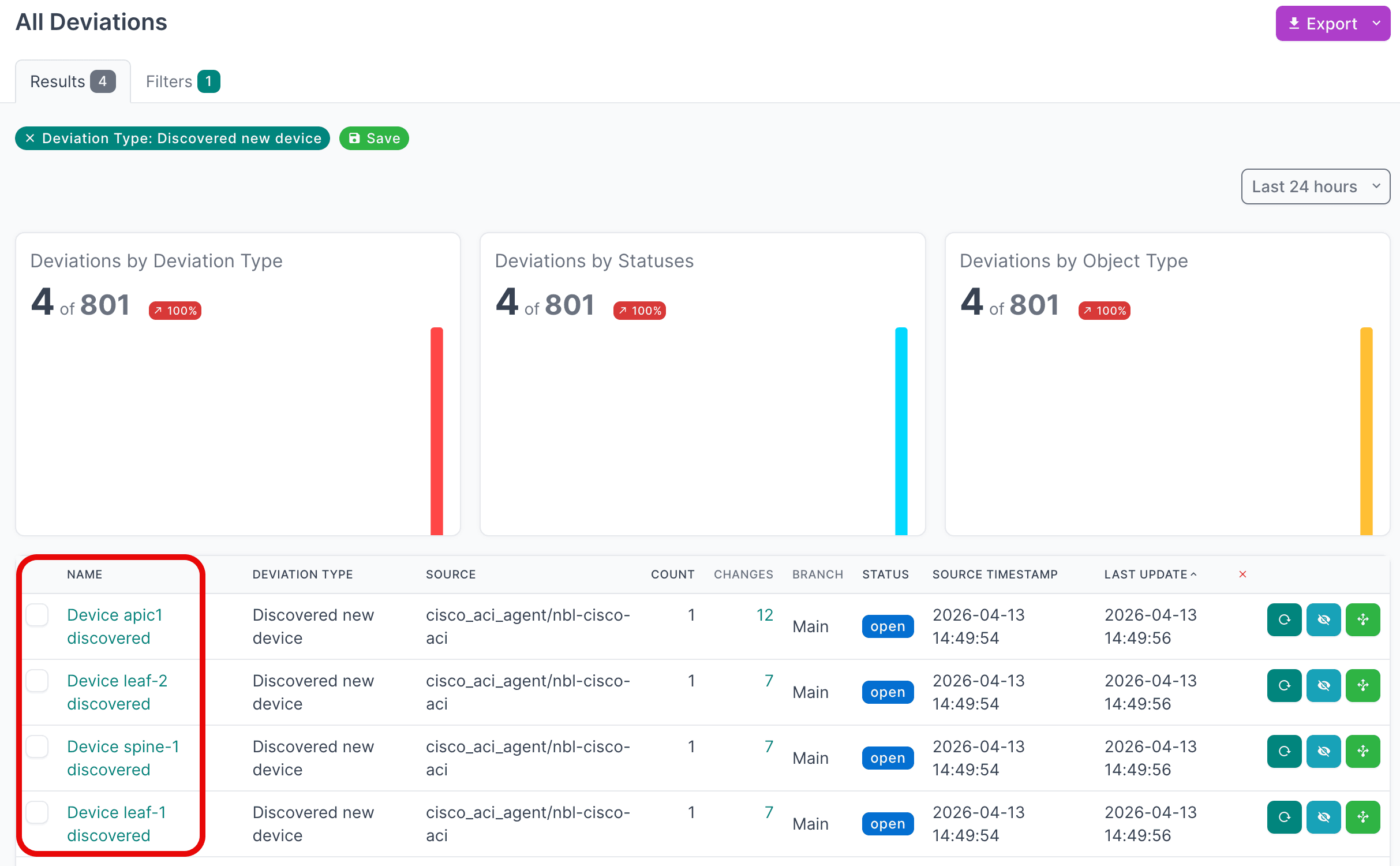
- Click the Name of an individual deviation to view its details.
View Active Deviations
- Click on Active Deviations to view all deviations that have not yet been applied or ignored.
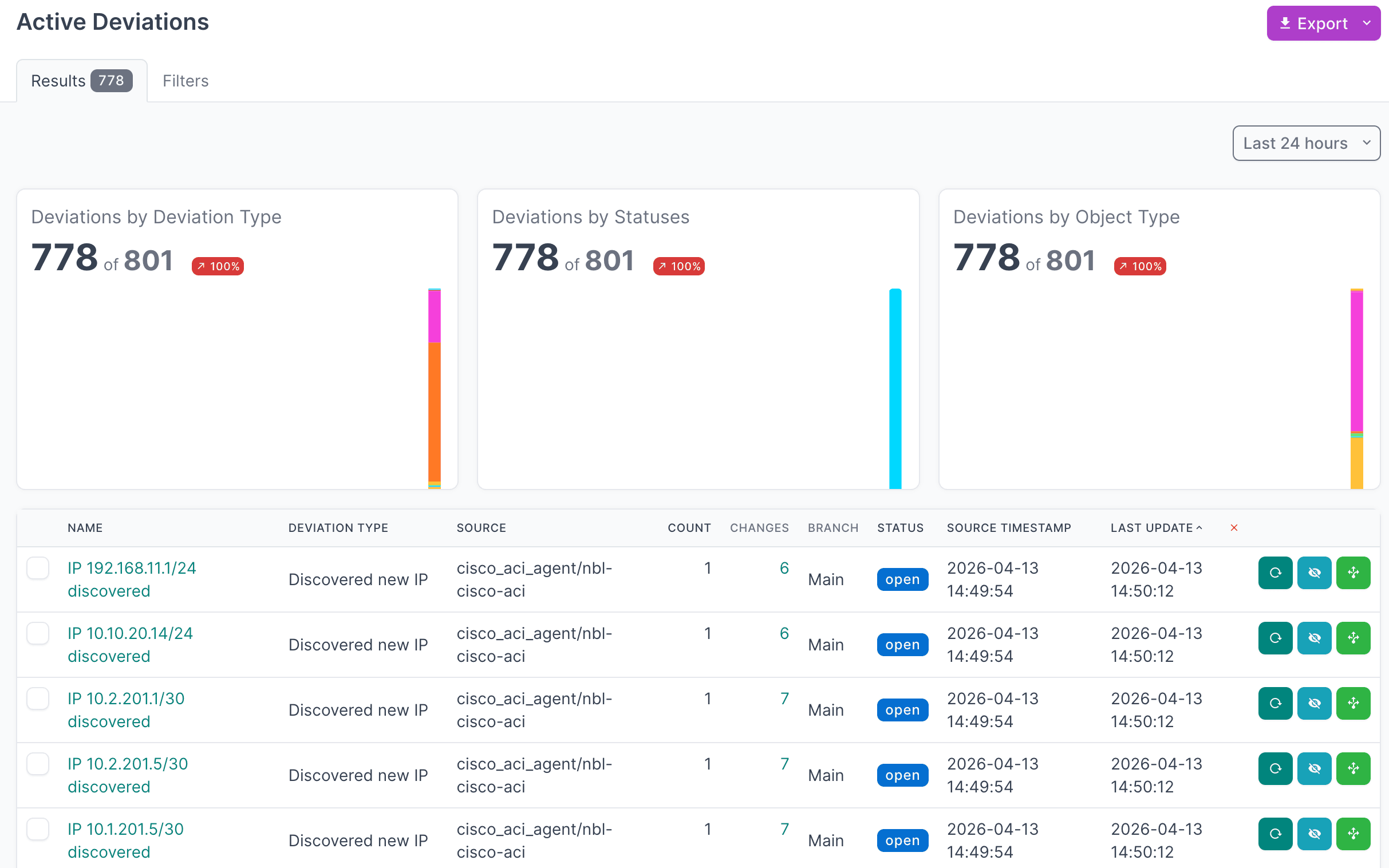
- Click the Name of a deviation to view its details.
Apply Deviations
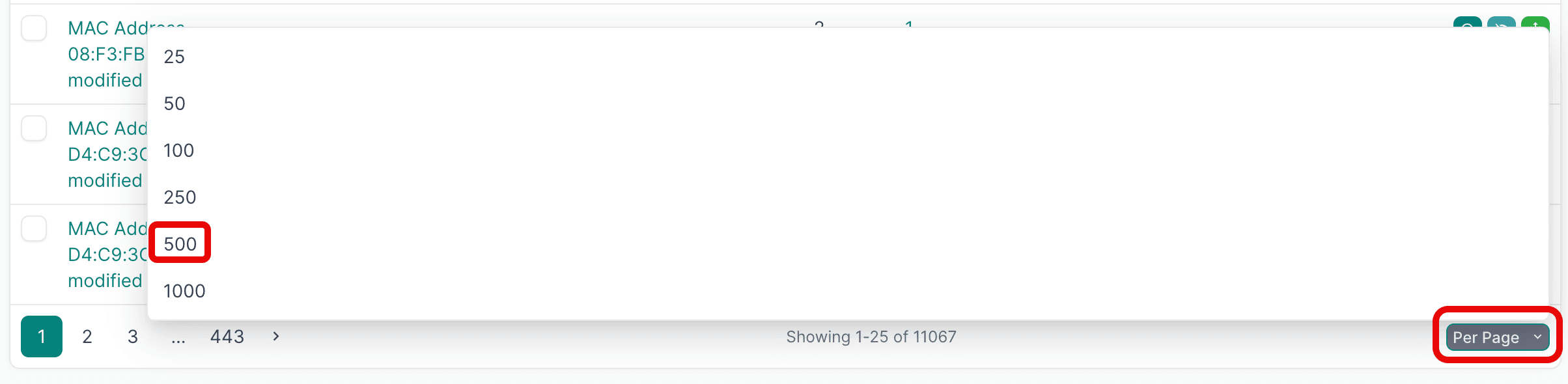
- Select the deviations you want to apply. For large result sets, set Per Page to 500 first.
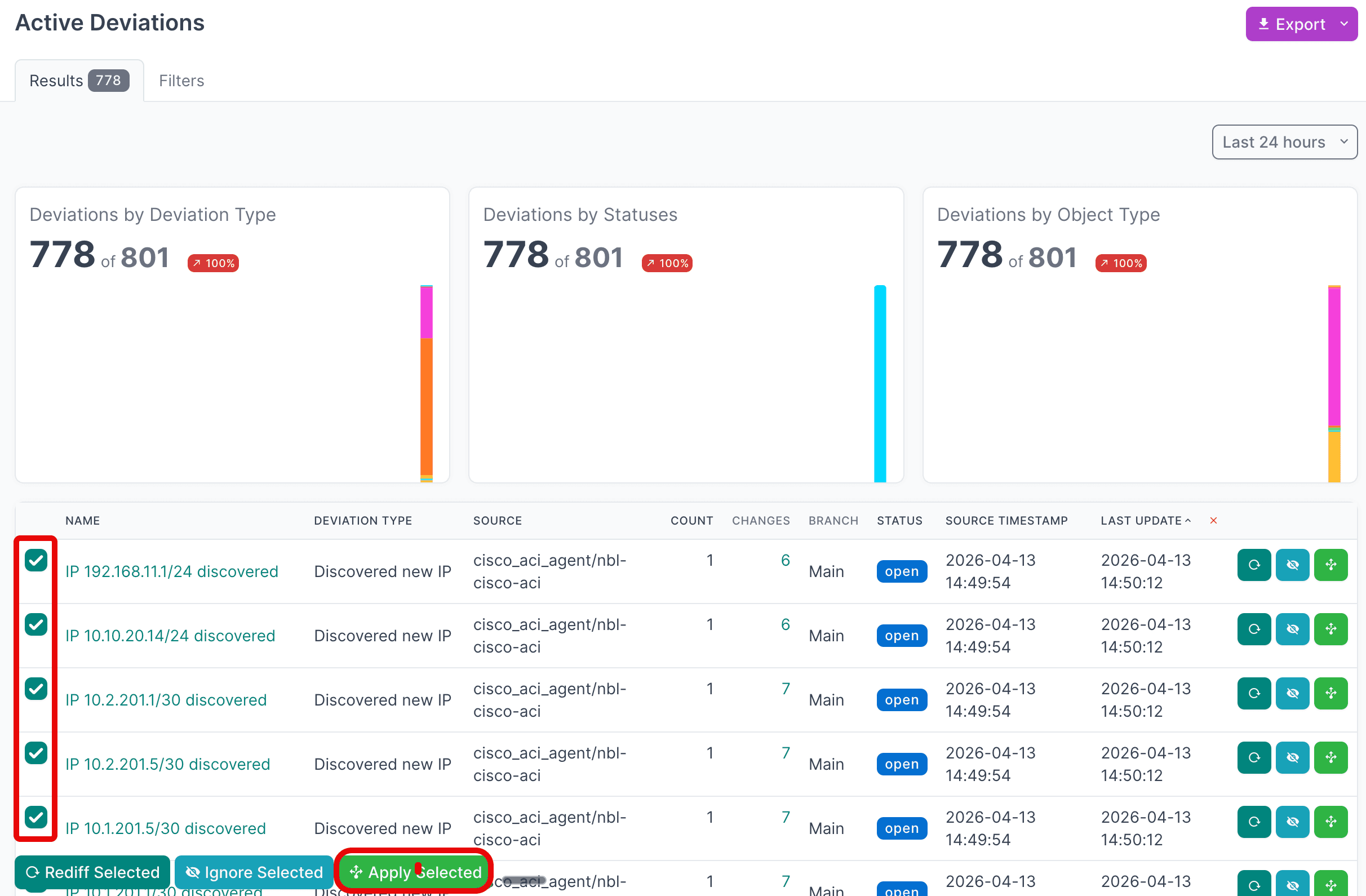
- Select the first deviation, hold
SHIFT, select the last one, then click Apply Selected.
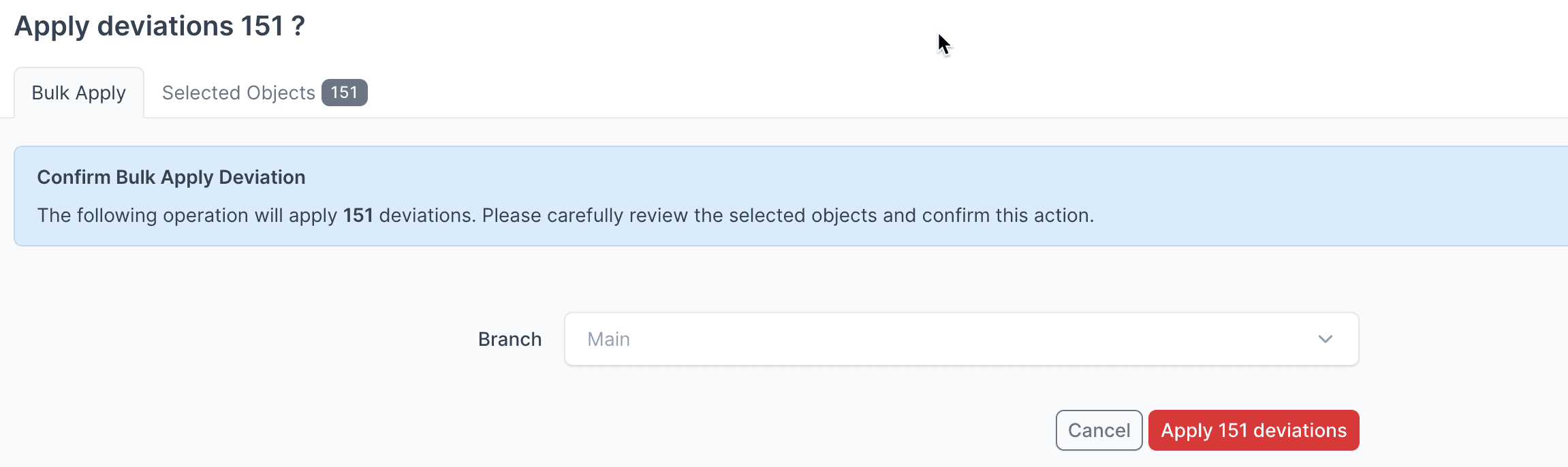
- Click Apply X Deviations to write the data to NetBox.
Apply Deviations to a Branch
Instead of writing deviations to the Main NetBox database branch, select another branch from the drop-down menu to apply deviations to that branch first.
Assurance Docs
For detailed information on working with NetBox Assurance, see the documentation.
View the Tenable Data in NetBox
After running the integration and applying discovered data, you can view the scan results in NetBox:
- Navigate to IPAM → IP Addresses and filter by the
tenabletag to see every address the integration recorded. - Filter by the Tenable Max Severity custom field, for example
critical, to see the addresses whose most severe finding is at that level. - Open an IP address to see its severity and counts in the Tenable custom fields group, and the scans that found it in the description.
Additional Resources
Related Documentation
- NetBox Assurance Documentation
- Orb Agent Documentation
- Tenable Nessus Integration - Technical Information
Support
Email support@netboxlabs.com for support.
Tenable Nessus Integration
Synchronize Tenable Nessus scan results into NetBox via the Diode SDK. Each scanned host is recorded as an IP address with its most severe finding and its vulnerability counts in custom fields. Currently in public preview.
Technical Information
This page describes how Tenable Nessus scan results are mapped to NetBox objects by the integration, and lists every configuration key.