Administration Guide
This guide covers setting up and managing change management for NetBox administrators. For a general overview of the change management workflow, see the Introduction.
Prerequisites
- NetBox Branching must be installed and configured, at a release matching your NetBox version. NetBox will not start if the two are mismatched.
- Familiarity with NetBox's permission system
Permissions
Permission Matrix
The tables below organize permissions into two conceptual roles: Contributor and Admin. These are not built-in objects in NetBox; they represent suggested groupings of permissions that you implement using NetBox's groups and object permissions. For example, you might create a "Change Contributors" group and assign it the permissions listed under the Contributor column.
A Contributor creates branches, submits change requests, reviews others' work, and merges approved changes. An Admin additionally manages policies and system configuration. This approach mirrors a pull request workflow where any team member can both author and review changes.
Your organization may prefer different groupings. For example, you could separate "requester" and "reviewer" into distinct groups for stricter separation of duties, or grant merge permissions only to a subset of contributors. Use the matrix below as a starting point and adjust to fit your needs.
Branch Permissions
These permissions are provided by the NetBox Branching plugin.
| Permission | Contributor | Admin |
|---|---|---|
netbox_branching.view_branch | ✓ | ✓ |
netbox_branching.add_branch | ✓ | ✓ |
netbox_branching.merge_branch | ✓ | ✓ |
netbox_branching.sync_branch | ✓ | ✓ |
Additional branch permissions (migrate_branch, revert_branch, archive_branch) exist for administrative maintenance operations and are typically needed only by admins managing branch lifecycle.
Change Request Permissions
| Permission | Contributor | Admin |
|---|---|---|
netbox_changes.view_changerequest | ✓ | ✓ |
netbox_changes.add_changerequest | ✓ | ✓ |
netbox_changes.change_changerequest | ✓ | ✓ |
netbox_changes.delete_changerequest | ✓ | ✓ |
Review Permissions
| Permission | Contributor | Admin |
|---|---|---|
netbox_changes.view_review | ✓ | ✓ |
netbox_changes.add_review | ✓ | ✓ |
netbox_changes.change_review | ✓ | ✓ |
netbox_changes.delete_review | ✓ | ✓ |
Comment Permissions
| Permission | Contributor | Admin |
|---|---|---|
netbox_changes.view_comment | ✓ | ✓ |
netbox_changes.add_comment | ✓ | ✓ |
netbox_changes.change_comment | ✓ | ✓ |
netbox_changes.delete_comment | ✓ | ✓ |
netbox_changes.view_commentreply | ✓ | ✓ |
netbox_changes.add_commentreply | ✓ | ✓ |
netbox_changes.change_commentreply | ✓ | ✓ |
netbox_changes.delete_commentreply | ✓ | ✓ |
Policy Permissions
| Permission | Contributor | Admin |
|---|---|---|
netbox_changes.view_policy | ✓ | ✓ |
netbox_changes.add_policy | ✓ | |
netbox_changes.change_policy | ✓ | |
netbox_changes.delete_policy | ✓ | |
netbox_changes.view_policyrule | ✓ | ✓ |
netbox_changes.add_policyrule | ✓ | |
netbox_changes.change_policyrule | ✓ | |
netbox_changes.delete_policyrule | ✓ | |
netbox_changes.bypass_policy | Optional |
The bypass_policy permission allows direct changes to main when protect_main is enabled. See Bypass Permission for setup instructions.
Permissions vs. reviewer eligibility
Permissions control whether a user can access the review form. Eligibility determines whether a user's review counts toward satisfying a policy rule.
A user with the add_review permission can submit a review on any change request. However, only reviews from eligible reviewers count toward policy compliance. Eligibility is determined by the policy rule's Reviewer Groups and Reviewers fields, not by NetBox permissions.
A review submitted by an ineligible user will be recorded but will not satisfy any policy rule.
Setting Up Groups
To set up the two roles described above:
- Navigate to Admin > Authentication > Groups
- Create a group for each role (e.g., "Change Contributors", "Change Admins")
- Assign the permissions from the matrix above to each group
- Add users to the appropriate groups
Most team members will be Contributors. Admins are typically a smaller group responsible for defining and maintaining policies.
The system does not inherently prevent a change request owner from reviewing their own change request. If your organization requires independent review, ensure the change request owner is not listed as an eligible reviewer in the applicable policy rules.
Configuring Policies
A policy defines the approval requirements for change requests. Each policy contains one or more rules that must all be satisfied before a change request is considered approved. For a conceptual overview, see Defining a Policy.
Creating a Policy
- Navigate to Plugins > Change Management > Policies
- Click Add
- Enter a name and optional description
- Click Create
After creating the policy, add one or more rules.
Configuring Policy Rules
Each policy rule has three key fields, as shown below:
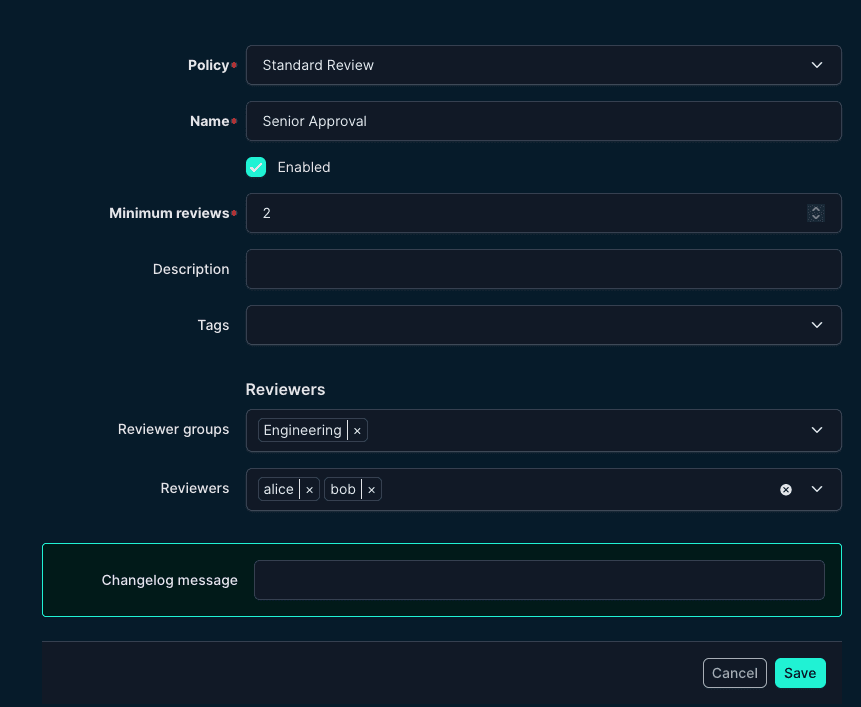
- Minimum Reviews: The number of approvals required to satisfy this rule. Set to zero to make the rule optional. (No reviews will be required.)
- Reviewer Groups: NetBox groups whose members are eligible to satisfy this rule. A user in any of the listed groups qualifies.
- Reviewers: Individual users eligible to satisfy this rule, regardless of group membership.
A user is eligible for a rule if they belong to any of its reviewer groups or are listed as an individual reviewer. A single user can satisfy multiple rules. If a user meets the conditions of both Rule 1 and Rule 2, their approval satisfies both rules.
A policy with no enabled rules can never be satisfied. A rule where the minimum reviews exceeds the total number of eligible reviewers will be flagged in the UI.
Pre-Merge Gate
Merging a branch always requires an associated change request in Approved status. This check is enforced regardless of the protect_main setting. If no approved change request exists for the branch, the merge will be blocked.
Policy Configuration Examples
Single Approval
The simplest policy: any member of the Engineering group can approve.
| Rule | Min. Reviews | Reviewer Groups | Reviewers |
|---|---|---|---|
| Engineering review | 1 | Engineering | - |
Two-Person Rule
Requires two independent approvals from the Engineering group.
| Rule | Min. Reviews | Reviewer Groups | Reviewers |
|---|---|---|---|
| Dual review | 2 | Engineering | - |
Senior Approval Required
Requires approval from both a general engineer and a senior engineer.
| Rule | Min. Reviews | Reviewer Groups | Reviewers |
|---|---|---|---|
| Engineering review | 1 | Engineering | - |
| Senior review | 1 | Senior Engineers | - |
Both rules must be satisfied. Because rules are evaluated independently, a senior engineer who is also a member of the Engineering group can satisfy both rules with a single approval. To require two distinct people, increase the minimum reviews on the first rule to 2.
Tiered Approval by Risk
Create separate policies with different levels of scrutiny. The change request owner selects the appropriate policy when creating their change request.
| Policy | Rules | Use Case |
|---|---|---|
| Standard Change | 1 approval from any engineer | Routine, low-risk changes |
| Significant Change | 2 approvals from engineers | Changes affecting production services |
| Critical Change | 2 engineer approvals + 1 senior approval | Infrastructure or security changes |
Policy selection is manual. The change request owner chooses which policy applies when creating the change request. There is no automatic policy assignment based on the type or scope of changes.
Testing the Workflow
After configuring permissions and policies, verify the setup end-to-end:
- Create a policy with at least one rule (see examples above)
- Verify the policy is satisfiable: check the policy detail view for any warnings about rules that cannot be met
- Enable
protect_mainif desired (see Configuration) - Create a branch and make some changes within it
- Create a change request from the branch view by clicking "Request Review"
- Submit for review by setting the status to "Needs Review"
- Have an eligible reviewer submit an approval (the reviewer must be eligible per the policy rules)
- Verify the change request transitions to Approved once all policy rules are satisfied
- Merge the branch: the merge button appears once the change request is approved
- Verify the change request auto-transitions to Completed after the branch is merged
For details on how the plugin automatically handles stale reviews, approval invalidation, and policy reevaluation, see Automatic Behaviors.
Troubleshooting
Policy Shows as Unsatisfiable
A rule's minimum reviews exceeds the total number of eligible reviewers. Either add more reviewers or groups to the rule, or reduce the minimum reviews count.
Change Request Stuck at "Needs Review"
Possible causes:
- Not enough eligible reviewers have submitted approvals
- Reviews became stale because the branch received new changes after the reviews were submitted. Reviewers need to submit new reviews.
- A reviewer submitted a review with "Comment" status, which does not count as an approval
Change Request Stuck at "Changes Requested"
A reviewer's most recent review has a status of "Changes Requested." This is distinct from "Needs Review." The requester can address the reviewer's feedback and set the status back to "Needs Review" to signal that the change request is ready for another look.
Change Request Was Approved but Now Shows "Needs Review"
When a branch receives new changes after a change request is approved, the status automatically reverts to "Needs Review" to ensure the new changes are also reviewed. The change request must be re-reviewed and re-approved before the branch can be merged.
Cannot Merge Branch (No Approved Change Request)
Every branch merge requires an associated change request in "Approved" status. This is enforced regardless of the protect_main configuration setting. Create a change request for the branch, obtain the required approvals, and then merge.