Getting Started with the Jira Assets Integration for NetBox
This guide walks you through deploying the NetBox-to-Jira Assets sync container, configuring credentials, and running your first sync. For an integration overview, see the Jira Assets Integration page.
- Overview
- Prerequisites
- Host requirements
- Step 1: Authenticate to the container registry
- Step 2: Pull the image
- Step 3: Create your configuration file
- Step 4: Validate schema compatibility (recommended)
- Step 5: Run the sync
- Step 6: Set up scheduled sync (optional)
- What gets synced
- View the data in Jira Assets
- How the sync works
- Configuration reference
- RAM sizing
- Update to a new version
- Additional resources
Overview
The Jira Assets integration syncs NetBox inventory into Jira Service Management Assets. Data flows one way from NetBox to Jira. The container provisions the Jira Assets schema on first run, then creates or updates objects on each subsequent run.
Key features
- 28 object types across core NetBox, virtualization, and netbox-inventory and netbox-lifecycle plugin objects
- Automatic schema provisioning - creates the
NetBoxschema and object types in Jira Assets on first run - Navigable references - parent-child relationships (for example Device → Rack → Site → Region) appear as clickable links in Jira Assets
- Custom field discovery - NetBox custom fields sync as
cf_-prefixed attributes - Incremental sync - unchanged objects are skipped on subsequent runs
- Schema compatibility check - validates Jira Assets metadata before writing data
- VM tag filtering - sync only Virtual Machines that match specific NetBox tag slugs
- Scheduled operation - safe to run from cron or another scheduler
For object mappings, attribute types, and schema design details, see Technical Information. For error diagnosis and common issues, see FAQ and Troubleshooting.
Prerequisites
Before you begin, ensure you have the following:
- Docker installed and running on your host
- NetBox instance with API access (a read-only API token is sufficient)
- Jira Service Management (Cloud) with Assets enabled
- Registry credentials from NetBox Labs (username and token for
quay.io)
Host requirements
- Operating system: Linux, macOS, or Windows with Docker support
- Memory: 1 GB free RAM is sufficient for many deployments; use the RAM sizing spreadsheet for large inventories
- Network: Outbound HTTPS access from the host to your NetBox instance and Jira Cloud
Step 1: Authenticate to the container registry
From your host machine, log in to the NetBox Labs registry using the credentials provided by NetBox Labs:
docker login quay.io
Enter the username and token when prompted.
Step 2: Pull the image
Current release: 1.0.0
docker pull quay.io/netboxlabs/netbox-jira-sync:1.0.0
Step 3: Create your configuration file
Create a file named .env in your working directory:
# Jira Assets
JIRA_URL=https://your-instance.atlassian.net
JIRA_USER=your-email@example.com
JIRA_API_TOKEN=your-jira-api-token

# NetBox
NETBOX_URL=https://your-netbox.example.com
NETBOX_TOKEN=your-netbox-token

# Optional
# NETBOX_PAGE_SIZE=500
# SYNC_ASSETS=Virtual Machine,VM Interface,Virtual Disk
# GRACE_DAYS_BEFORE_STALE_DELETE=7
See Configuration reference for optional variables and CLI flags.
Obtain credentials
Jira API token:
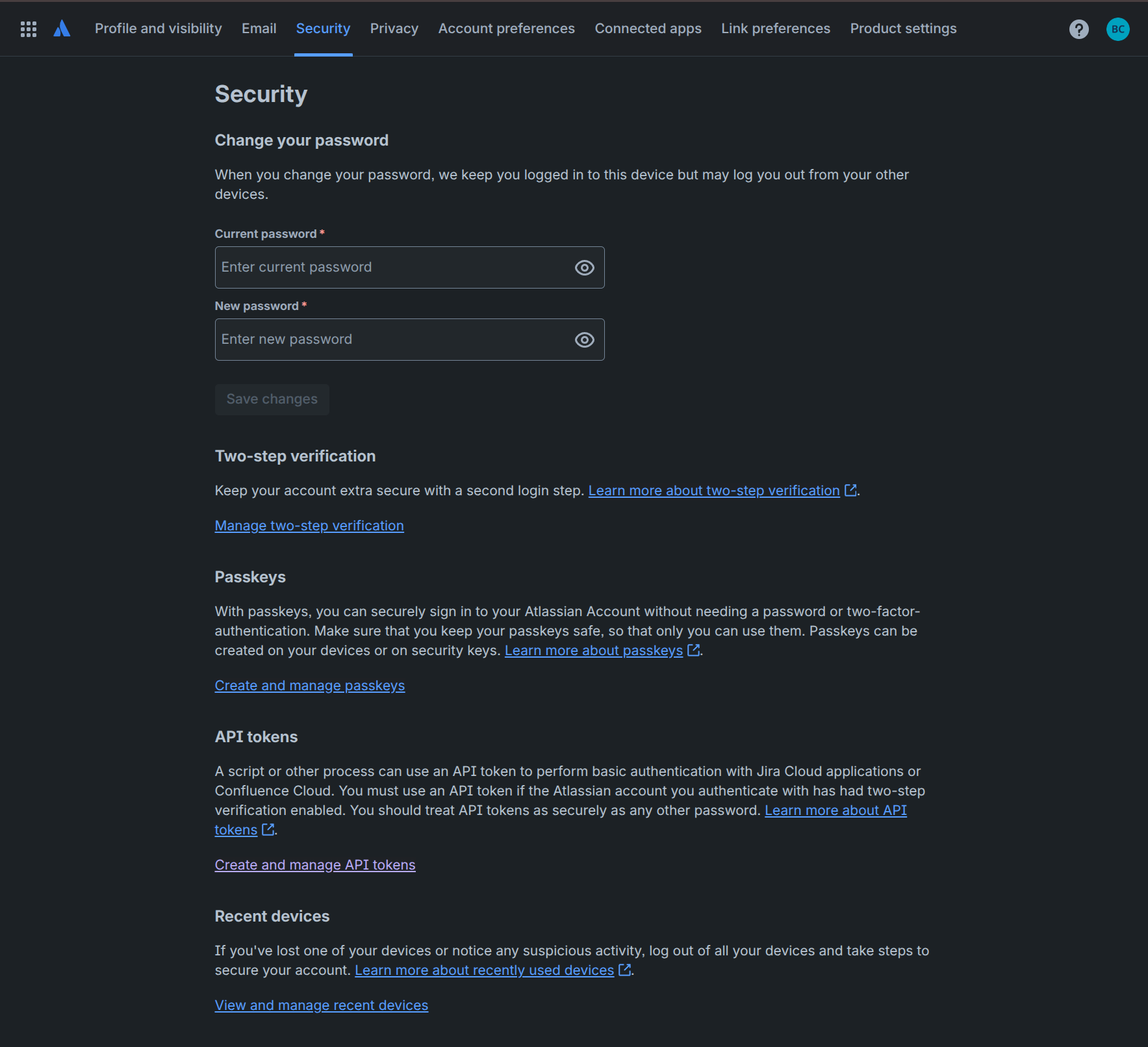
- Open Atlassian account security and select the Security tab.
- Under API tokens, click Create and manage API tokens.
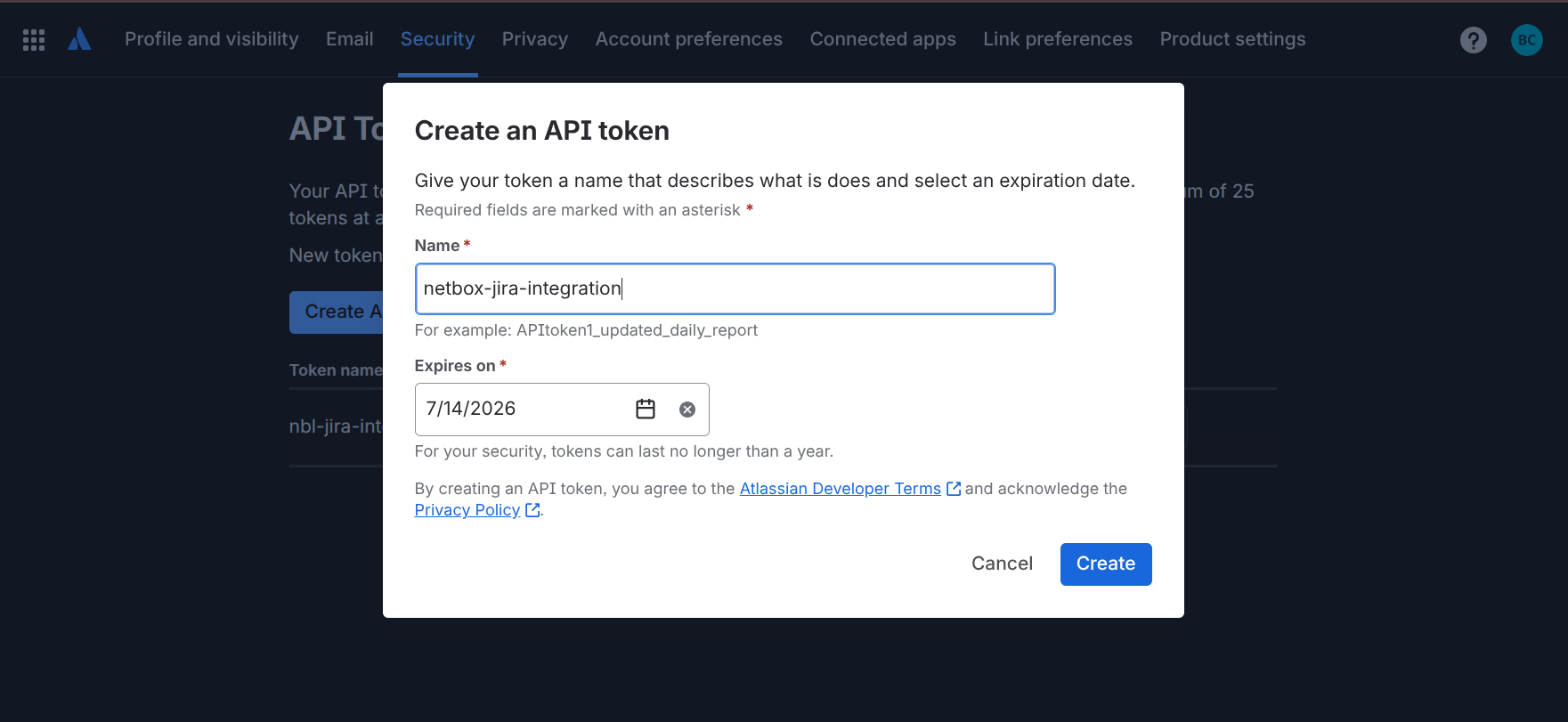
- Click Create API token, enter a name (for example
netbox-jira-integration), set an expiration date, and click Create.
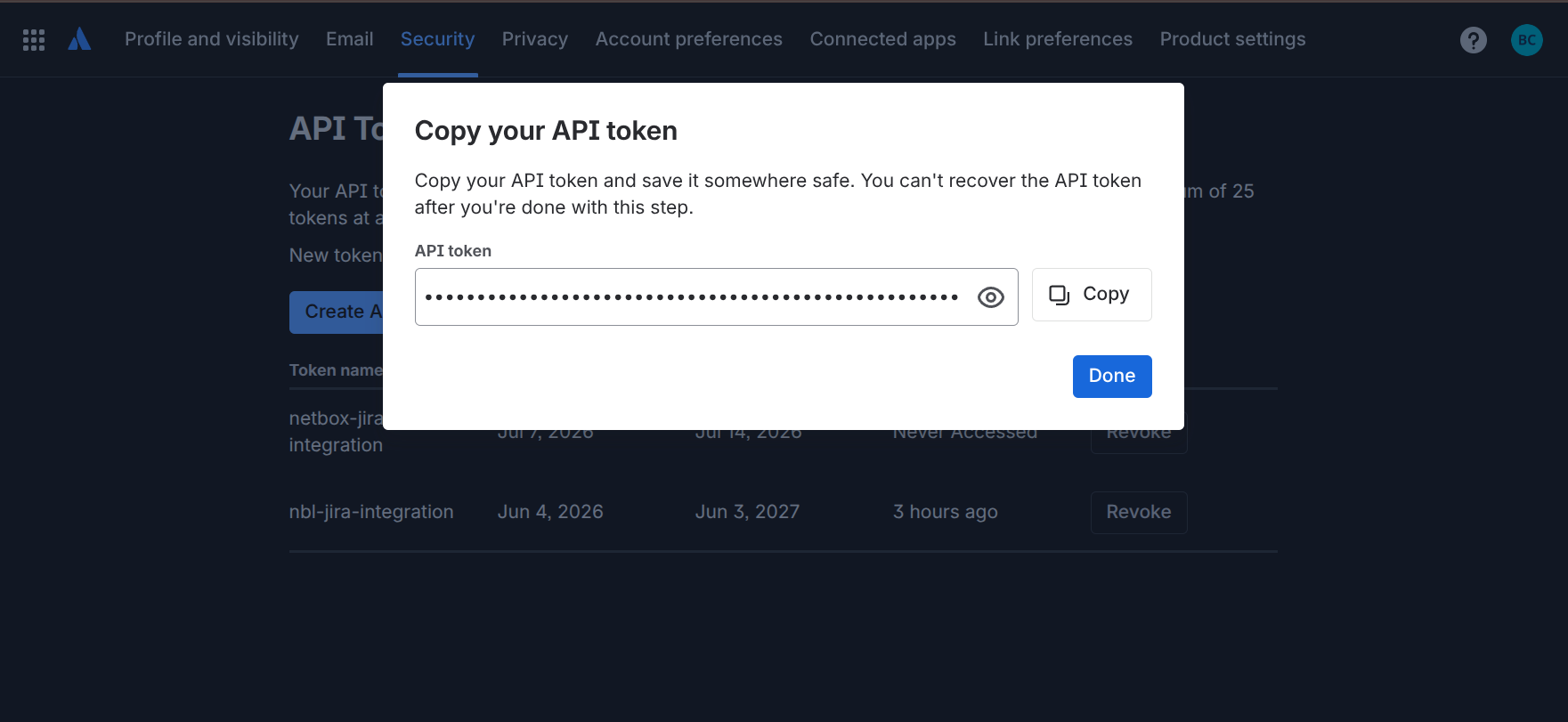
- Copy the token and store it somewhere safe. You cannot recover it after you close the dialog. Paste the value into
JIRA_API_TOKENin your.envfile.
Jira Assets schema: On the first run, the sync tool creates a schema named NetBox in Jira Assets with all 28 object types and their attributes. No manual Jira setup is required. See Step 4: Validate schema compatibility.
NetBox API token:
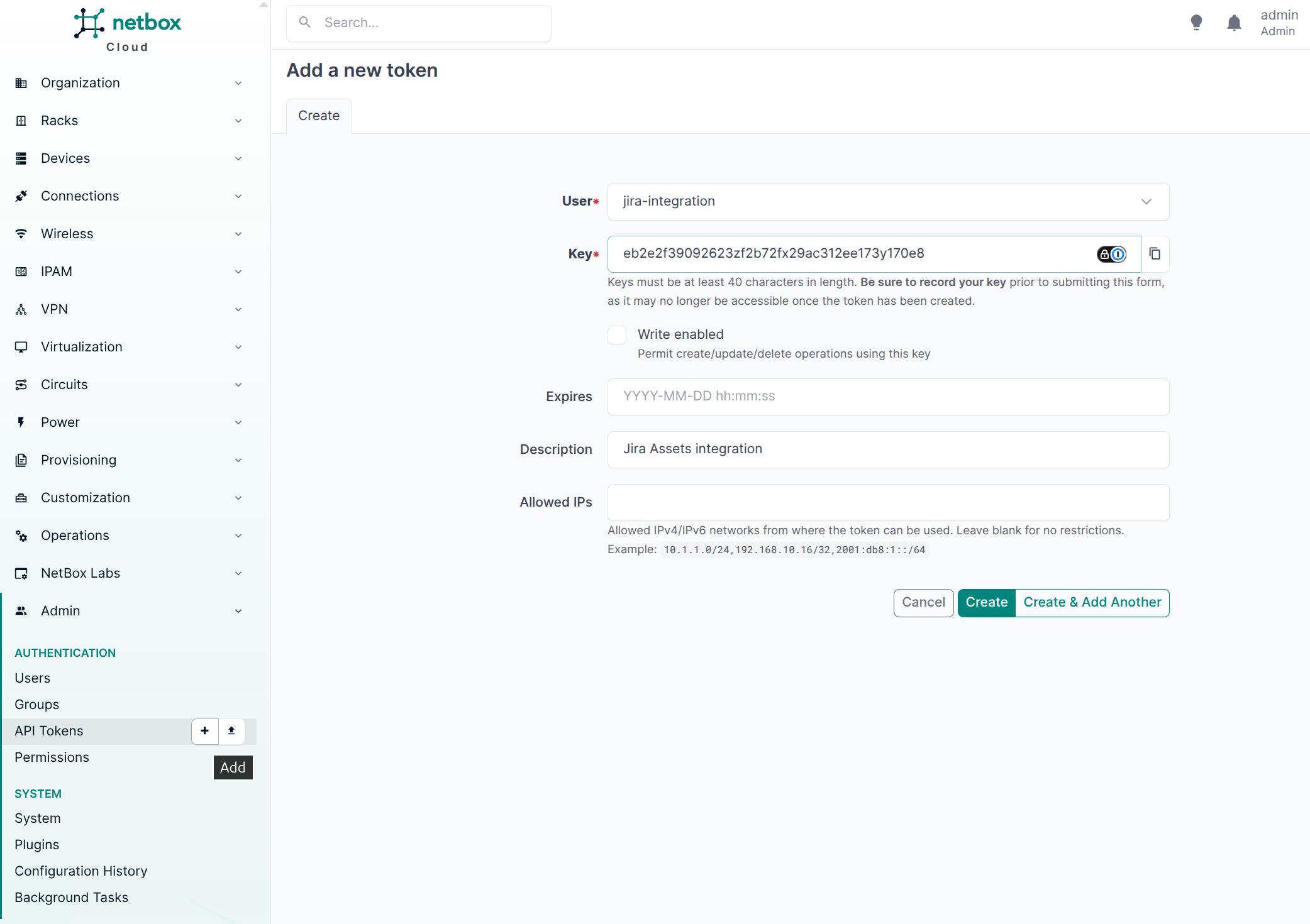
- In NetBox, go to your profile → API Tokens
- Create a new v1 token (read-only access is sufficient). A v1 token is a 40-character hex string and is recommended for maximum compatibility across NetBox versions.
- If your NetBox instance is version 4.5 or later, v2 tokens (
nbt_...format) are also supported. Use the format[key].[token]in the.envfile, where[key]is prefixed withnbt_:
NETBOX_TOKEN=nbt_YourNetBoxV2Key.YourNetBoxV2Token001
Replace all placeholder values with your actual credentials before running the container.
Step 4: Validate schema compatibility (recommended)
Before your first production sync, and after any manual changes to Jira Assets attributes, run a compatibility check.
Thorough check (default with --check)
Samples NetBox objects and validates them against Jira attribute constraints. Use this after schema changes or when investigating warnings from a fast check.
docker run --rm --env-file .env quay.io/netboxlabs/netbox-jira-sync:1.0.0 --check
This provisions the schema (if needed), verifies object type names, the Name label attribute, and every synced attribute match the schema exactly in Jira, compares attribute types against the intended NetBox mappings, and exits without syncing. Exit code 0 means no blocking issues; 1 means errors were found.
Fast check (--no-sample)
Jira metadata only - no NetBox value sampling. Quicker; suitable for routine validation when the schema is stable.
docker run --rm --env-file .env quay.io/netboxlabs/netbox-jira-sync:1.0.0 --check --no-sample
Fast checks still detect type drift, missing attributes, and label or object-type name mismatches. Text-length and required-field issues appear as conservative warnings rather than sampled counts.
During a normal sync
Every sync runs a compatibility check after provisioning and prints which variant is active:
| Situation | Check variant |
|---|---|
| Provisioning created new object types or attributes | Thorough (samples NetBox values) |
| Schema unchanged (all types and attributes already existed) | Fast (metadata only) |
The sync aborts before writing objects if the check reports errors. Warnings are shown but do not block sync.
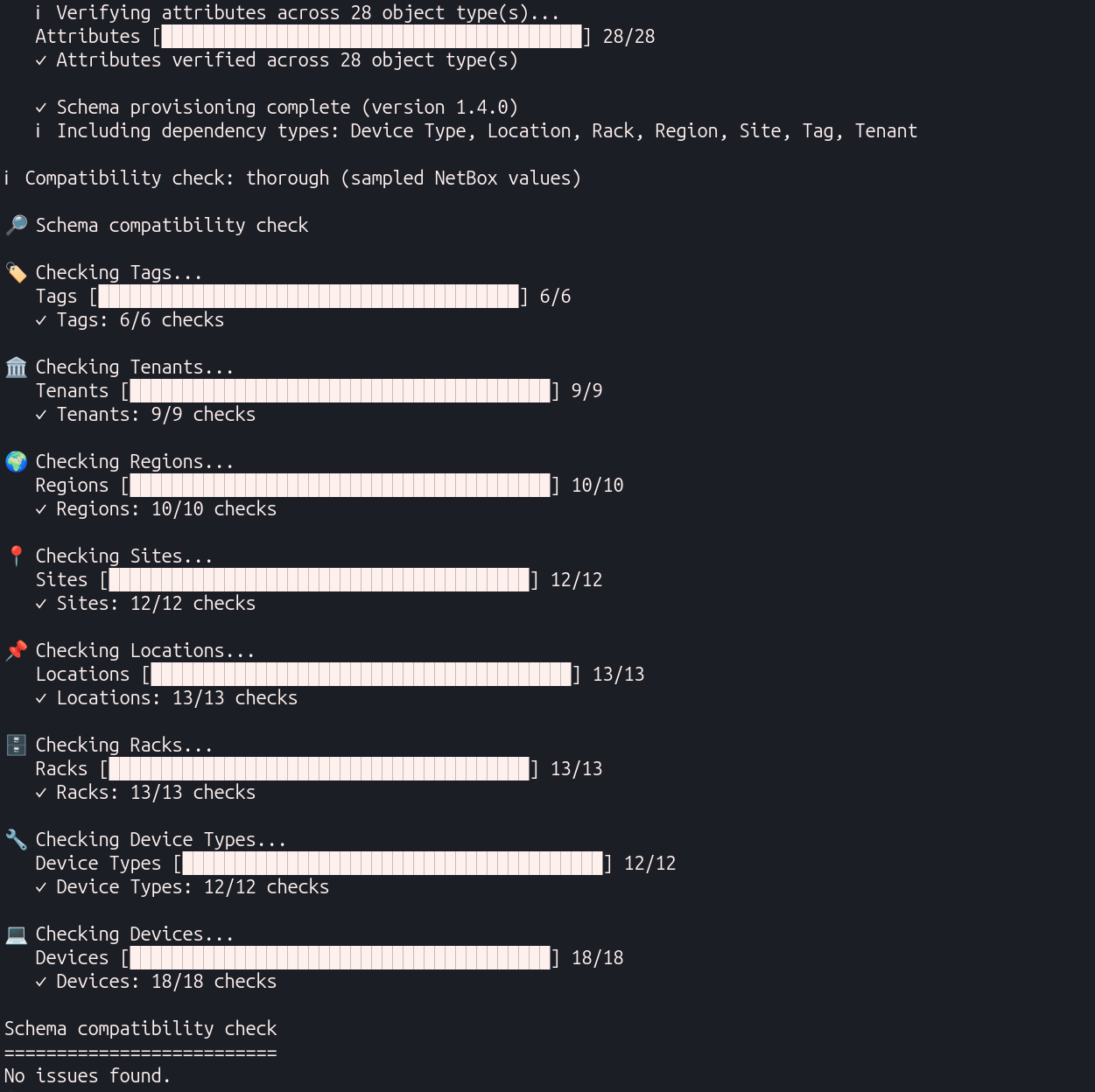
For check variants and matching rules, see Schema compatibility check in Technical Information. For remediation steps when the check fails, see FAQ and Troubleshooting.
Step 5: Run the sync
# Full sync with progress output
docker run --rm --env-file .env quay.io/netboxlabs/netbox-jira-sync:1.0.0

# Quiet mode (for cron jobs and automation)
docker run --rm --env-file .env quay.io/netboxlabs/netbox-jira-sync:1.0.0 --quiet

# Print error details after sync, regrouped by error type
docker run --rm --env-file .env quay.io/netboxlabs/netbox-jira-sync:1.0.0 --verbose

# Quiet cron run with error details on failure
docker run --rm --env-file .env quay.io/netboxlabs/netbox-jira-sync:1.0.0 --quiet --verbose

# Only sync VMs with specific tags
docker run --rm --env-file .env quay.io/netboxlabs/netbox-jira-sync:1.0.0 --vm-tags production,critical

# Only sync specific object types (dependencies added automatically)
docker run --rm --env-file .env \
  -e SYNC_ASSETS="Virtual Machine,VM Interface,Virtual Disk" \
  quay.io/netboxlabs/netbox-jira-sync:1.0.0
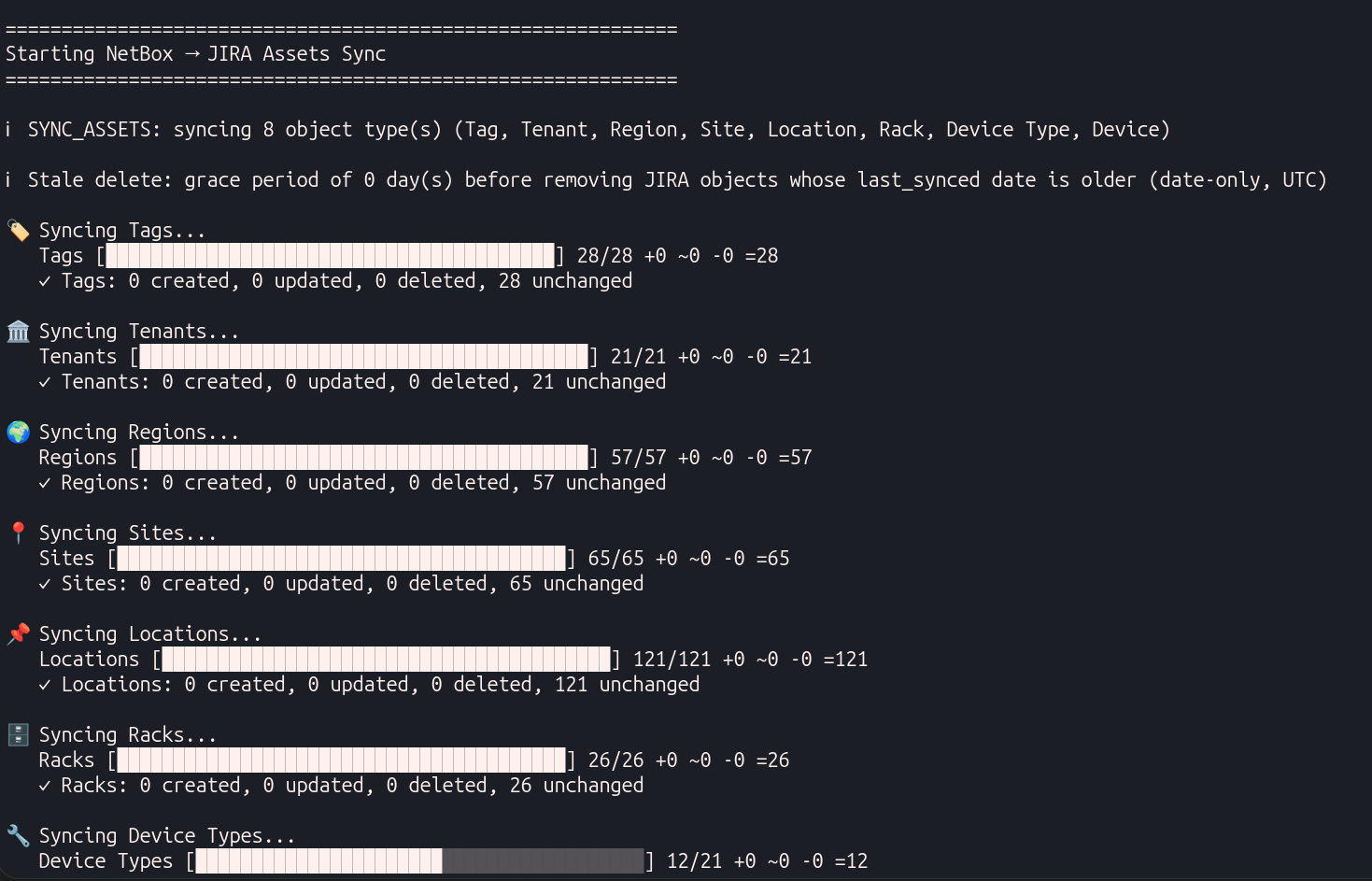
Run the sync once and review the output before scheduling it. Press Ctrl+C once to stop after the current object finishes; press again to force quit. If the summary reports errors without detail, re-run with --verbose. See CLI flags and FAQ and Troubleshooting.
Step 6: Set up scheduled sync (optional)
Add a cron job to sync on a schedule:
# Sync every hour
0 * * * * docker run --rm --env-file /path/to/.env quay.io/netboxlabs/netbox-jira-sync:1.0.0 --quiet >> /var/log/netbox-sync.log 2>&1
Use --quiet for scheduled runs. Add --verbose if you want grouped error details written to the log when failures occur.
What gets synced
The sync creates and maintains 28 object types in Jira Assets:
| Category | Object types |
|---|---|
| Core | Tag, Tenant, Region, Site, Location, Rack, Device Type, Device, Interface, IP Address |
| Virtualization | Cluster Type, Cluster Group, Cluster, Config Context, Virtual Machine, VM Interface, Virtual Disk |
| netbox-inventory plugin | Supplier, Purchase, Delivery, Inventory Asset |
| netbox-lifecycle plugin | Vendor, Support SKU, Support Contract, Support Contract Assignment, Hardware Lifecycle, License, License Assignment |
Relationships between objects are preserved as clickable links in Jira Assets. NetBox custom fields sync as cf_-prefixed attributes. Use SYNC_CF_EXCLUDE to skip fields that should not be written from NetBox, or SYNC_CF_INCLUDE to sync only specific fields. See the object type mapping table in Technical Information for NetBox source models and key fields.
View the data in Jira Assets
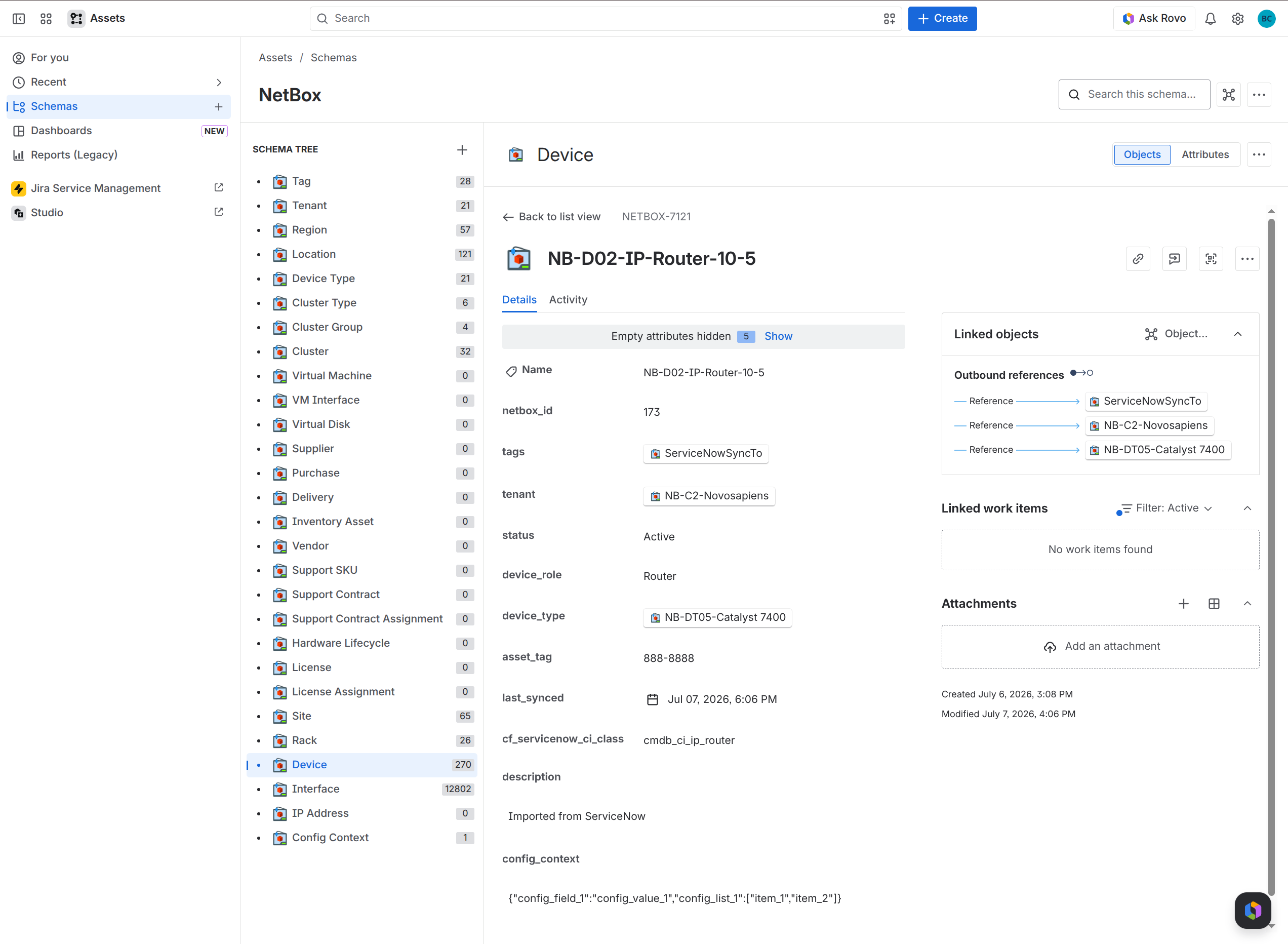
After the sync completes, open Jira Assets to review the synced inventory.
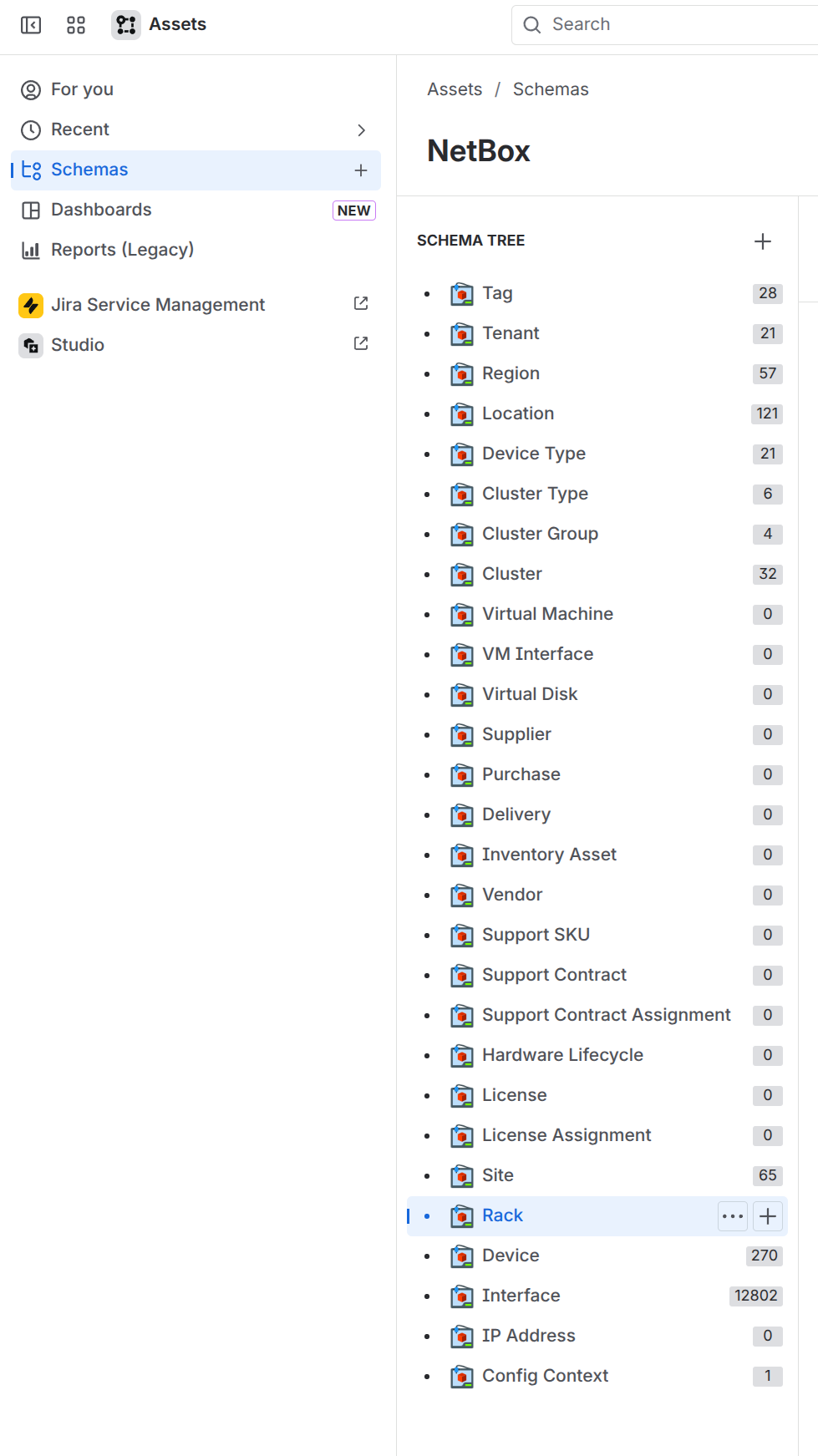
- In Jira, go to Assets and open the NetBox schema to see the object types created by the sync.
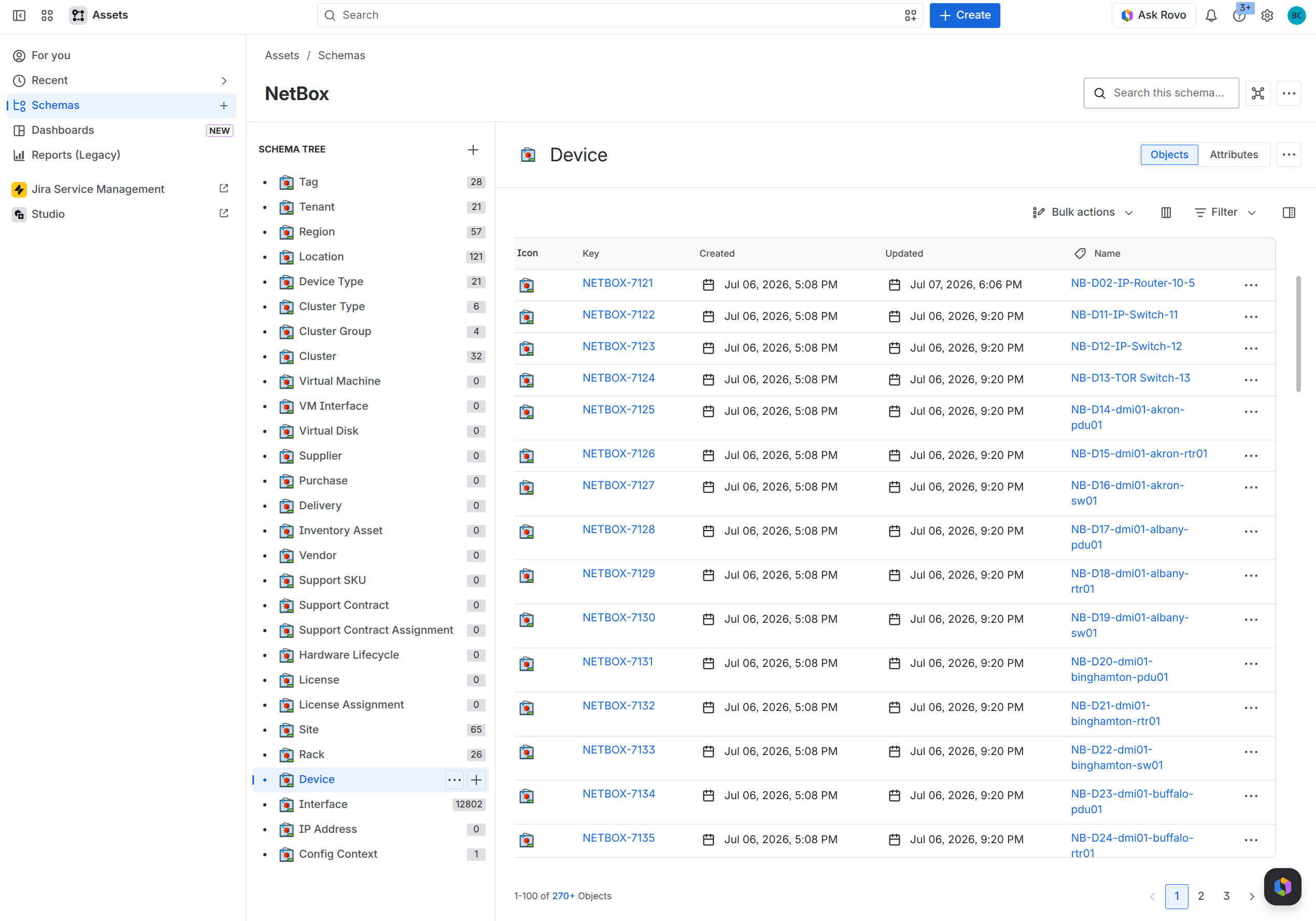
- Open an object type such as Device to view synced objects and their attributes.
- Open a single object to see its attributes and navigable references (for example Device → Rack → Site → Region).
How the sync works
- First run: Creates the full schema in Jira Assets (object types, attributes, references), runs a thorough compatibility check, then syncs all data. This run takes the longest.
- Subsequent runs: Runs a fast compatibility check when the schema is unchanged, then creates or updates only objects that have changed. Unchanged objects are skipped.
- Schema changes: If a run provisions new object types or attributes, the compatibility check is thorough again for that run.
- Idempotent: Safe to run repeatedly or on a schedule. Will not create duplicates.
- One-way: Data flows from NetBox to Jira only. Manual changes in Jira Assets are overwritten on the next sync. See Sync behavior.
- Retired assets: Set
GRACE_DAYS_BEFORE_STALE_DELETEto delete Jira objects whoselast_syncedcalendar date (UTC) is older than the threshold after each object type syncs. When unset, no automatic deletion occurs. See FAQ and Troubleshooting. - NetBox fetch: Data loads from NetBox in paginated chunks (see
NETBOX_PAGE_SIZE) with retries on transient connection errors.
For the full sync pipeline, see Sync behavior in Technical Information.
Configuration reference
This section covers the settings you need to run the container. For parameter semantics, attribute-type implications, and sync-order effects, see Configuration parameters in Technical Information.
Required environment variables
| Variable | Description |
|---|---|
JIRA_URL | Jira Cloud base URL |
JIRA_USER | Jira account email |
JIRA_API_TOKEN | Jira API token |
NETBOX_URL | NetBox base URL |
NETBOX_TOKEN | NetBox API token (v1 hex or v2 nbt_...) |
Optional environment variables
| Variable | Description |
|---|---|
NETBOX_PAGE_SIZE | Objects per NetBox API page when fetching data (1-1000, default 500) |
SYNC_ASSETS | Comma-separated list of object type names to sync (default: all types). Required reference types are included automatically. |
SYNC_CF_INCLUDE | Comma-separated custom fields to sync (allowlist). Applied before exclude. |
SYNC_CF_EXCLUDE | Comma-separated custom fields to skip (denylist). Excluded fields are never sent to Jira. |
GRACE_DAYS_BEFORE_STALE_DELETE | Grace period in days before stale Jira objects are deleted after each object type syncs. Unset = disabled. See FAQ and Troubleshooting. |
CLI flags
Pass these after the image name in docker run:
| Flag | Description |
|---|---|
--quiet / -q | Disable the live progress bar. Suitable for cron and log files. |
--verbose / -v | After sync completes, print a grouped error summary with root cause, object count, and sample names. |
--check | Validate schema compatibility and exit without syncing. Default is the thorough check. Exit code 1 if errors are found. |
--no-sample | With --check, run the fast check (Jira metadata only). |
--vm-tags TAGS | Comma-separated NetBox tag slugs. Only Virtual Machines with at least one matching tag are synced. |
Flags can be combined, for example --quiet --verbose for automation with error details at the end.
Limit sync to specific object types
Set SYNC_ASSETS to a comma-separated list of object type names. Names are case-insensitive. Schema provisioning still creates all object types defined in the image; only the data sync step is filtered.
SYNC_ASSETS=Virtual Machine,VM Interface,Virtual Disk
Invalid names cause the sync to exit with a list of allowed types. See SYNC_ASSETS object type names in Technical Information.
Filter custom fields
By default, every NetBox custom field discovered for a synced object type is written to Jira. To skip fields NetBox is not the source of truth for (for example a Jira-managed backlink):
SYNC_CF_EXCLUDE=jiraid
SYNC_CF_EXCLUDE=cf_servicenow*
SYNC_CF_EXCLUDE=*servicenow
SYNC_CF_EXCLUDE=*servicenow,!Device
SYNC_CF_EXCLUDE=*servicenow,!*location
SYNC_CF_EXCLUDE=cf_servicenow*,!cf_servicenow_prod*
To sync only specific custom fields:
SYNC_CF_INCLUDE=cf_deployment_date,Device:cf_vendor
SYNC_CF_INCLUDE=cf_servicenow*
Wildcards:
cf_prefix*matches field names that start withcf_prefix*substringmatches field names that containsubstring- The
cf_prefix is optional on literal names and prefix patterns
Object-type scoping uses the same names as SYNC_ASSETS (case-insensitive). Prefix a field pattern with the object type and a colon, for example Device:cf_vendor or Site:*Montana.
Exceptions in SYNC_CF_EXCLUDE: Entries starting with ! exempt matches from all exclude rules in the same value:
!Deviceexempts an object type!*locationexempts fields whose name containslocation!cf_servicenow_prod*exempts fields that start withcf_servicenow_prod
Use !Device or !*location as their own comma-separated entries, not as a scope prefix (for example, not Site:!Device:cf_jiraid).
Evaluation order: SYNC_CF_INCLUDE is applied first (when set), then SYNC_CF_EXCLUDE. Within one variable, entries are comma-separated.
| Goal | What to set | Example |
|---|---|---|
| Include everything except specific fields | SYNC_CF_EXCLUDE only | SYNC_CF_EXCLUDE=jiraid skips one field; SYNC_CF_EXCLUDE=*datacenter skips any field whose name contains datacenter |
| Exclude everything except specific fields | SYNC_CF_INCLUDE only | SYNC_CF_INCLUDE=cf_vendor,Site:cf_cost_center syncs only those fields; SYNC_CF_INCLUDE=cf_integration* syncs only fields that start with cf_integration |
| Include a prefix except names containing a substring | Both include and exclude | SYNC_CF_INCLUDE=cf_servicenow* and SYNC_CF_EXCLUDE=*_uat syncs cf_servicenow* fields except names containing _uat |
| Exclude a match except on specific types or fields | SYNC_CF_EXCLUDE with ! exceptions | SYNC_CF_EXCLUDE=*allocation,!Device skips fields containing allocation except on Device; SYNC_CF_EXCLUDE=cf_datacenter*,!cf_datacenter_prod* skips fields starting with cf_datacenter except those starting with cf_datacenter_prod |
Invalid object type names cause the sync to exit with a list of allowed types. For NetBox custom field type mapping and schema drift behavior, see Custom fields in Technical Information.
VM tag filtering
Use --vm-tags with comma-separated NetBox tag slugs to sync only matching Virtual Machines:
docker run --rm --env-file .env quay.io/netboxlabs/netbox-jira-sync:1.0.0 --vm-tags production,critical
VM Interfaces and Virtual Disks belonging to excluded VMs are skipped. All other object types sync in full unless SYNC_ASSETS restricts them.
RAM sizing
The Docker image includes a spreadsheet at /app/RAMCalculation.xlsx to help size the host running the sync container. Use it when object counts are large or when Devices and Virtual Machines carry substantial config-context JSON from NetBox.
Extract the spreadsheet from the image:
docker run --rm --entrypoint cat quay.io/netboxlabs/netbox-jira-sync:1.0.0 /app/RAMCalculation.xlsx > RAMCalculation.xlsx
Enter object counts per type, adjust config-context size assumptions for Device, Virtual Machine, and Config Context rows, then read the estimated peak working set. Validate on site with docker stats during a full sync.
Update to a new version
When a new version is released, pull the updated image:
docker pull quay.io/netboxlabs/netbox-jira-sync:1.0.0
Pin to a specific version tag in production rather than using :latest.
Additional resources
Related documentation
Support
Contact your NetBox Labs Solutions Engineer or Account Executive, or email support@netboxlabs.com.